> ## Documentation Index
> Fetch the complete documentation index at: https://docs.apricotsurvey.com/llms.txt
> Use this file to discover all available pages before exploring further.
# Connect ActiveCampaign Integration
Connect Apricot with **ActiveCampaign** to send survey respondents to your ActiveCampaign list and use survey data in your marketing workflows.
## Connect Apricot to ActiveCampaign
First, connect your ActiveCampaign account to Apricot using your **API Access URL** and **API Access Key**. To do that, please follow the steps below.
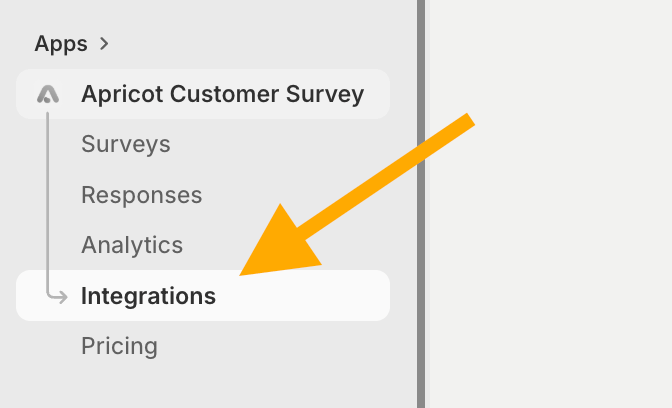
From the **Apricot Customer Survey** submenu, go to **Integrations.**
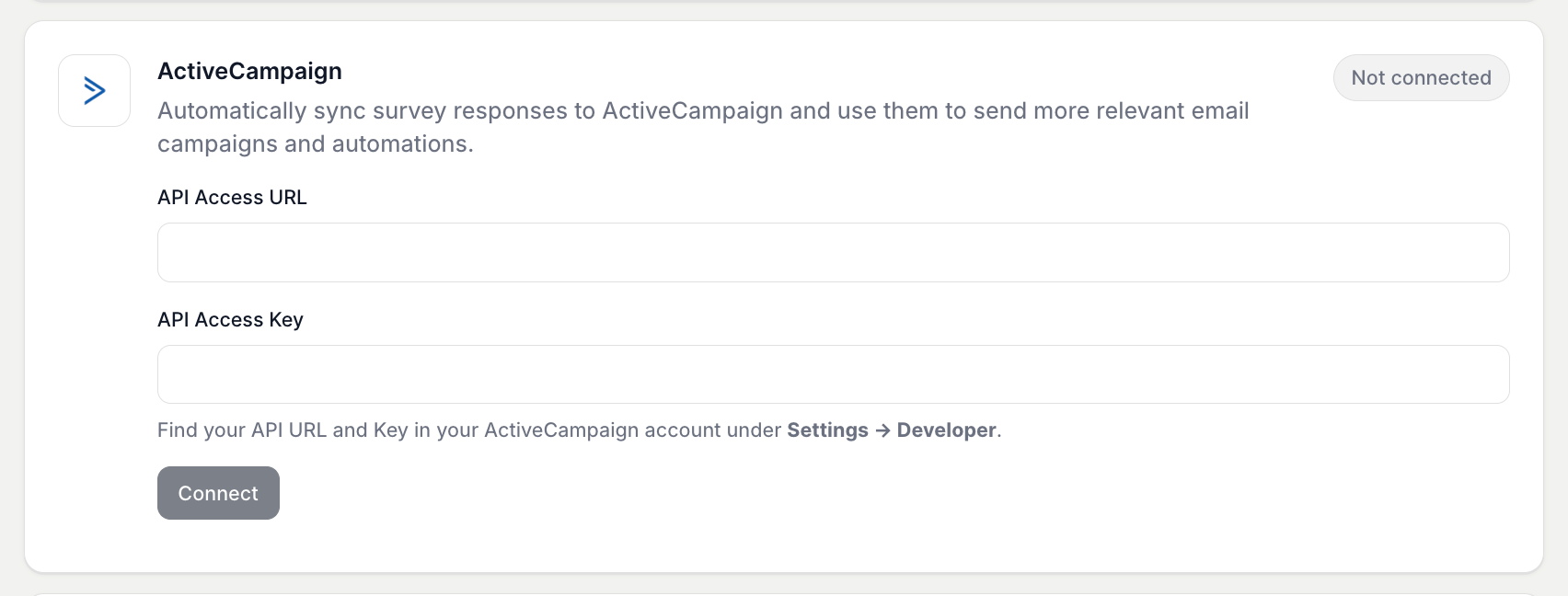
 Find **ActiveCampaign** in the integrations list.
 [Log in](https://www.activecampaign.com/login) to your **ActiveCampaign** account, or create a new account if you don't have one yet.
Go to **Settings → Developer**.
[Log in](https://www.activecampaign.com/login) to your **ActiveCampaign** account, or create a new account if you don't have one yet.
Go to **Settings → Developer**.
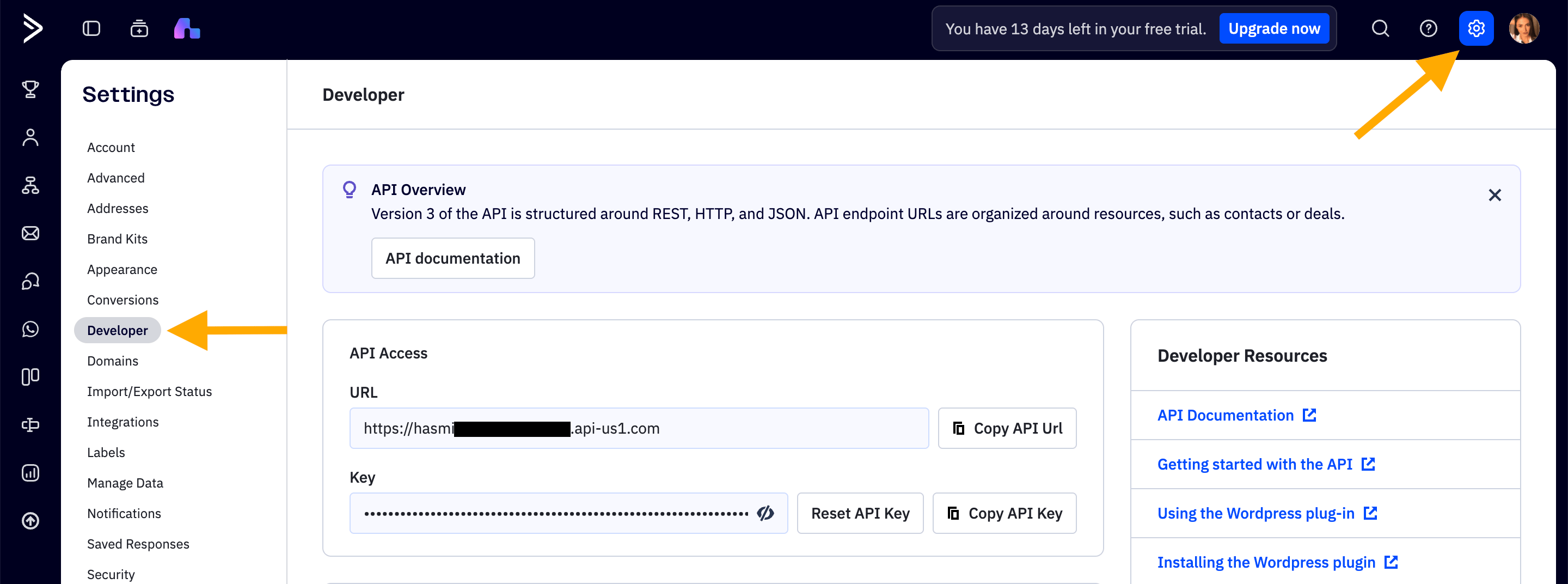 Under **API Access**, find your **API URL** and copy it.
Return to Apricot and paste it into the **API Access URL** field.
From the same **Settings → Developer** page, find the **API Access Key** under **API Access.**
Copy the key and return to Apricot.
Paste it into the **API Access Key** field.
After entering your API Access URL and API Access Key, click **Connect**.
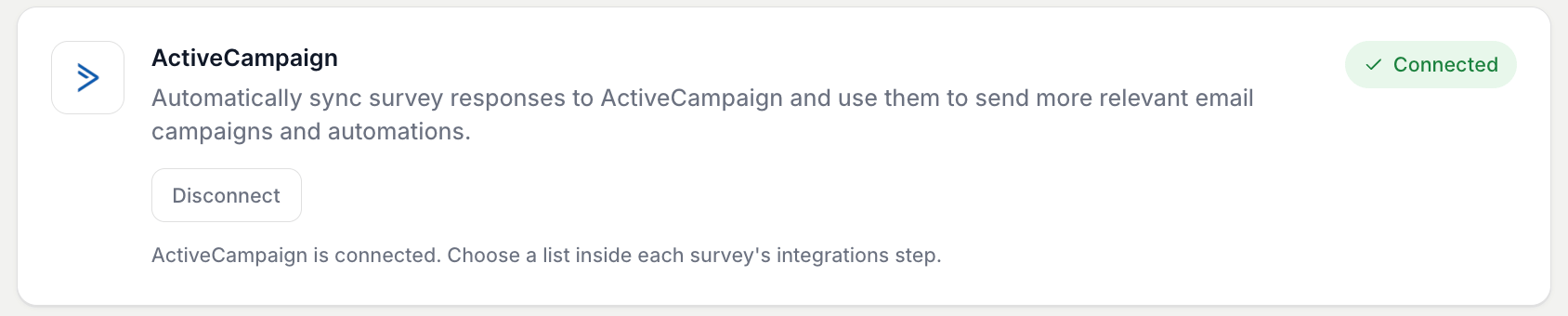
Once the connection is successful, a **green Connected badge** will appear, confirming that your ActiveCampaign account is connected to Apricot.
Under **API Access**, find your **API URL** and copy it.
Return to Apricot and paste it into the **API Access URL** field.
From the same **Settings → Developer** page, find the **API Access Key** under **API Access.**
Copy the key and return to Apricot.
Paste it into the **API Access Key** field.
After entering your API Access URL and API Access Key, click **Connect**.
Once the connection is successful, a **green Connected badge** will appear, confirming that your ActiveCampaign account is connected to Apricot.
 ## Activate ActiveCampaign for a Survey
After connecting ActiveCampaign to Apricot, select the list you want to use for each survey.
Go to:
**Apricot Dashboard → Surveys → Select your survey → Edit → Integrations**
## Activate ActiveCampaign for a Survey
After connecting ActiveCampaign to Apricot, select the list you want to use for each survey.
Go to:
**Apricot Dashboard → Surveys → Select your survey → Edit → Integrations**
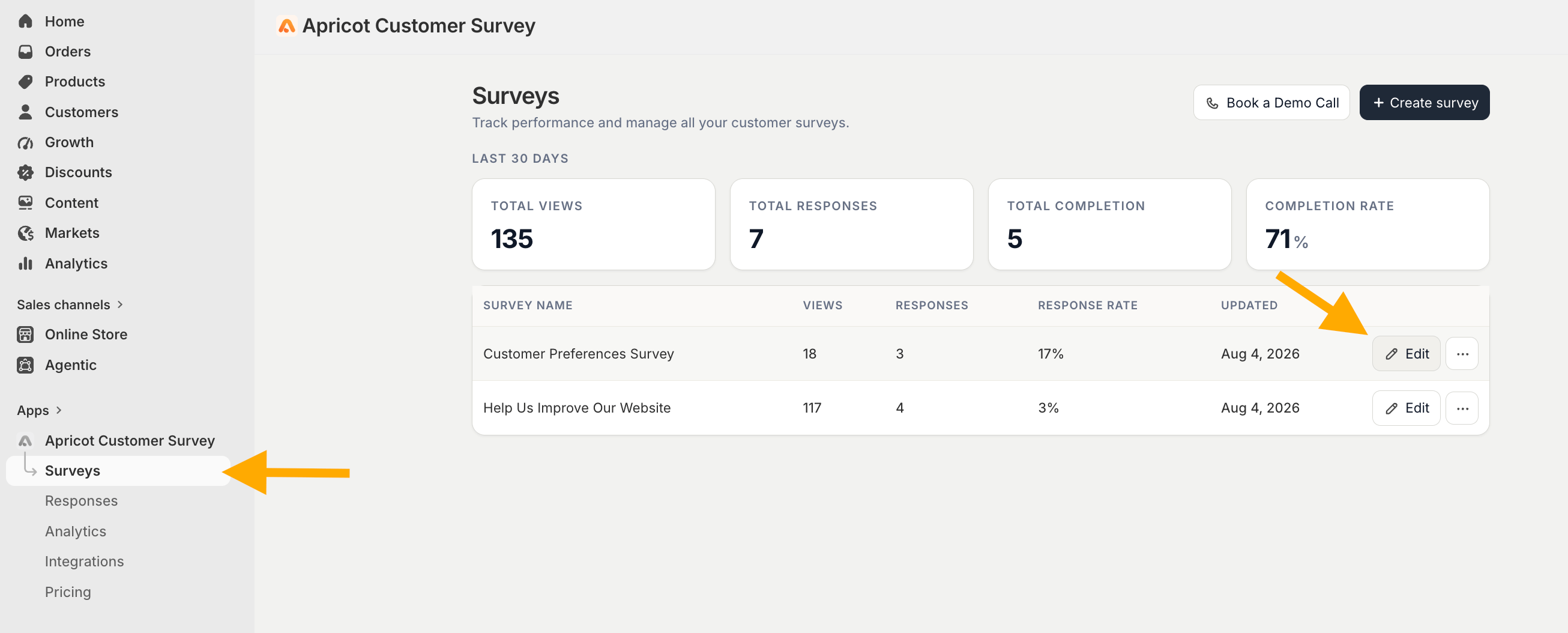 Find **ActiveCampaign** in the integrations list.
Select the **List** where you want to add respondents from this survey.
Find **ActiveCampaign** in the integrations list.
Select the **List** where you want to add respondents from this survey.
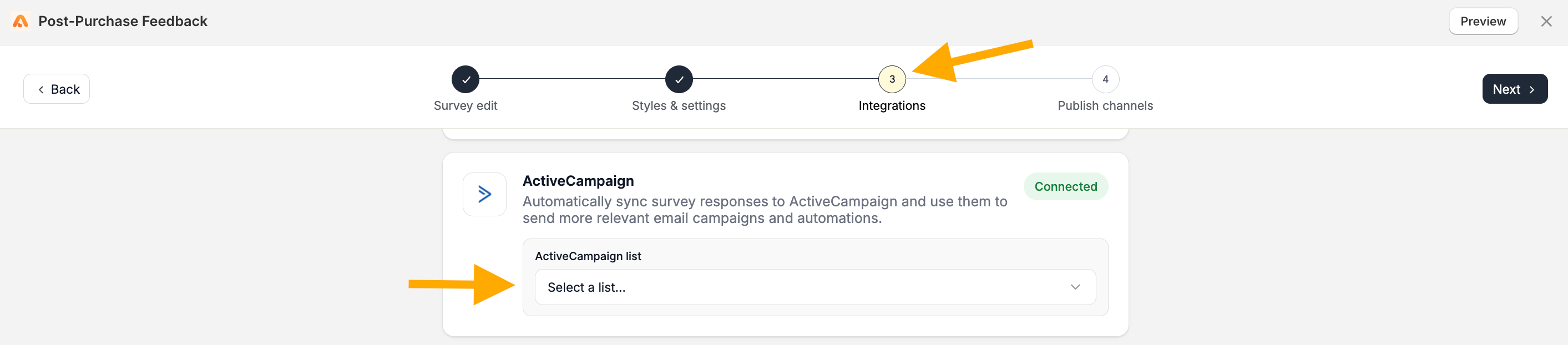 **Save** your changes to activate ActiveCampaign for the survey.
Connecting ActiveCampaign to Apricot does not automatically enable it for every survey. You need to **select an ActiveCampaign list separately for each survey** you want to connect.
This documentation is built and hosted on [Mintlify](https://mintlify.com), a developer documentation platform.
**Save** your changes to activate ActiveCampaign for the survey.
Connecting ActiveCampaign to Apricot does not automatically enable it for every survey. You need to **select an ActiveCampaign list separately for each survey** you want to connect.
This documentation is built and hosted on [Mintlify](https://mintlify.com), a developer documentation platform.