> ## Documentation Index
> Fetch the complete documentation index at: https://docs.apricotsurvey.com/llms.txt
> Use this file to discover all available pages before exploring further.
# Connect Brevo Integration
Connect Apricot with **Brevo** to send survey respondents to your Brevo list and use survey data in your marketing workflows.
## Connect Apricot to Brevo
First, connect your Brevo account to Apricot using your **Brevo API Key.** To do that, please follow the steps below.
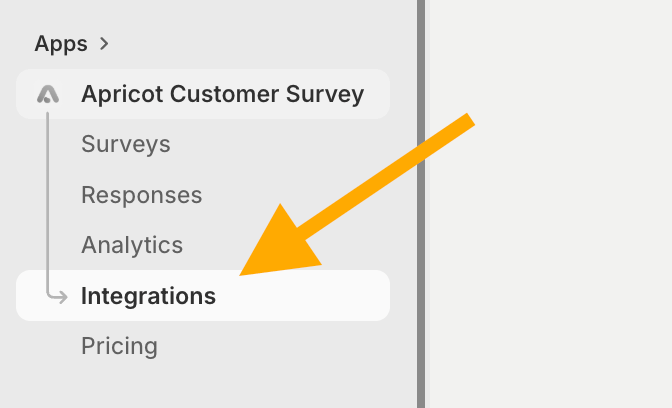
From the **Apricot Customer Survey** submenu, go to **Integrations**.
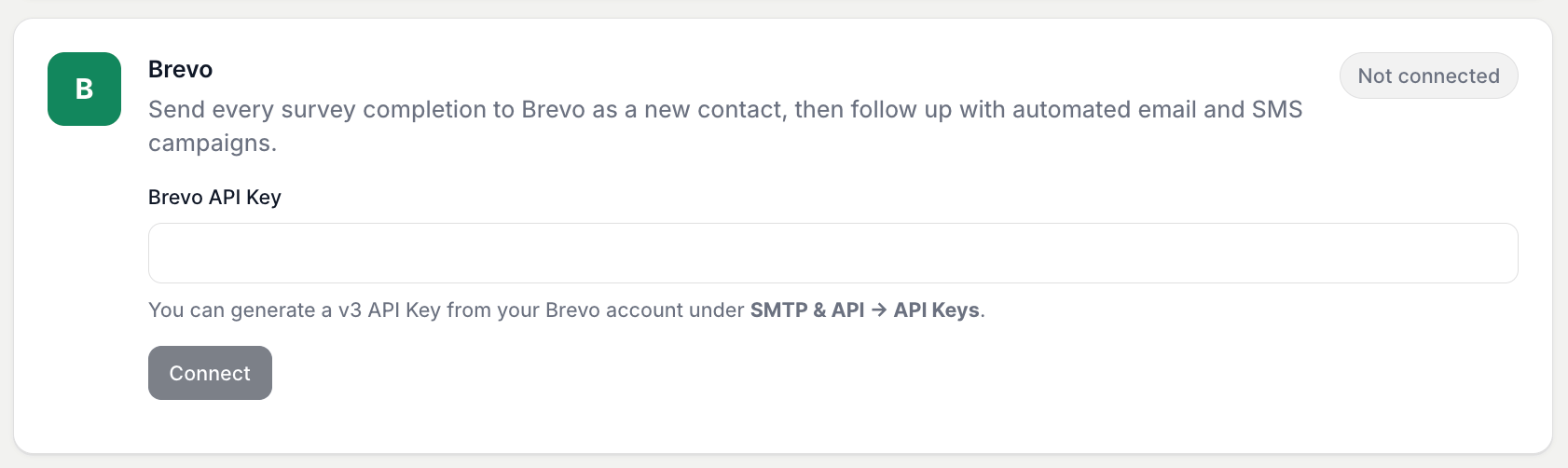
 Find **Brevo** in the integration list.
 [Log in](https://login.brevo.com/) to your **Brevo account**, or create a new account if you don't have one yet.
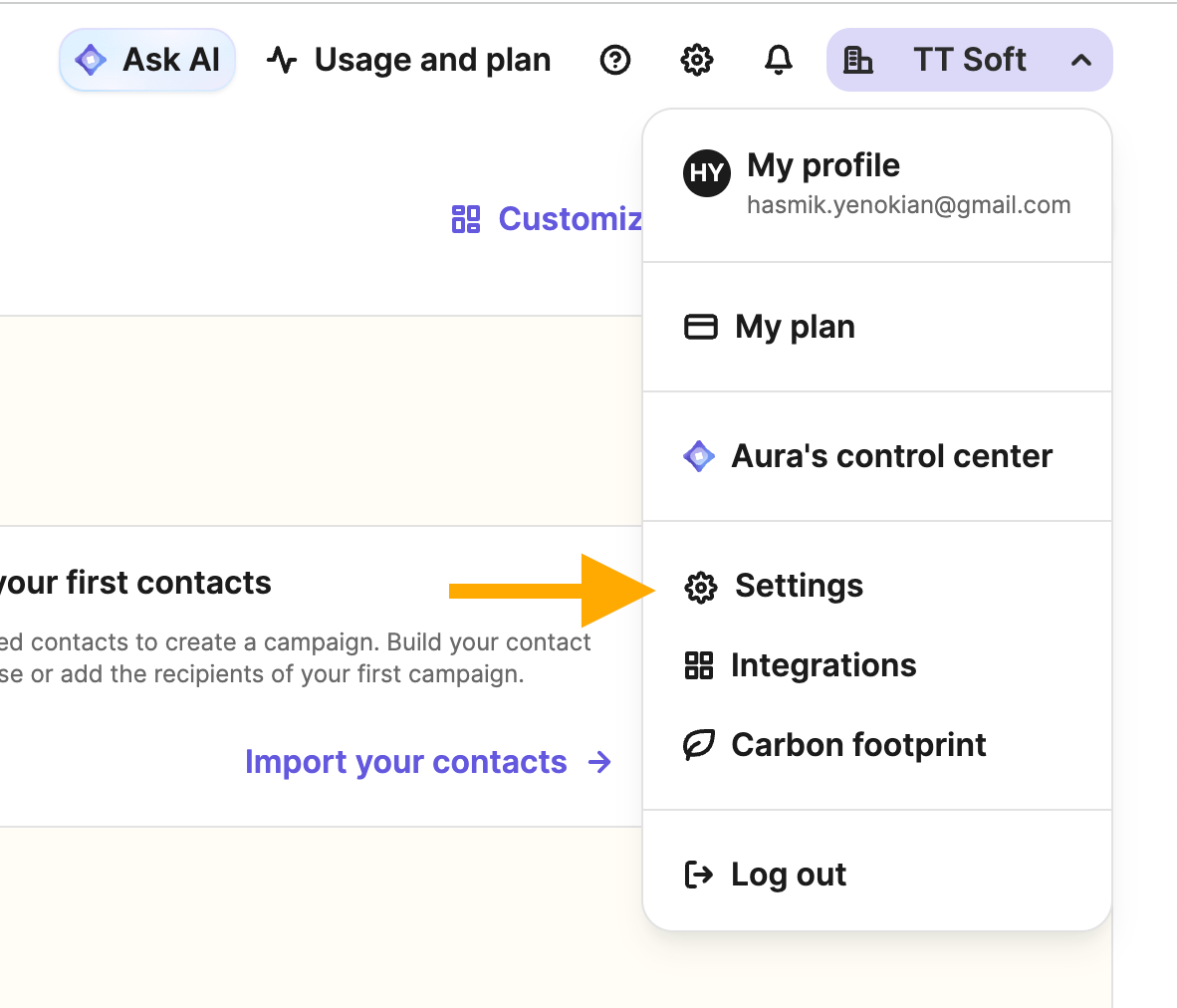
Go to the top-right corner of your Brevo account and click your account name or profile icon.
From the menu that opens, select **Settings**.
[Log in](https://login.brevo.com/) to your **Brevo account**, or create a new account if you don't have one yet.
Go to the top-right corner of your Brevo account and click your account name or profile icon.
From the menu that opens, select **Settings**.
 In the **Settings** page, find and click **SMTP & API.**
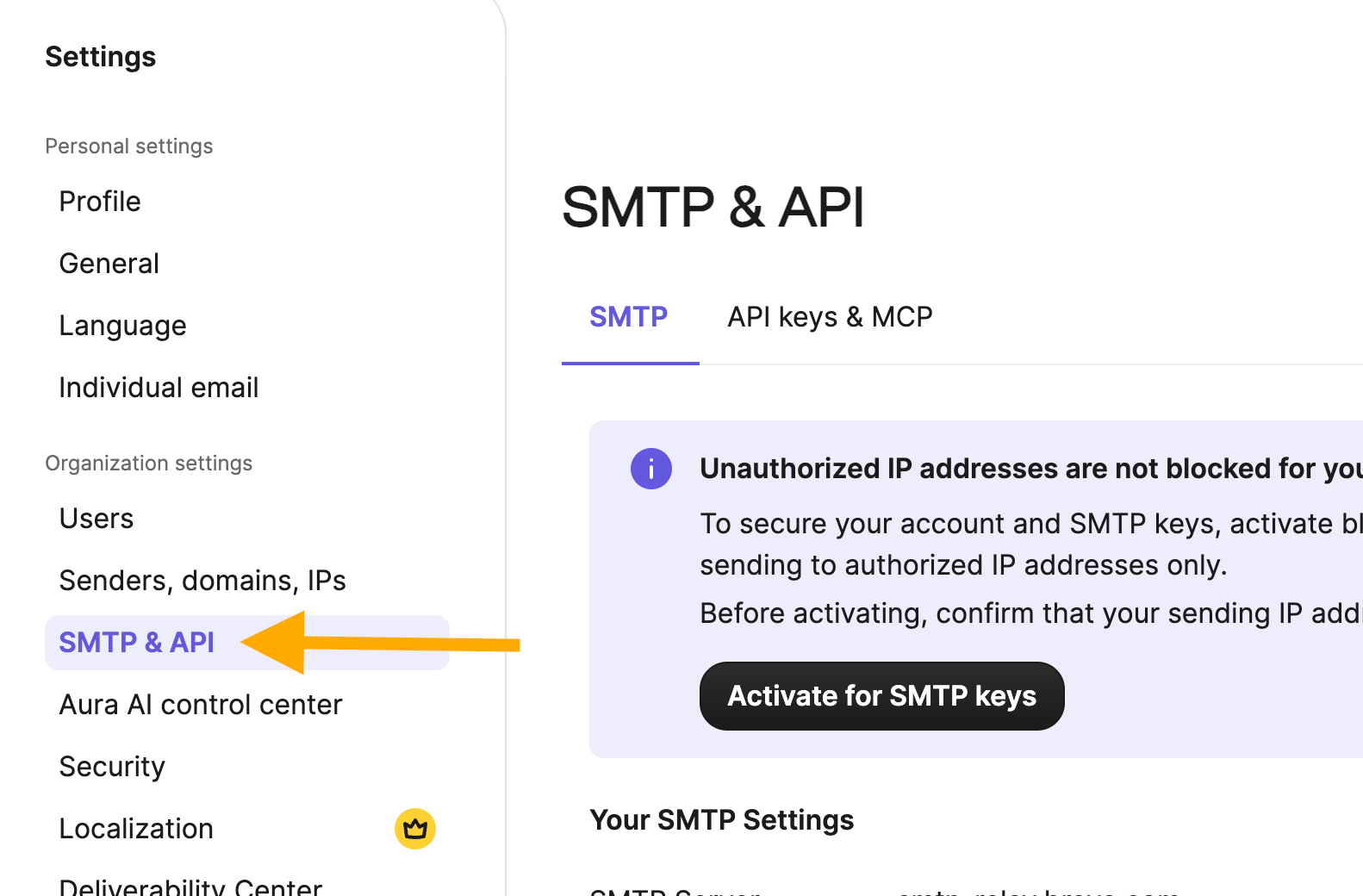 Then, open the **API Keys & MCP** tab.
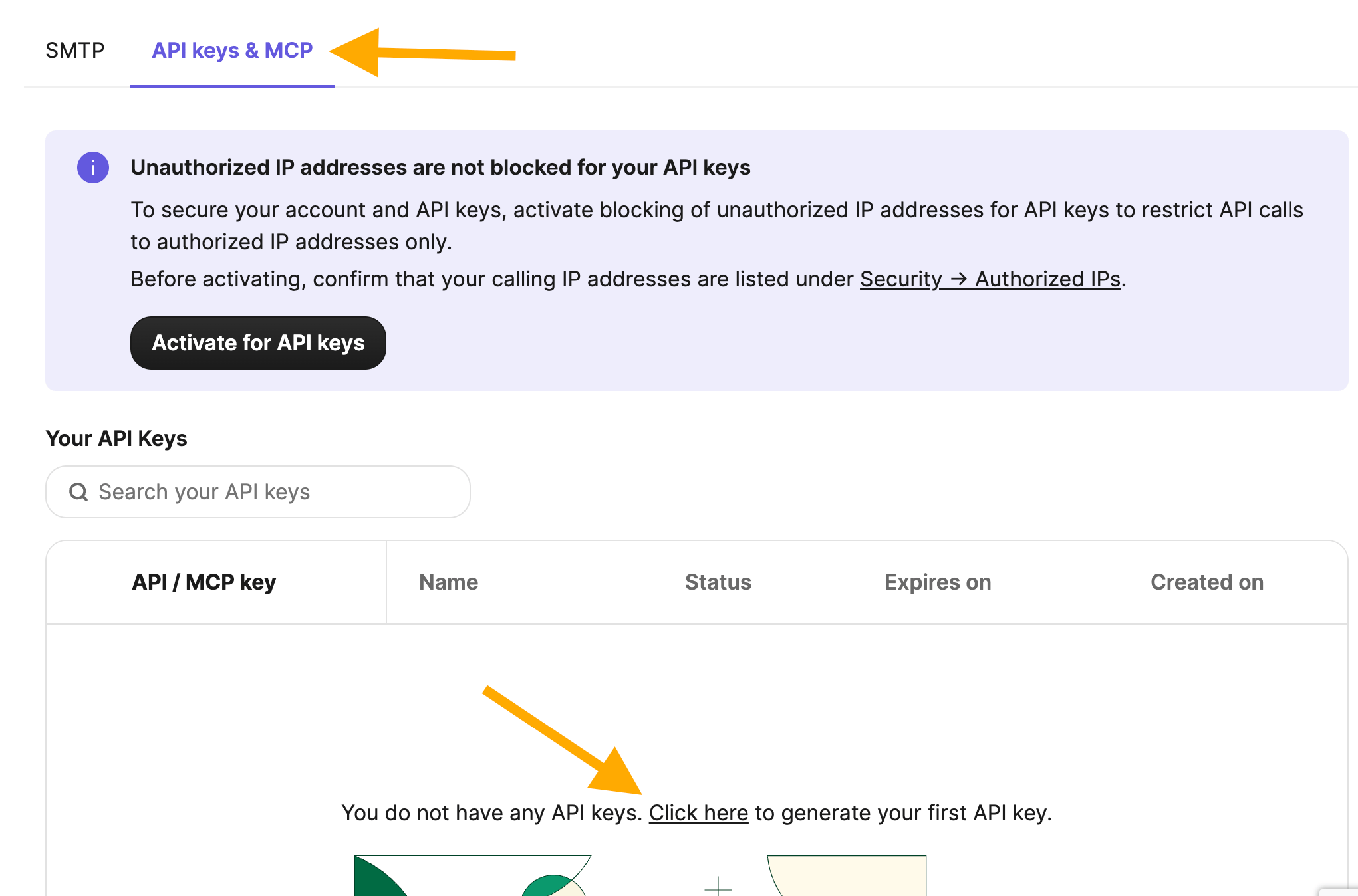 Under **API Keys,** find your API key or **create a new one.**
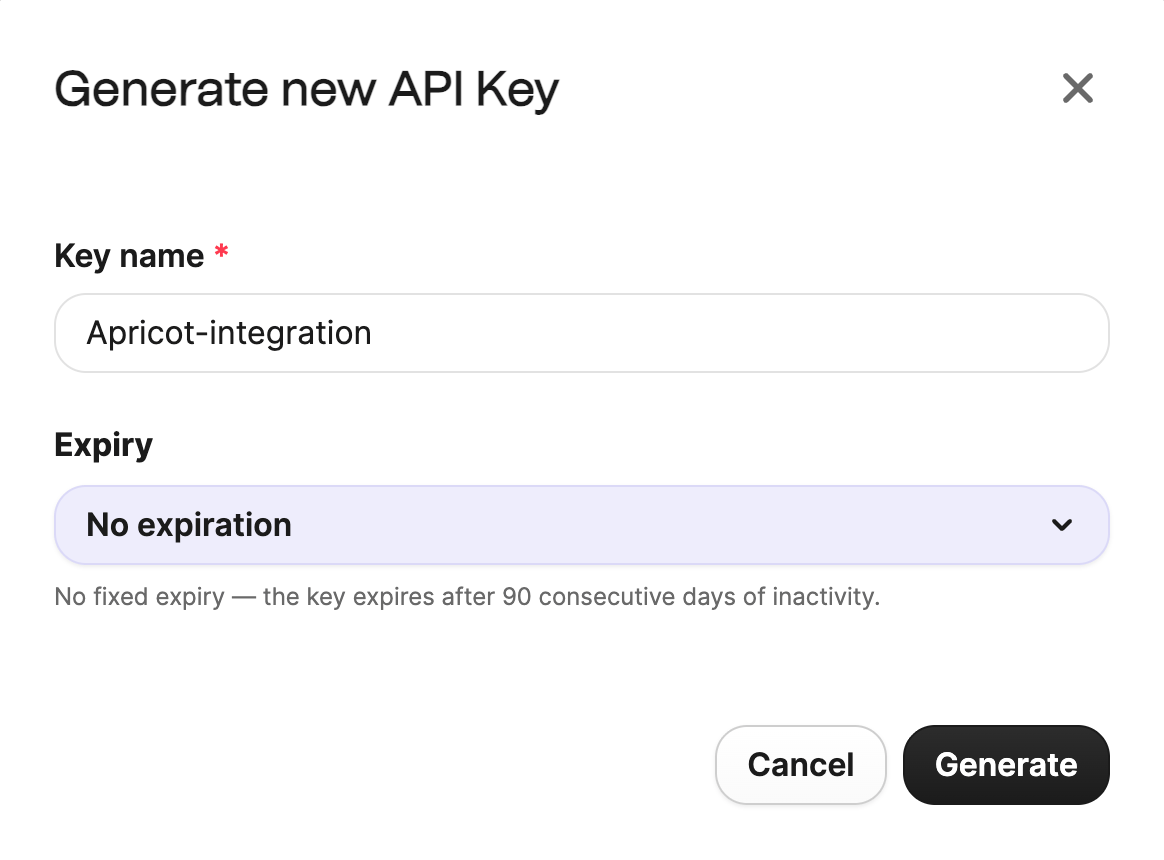 Copy the key and return to Apricot.
Brevo only shows the private API key when it is created. Save it securely before leaving the page, and never share it publicly.
After entering your Brevo API Key, click **Connect**.
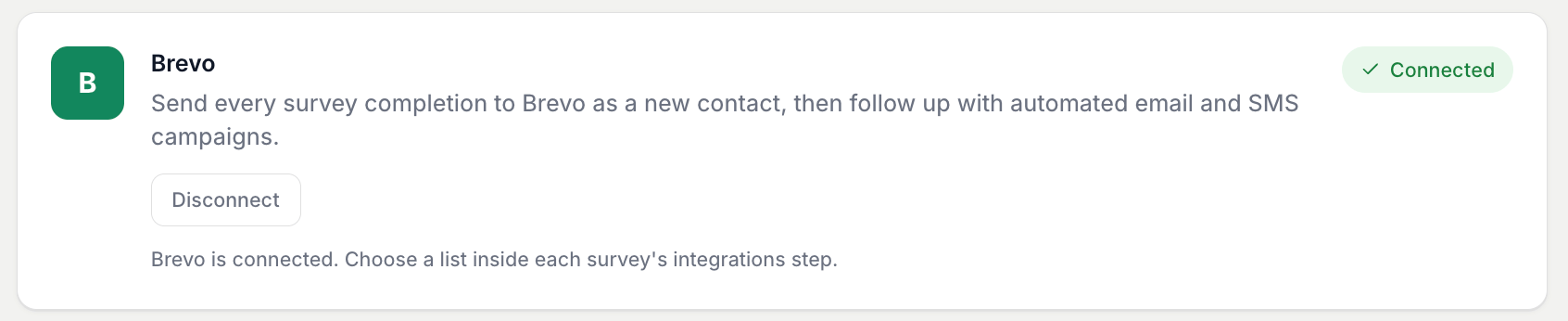
Once the connection is successful, a **green Connected badge** will appear, confirming that your Brevo account is connected to Apricot.
Copy the key and return to Apricot.
Brevo only shows the private API key when it is created. Save it securely before leaving the page, and never share it publicly.
After entering your Brevo API Key, click **Connect**.
Once the connection is successful, a **green Connected badge** will appear, confirming that your Brevo account is connected to Apricot.
 ## Activate Brevo for a Survey
After connecting Brevo to Apricot, select the list you want to use for each survey.
Go to:
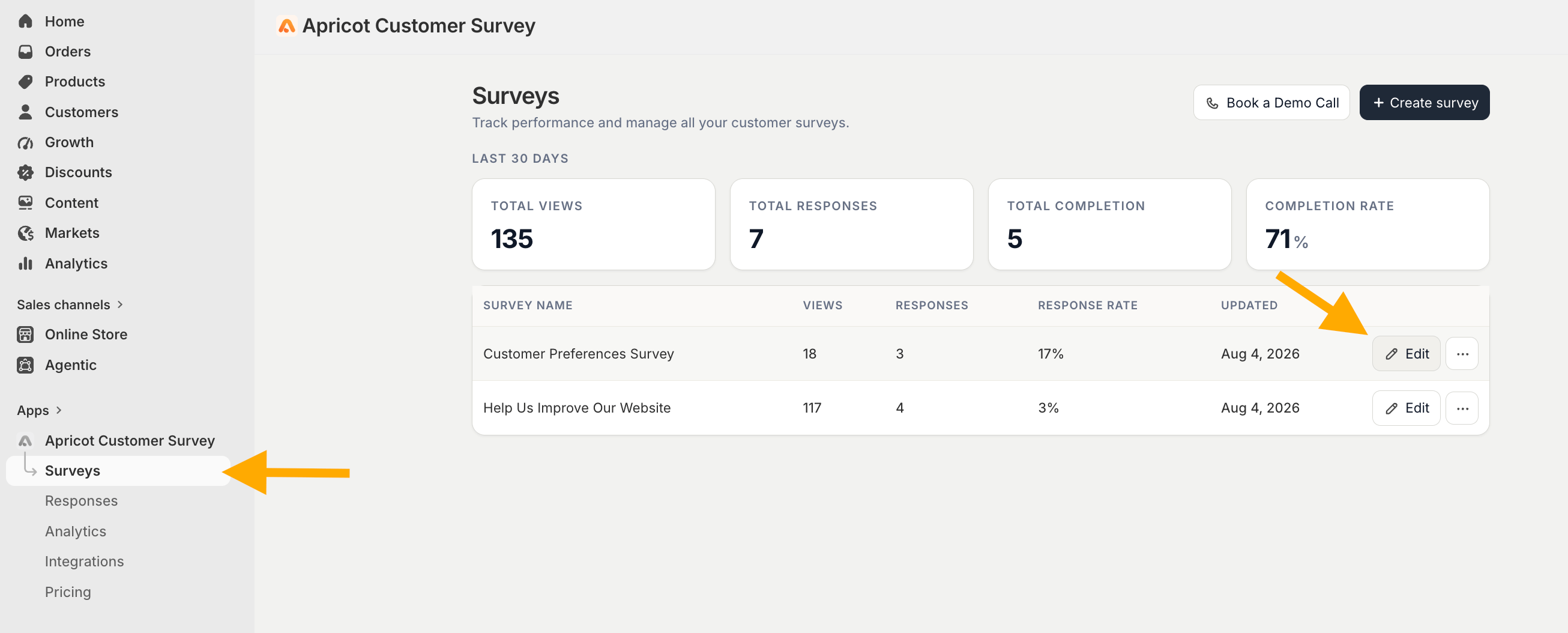
**Apricot Dashboard → Surveys → Select your survey → Edit → Integrations**
## Activate Brevo for a Survey
After connecting Brevo to Apricot, select the list you want to use for each survey.
Go to:
**Apricot Dashboard → Surveys → Select your survey → Edit → Integrations**
 Find **Brevo** in the integrations list.
Select the **List** where you want to add respondents from this survey.
Find **Brevo** in the integrations list.
Select the **List** where you want to add respondents from this survey.
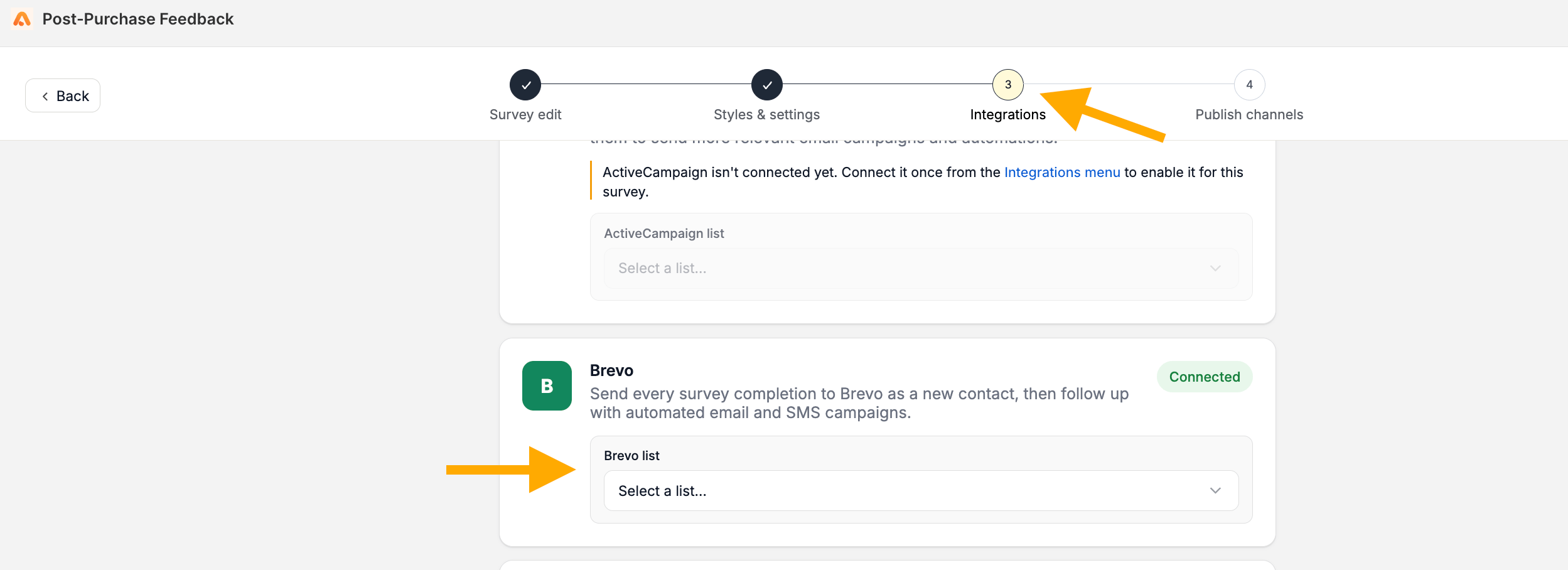 **Save** your changes to activate Brevo for the survey.
Connecting Brevo to Apricot does not automatically enable it for every survey. You need to **select a Brevo list separately for each survey** you want to connect.
This documentation is built and hosted on [Mintlify](https://mintlify.com), a developer documentation platform.
**Save** your changes to activate Brevo for the survey.
Connecting Brevo to Apricot does not automatically enable it for every survey. You need to **select a Brevo list separately for each survey** you want to connect.
This documentation is built and hosted on [Mintlify](https://mintlify.com), a developer documentation platform.