> ## Documentation Index
> Fetch the complete documentation index at: https://docs.apricotsurvey.com/llms.txt
> Use this file to discover all available pages before exploring further.
# Redirect to URL
Use the **Redirect to URL** action to send respondents to a specific webpage when a defined condition is met.
This is useful when you want to send customers to a relevant page based on their survey responses - such as a product page, thank-you page, external resource, or another destination.
For example:
> **IF** Question 1 is equal to **"Yes"**
**THEN** Redirect to URL → [https://yourstore.com/products/example](https://yourstore.com/products/example)
## Set Up a URL Redirect
Open the survey you want to configure.
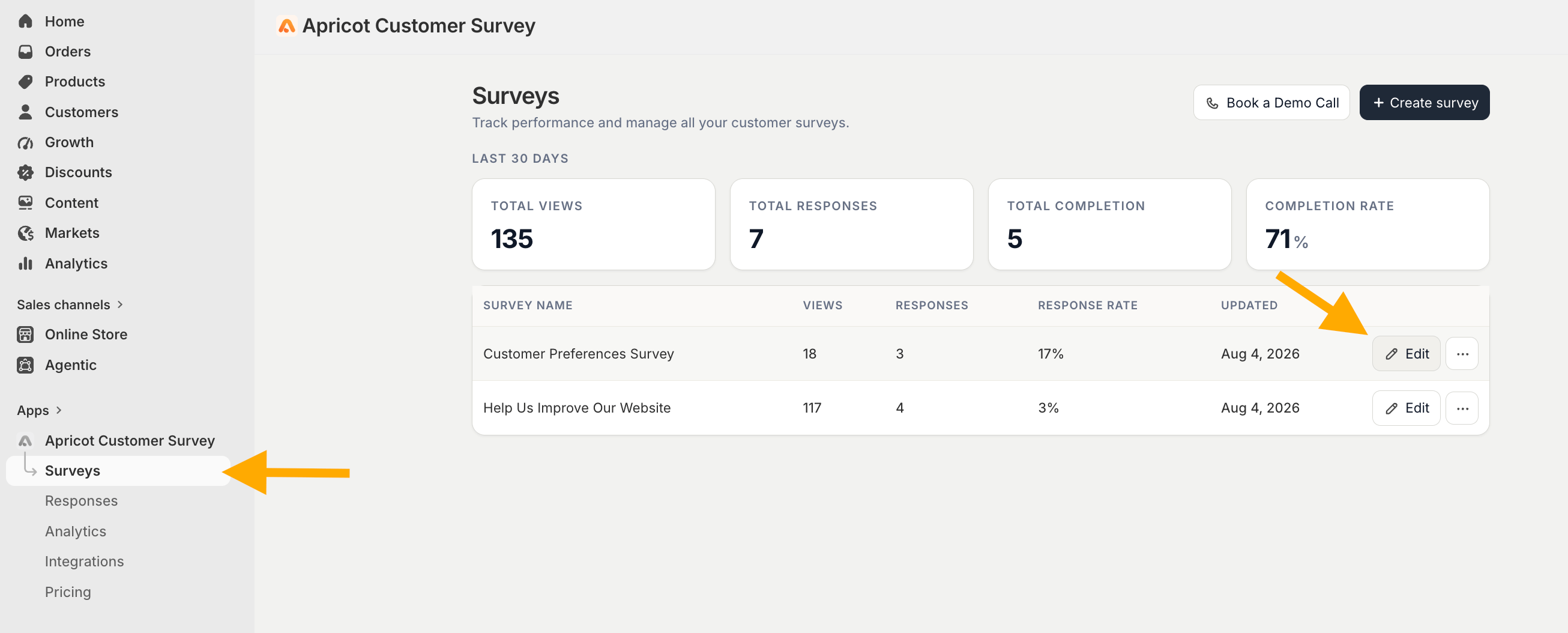 From the survey editor, click **Survey Branching.**
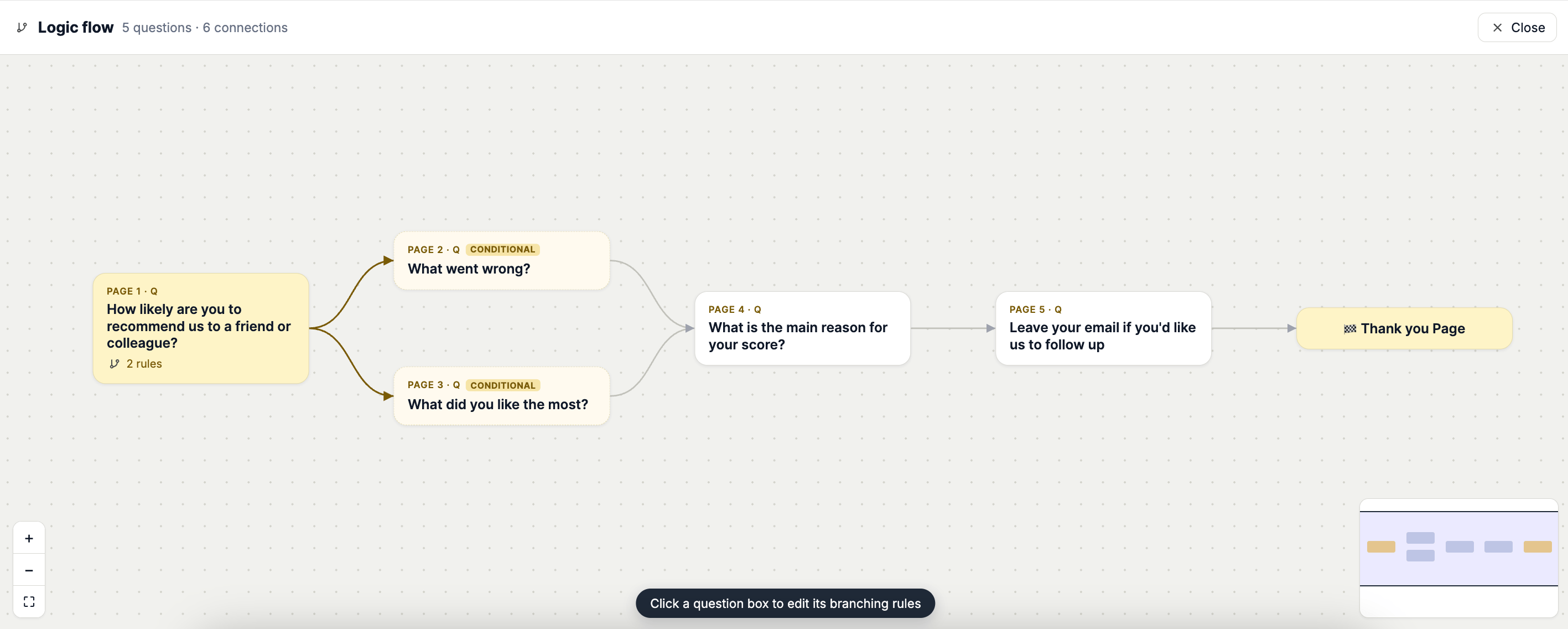
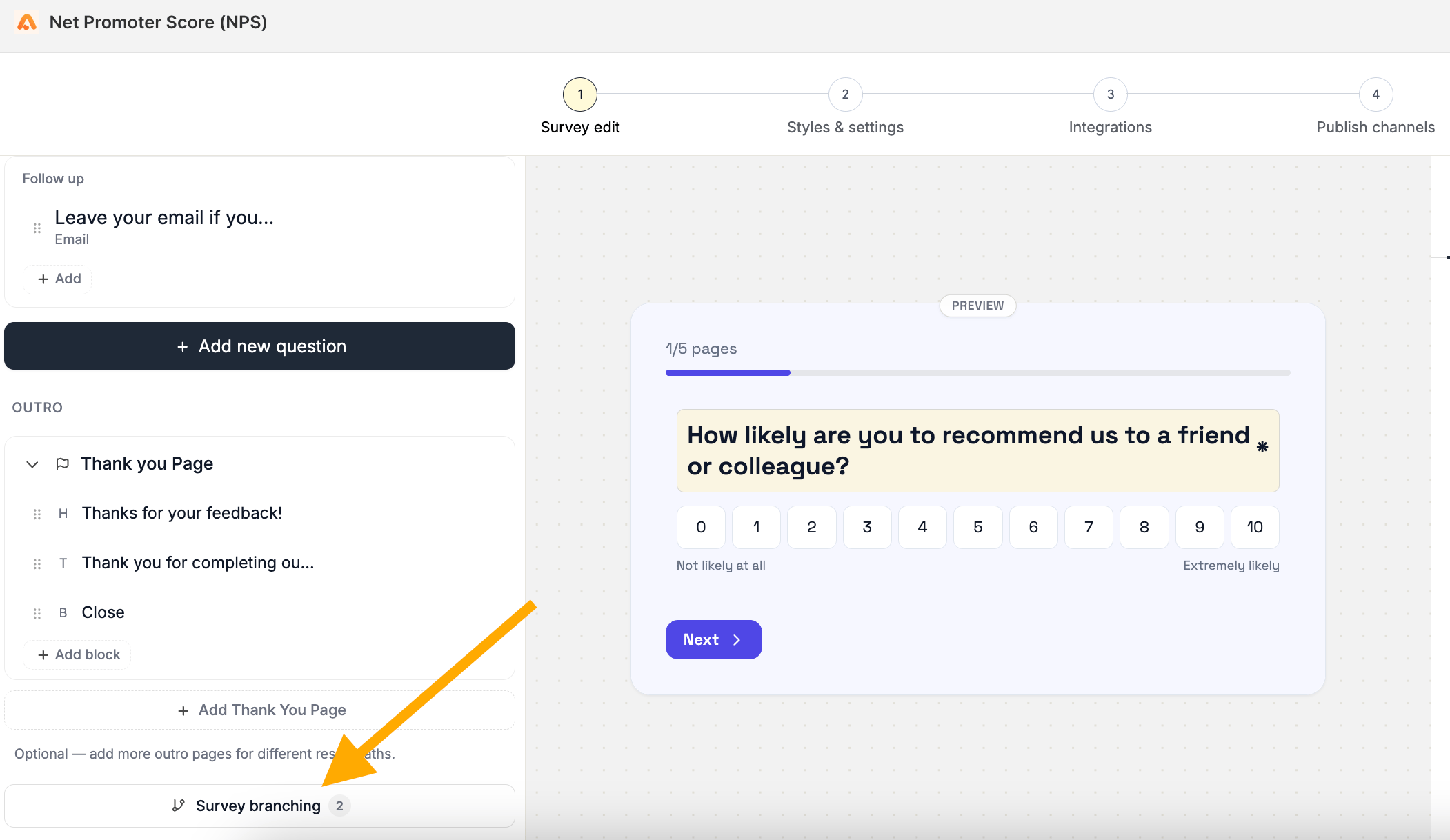 Click the question block that contains the answer you want to use as the condition.
 Click **Add Rule** and configure the **IF** condition.
Select the question, operator, and value that should trigger the redirect.
For example:
**IF** Question 1 → **Is equal to** → **"Yes"**
Click **Add Rule** and configure the **IF** condition.
Select the question, operator, and value that should trigger the redirect.
For example:
**IF** Question 1 → **Is equal to** → **"Yes"**
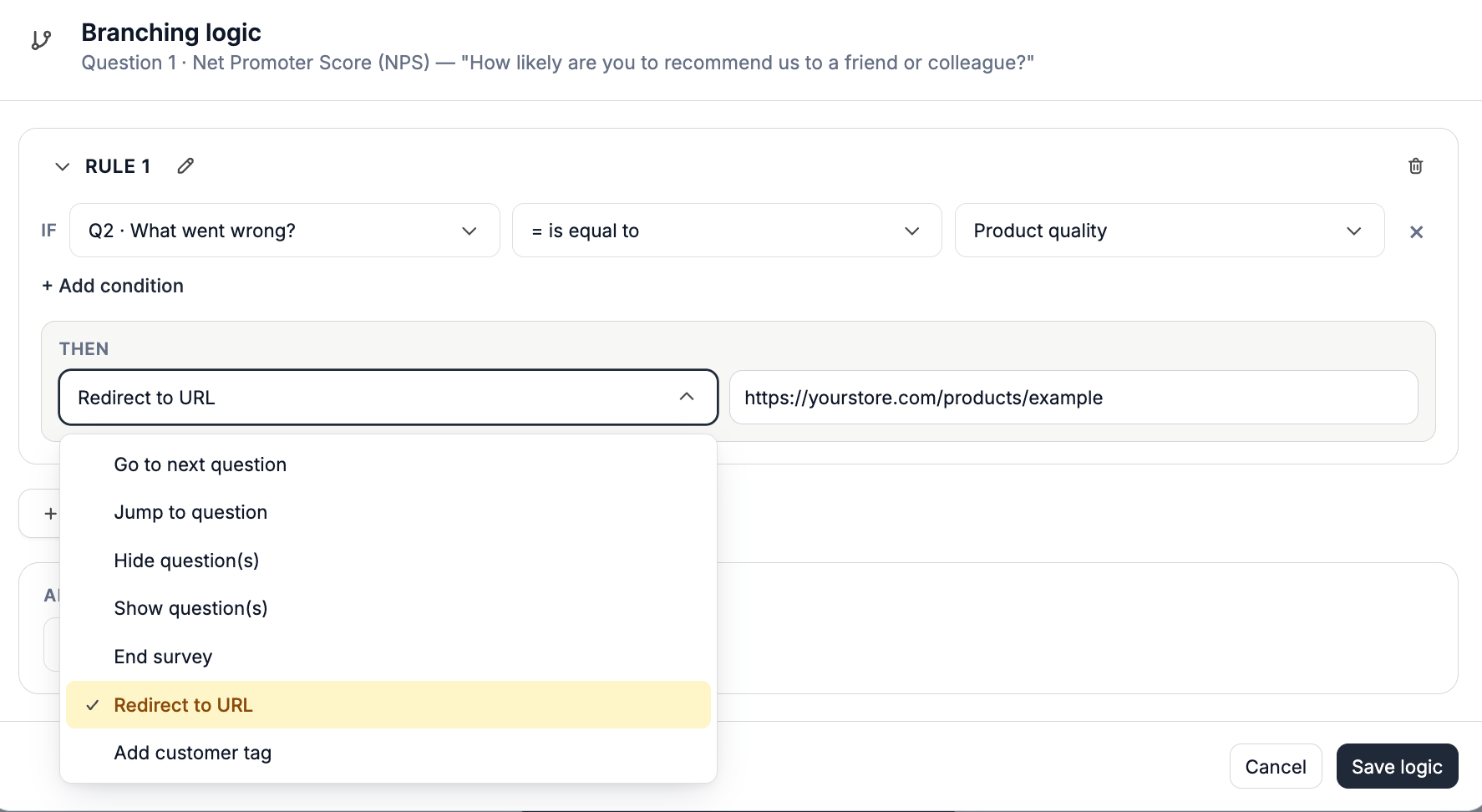
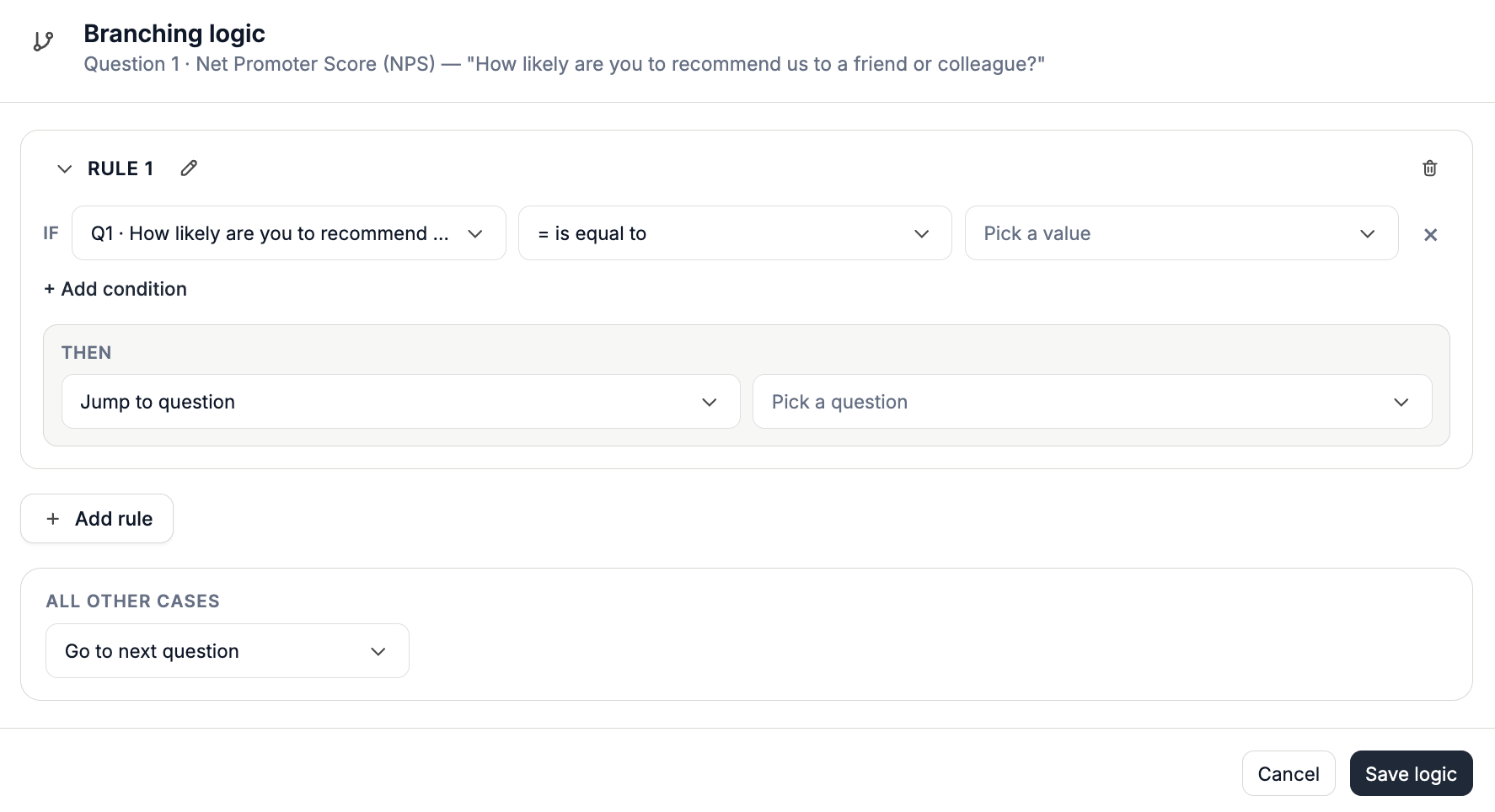 Under **THEN**, select **Redirect to URL.**
Enter the URL where you want respondents to be redirected.
For example:
**THEN** → **Redirect to URL** → [https://yourstore.com/products/example](https://yourstore.com/products/example)
Under **THEN**, select **Redirect to URL.**
Enter the URL where you want respondents to be redirected.
For example:
**THEN** → **Redirect to URL** → [https://yourstore.com/products/example](https://yourstore.com/products/example)
 Save the rule to apply the redirect.
When a respondent meets the specified condition, Apricot will redirect them to the URL you provided.
## Example
Imagine you're asking customers whether they want to learn more about a product.
**Question**: Would you like to learn more about this product?
Save the rule to apply the redirect.
When a respondent meets the specified condition, Apricot will redirect them to the URL you provided.
## Example
Imagine you're asking customers whether they want to learn more about a product.
**Question**: Would you like to learn more about this product?
- Yes
- No
You could create a rule such as:
> **IF** Answer is equal to "Yes"
**THEN** Redirect to URL → Your product page
This lets you turn a survey response into a direct next step for the customer.