> ## Documentation Index
> Fetch the complete documentation index at: https://docs.apricotsurvey.com/llms.txt
> Use this file to discover all available pages before exploring further.
# Create Branching Rules & Conditions
Create conditional survey flows by defining rules that determine what happens based on a respondent's answers.
Each branching rule follows a simple structure:
**IF** a condition is met → **THEN** take an action.
For example:
> **IF** Question 1 is equal to "**Yes"** → **THEN** Jump to Question 5
## Open Branching Logic
Open the survey you want to add branching logic to.
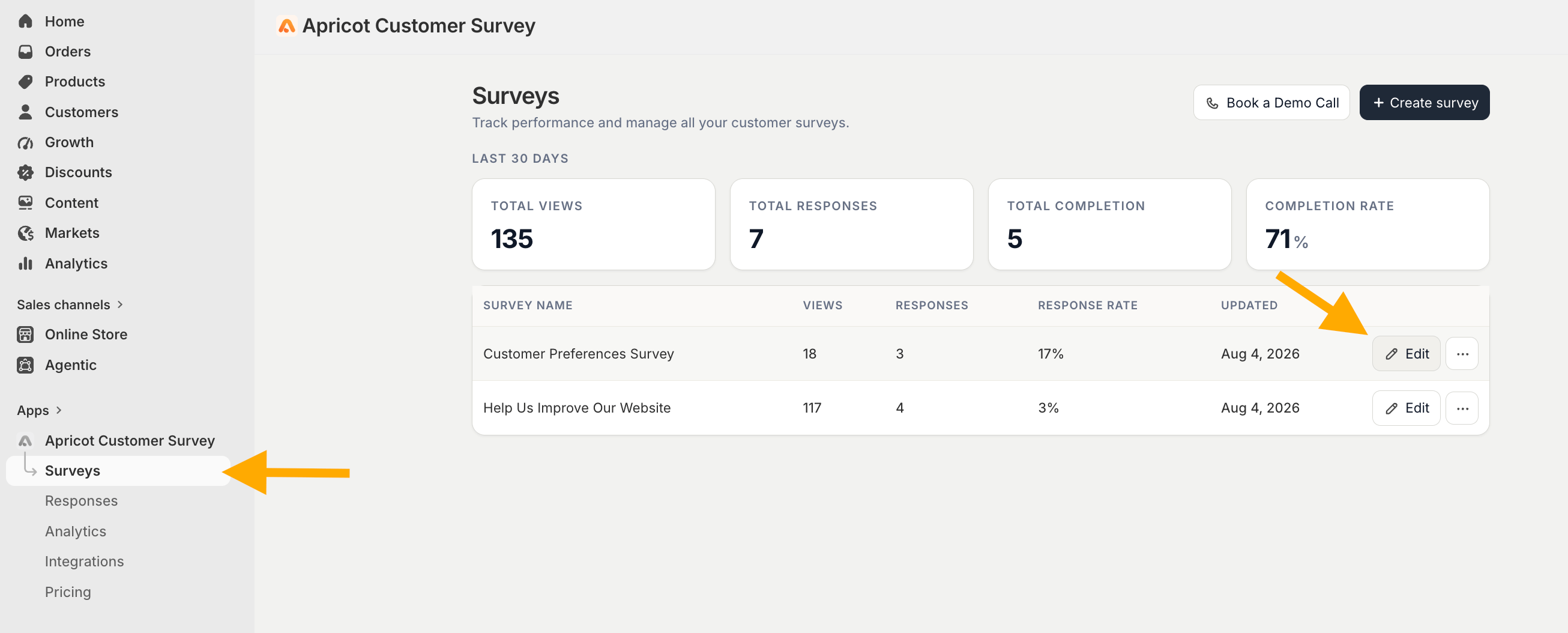 From the survey editor step, click **Survey Branching**.
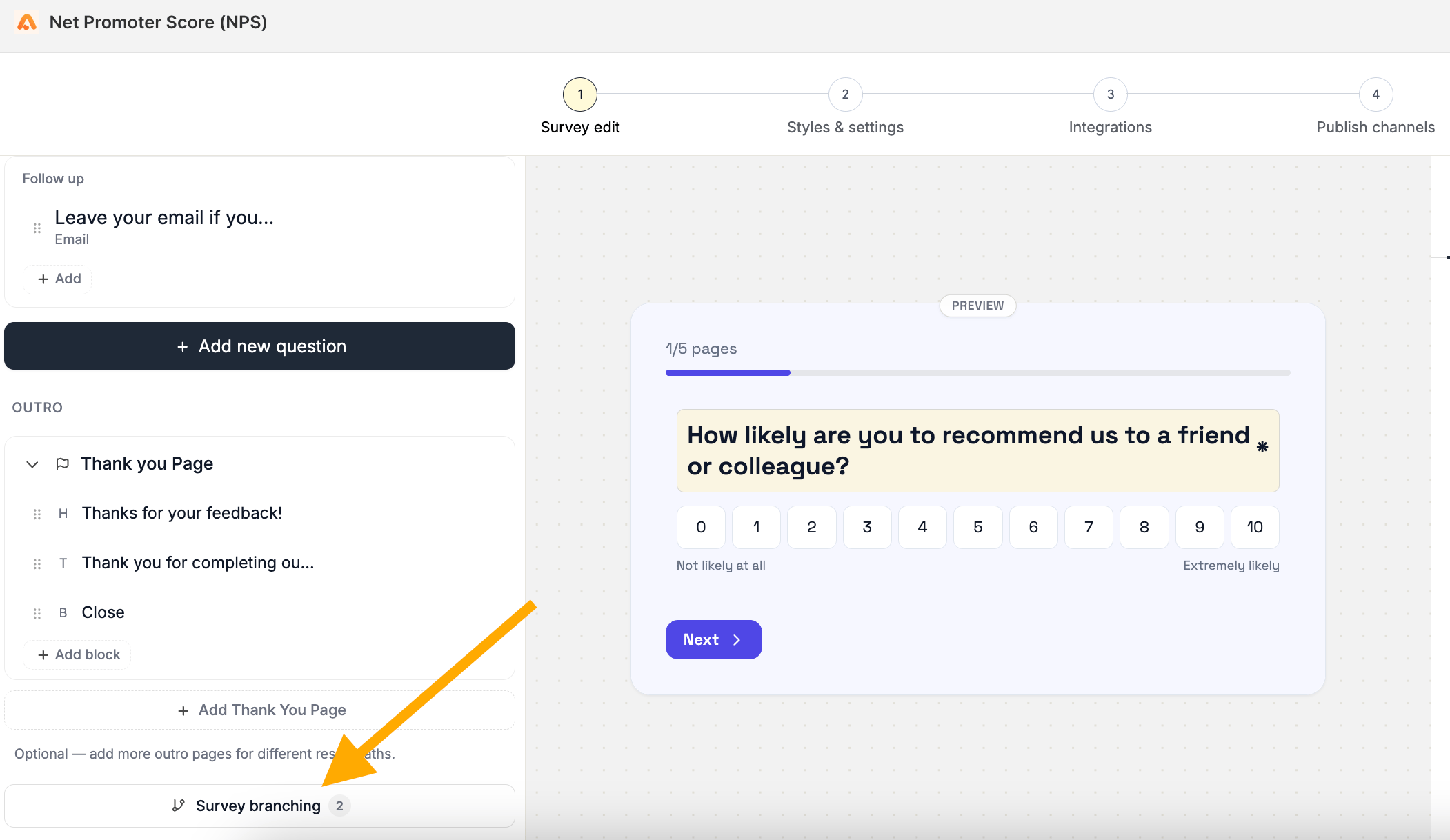 You will be taken to the \*\*Logic Flow \*\*page, where your survey questions are displayed as blocks on a visual flow.
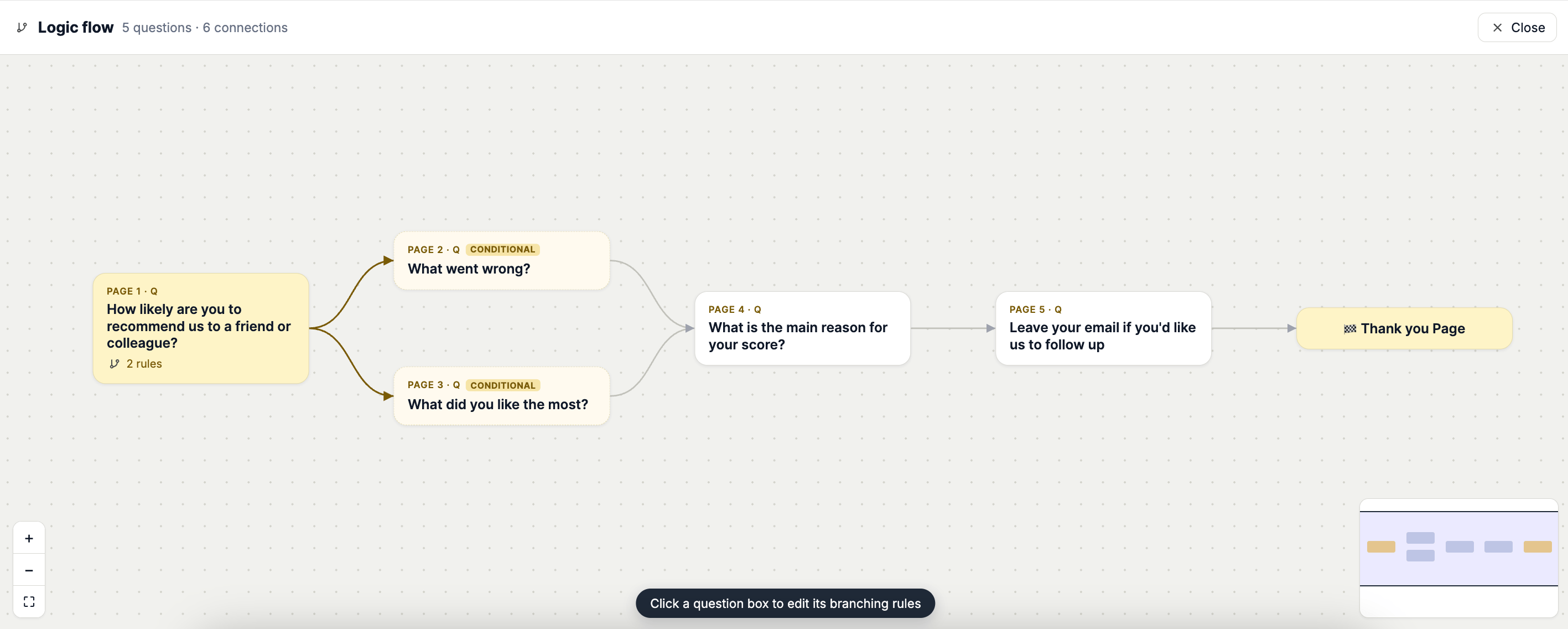 Click the question block where you want to add a branching rule.
The rule settings will open, allowing you to define when the rule should be triggered.
Click the question block where you want to add a branching rule.
The rule settings will open, allowing you to define when the rule should be triggered.
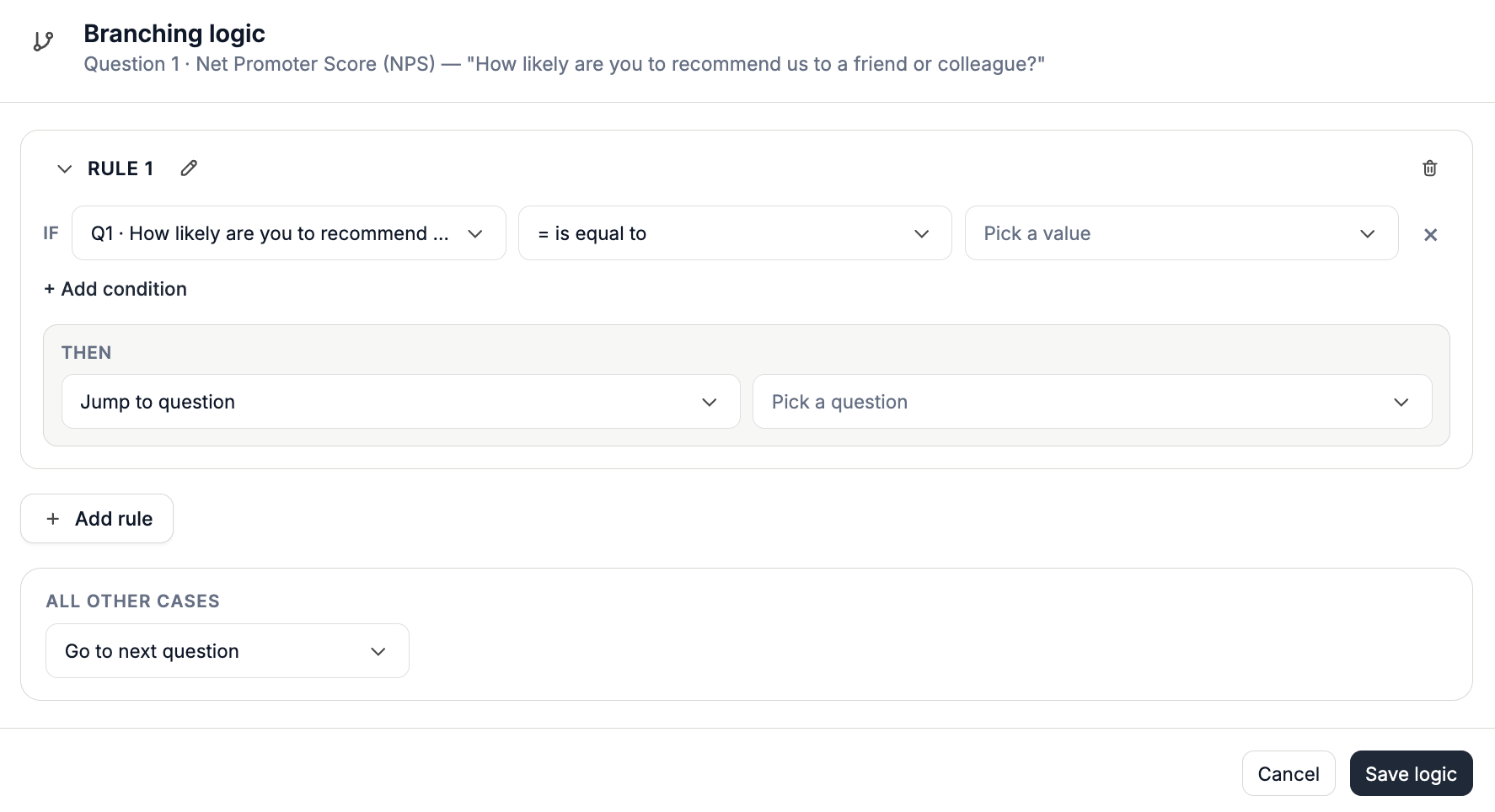 Click **Add Rule** to create a new branching condition.
Each rule starts with an **IF** condition.
## Define Your Condition
A **condition** determines when your branching rule should be triggered.
Each condition consists of three parts:
1. **Question** — Select the question whose answer should be evaluated.
2. **Operator** — Choose how the answer should be evaluated.
3. **Value** — Select or enter the value that should trigger the rule.
For example:
> **Question**: *What is your satisfaction level?*
Click **Add Rule** to create a new branching condition.
Each rule starts with an **IF** condition.
## Define Your Condition
A **condition** determines when your branching rule should be triggered.
Each condition consists of three parts:
1. **Question** — Select the question whose answer should be evaluated.
2. **Operator** — Choose how the answer should be evaluated.
3. **Value** — Select or enter the value that should trigger the rule.
For example:
> **Question**: *What is your satisfaction level?*
**Operator**: *Is equal to*
**Value**: *Satisfied*
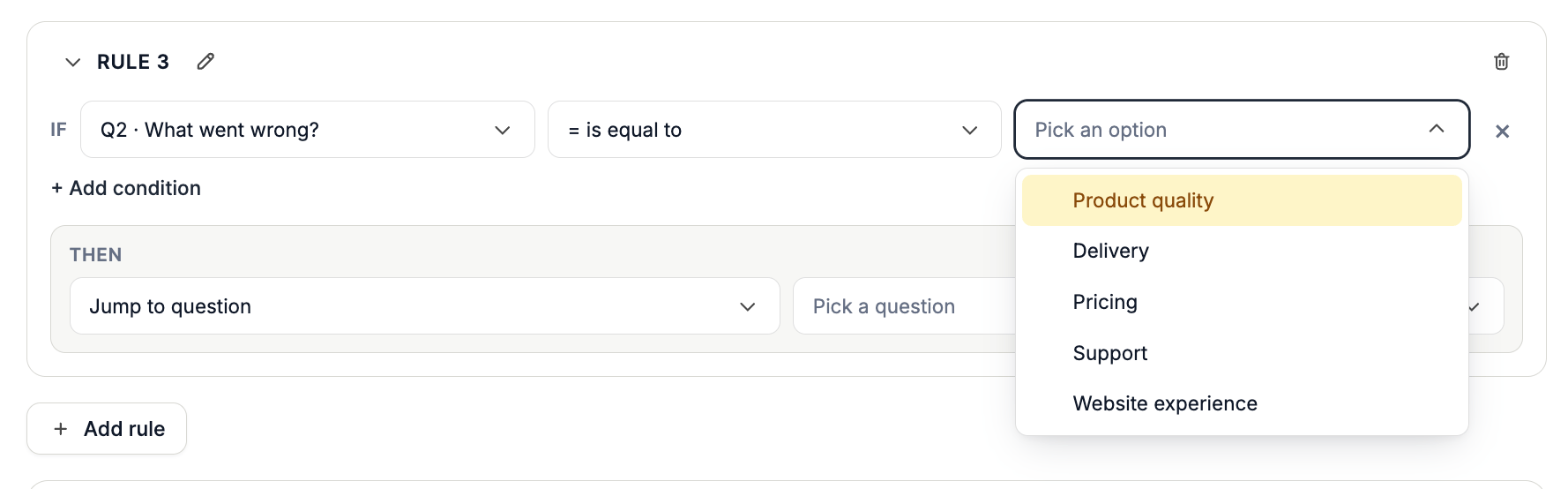
Select the survey question you want to use as the condition. The available options are based on the questions in your survey.
Select an operator to define how the respondent's answer should be evaluated.
The **available IF-rule operators** depend on **the type of question** you're using. Use the table below to see which conditions are supported for each question type.
| Question Type | Available IF Rules |
| ------------------- | -------------------------------------------------------------------------------------------------------------------------------------------------------- |
| **Single Choice** | Is equal to · Is not equal to · Is submitted · Is not submitted |
| **Dropdown** | Is equal to · Is not equal to · Is submitted · Is not submitted |
| **Picture Choice** | Is equal to · Is not equal to · Is submitted · Is not submitted |
| **Multiple Choice** | Is equal to · Is not equal to · Is one of · Is submitted · Is not submitted |
| **Star Rating** | Equals · Does not equal · Is greater than · Is lower than · Is greater or equal to · Is lower or equal to · Is between · Is submitted · Is not submitted |
| **Satisfaction** | Equals · Does not equal · Is greater than · Is lower than · Is greater or equal to · Is lower or equal to · Is between · Is submitted · Is not submitted |
| **Scale** | Equals · Does not equal · Is greater than · Is lower than · Is greater or equal to · Is lower or equal to · Is between · Is submitted · Is not submitted |
| **NPS** | Equals · Does not equal · Is greater than · Is lower than · Is greater or equal to · Is lower or equal to · Is between · Is submitted · Is not submitted |
| **Number** | Equals · Does not equal · Is greater than · Is lower than · Is greater or equal to · Is lower or equal to · Is between · Is submitted · Is not submitted |
| **Date** | Equals · Does not equal · Is greater than · Is lower than · Is between · Is submitted · Is not submitted |
| **Short Text** | Is equal to · Is not equal to · Contains · Does not contain · Is submitted · Is not submitted |
| **Long Text** | Is equal to · Is not equal to · Contains · Does not contain · Is submitted · Is not submitted |
| **Name** | Is equal to · Is not equal to · Contains · Does not contain · Is submitted · Is not submitted |
| **Email** | Is equal to · Is not equal to · Contains · Does not contain · Is submitted · Is not submitted |
| **Phone** | Is equal to · Is not equal to · Contains · Does not contain · Is submitted · Is not submitted |
| **Contact** | Is submitted · Is not submitted |
| **Info** | Is submitted · Is not submitted |
| **Welcome** | Is submitted · Is not submitted |
For **Single Choice** and **Multiple Choice** questions with the **Other** option enabled, an additional **Other (free text)** choice is available. You can then create conditions based on whether the entered text **contains** or **does not contain** specific text.
Depending on the question type, you can either select one of the predefined answer choices or enter a custom value.
For example, choice-based questions may let you select one of the existing choices, while text or number questions may allow you to enter a value manually.
 ## Add Multiple Conditions
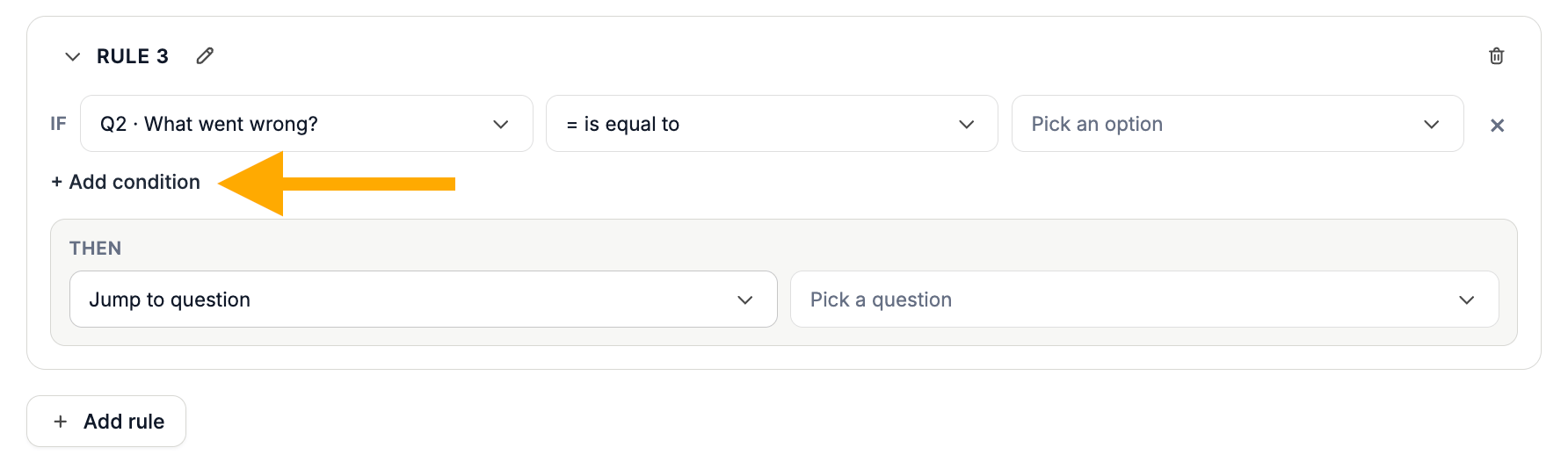
You can add more than one condition to the same branching rule when you need to evaluate multiple answers.
Click **Add Condition** and configure the additional condition.
## Add Multiple Conditions
You can add more than one condition to the same branching rule when you need to evaluate multiple answers.
Click **Add Condition** and configure the additional condition.
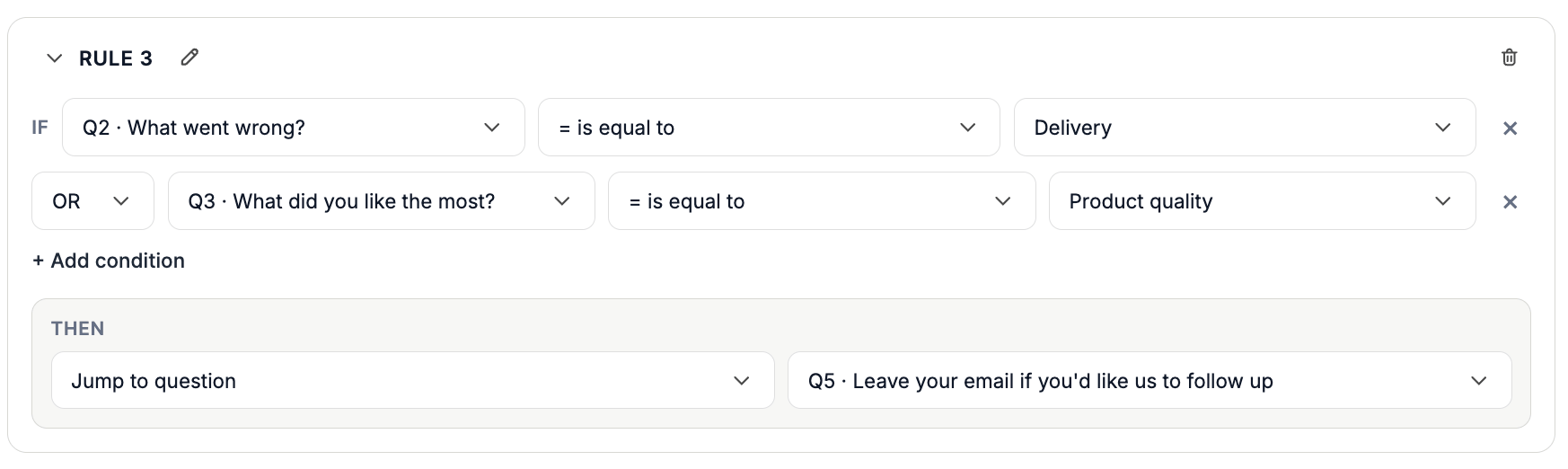
 Use **multiple conditions** when an action should only happen after several requirements are met. You can combine conditions using **AND** or **OR** operators.
For example:
> **IF** Question 1 is equal to **"Yes"**
Use **multiple conditions** when an action should only happen after several requirements are met. You can combine conditions using **AND** or **OR** operators.
For example:
> **IF** Question 1 is equal to **"Yes"**
**AND** Question 2 is greater than **"5"**
**THEN** Jump to Question 5
 ## Choose a Branching Action
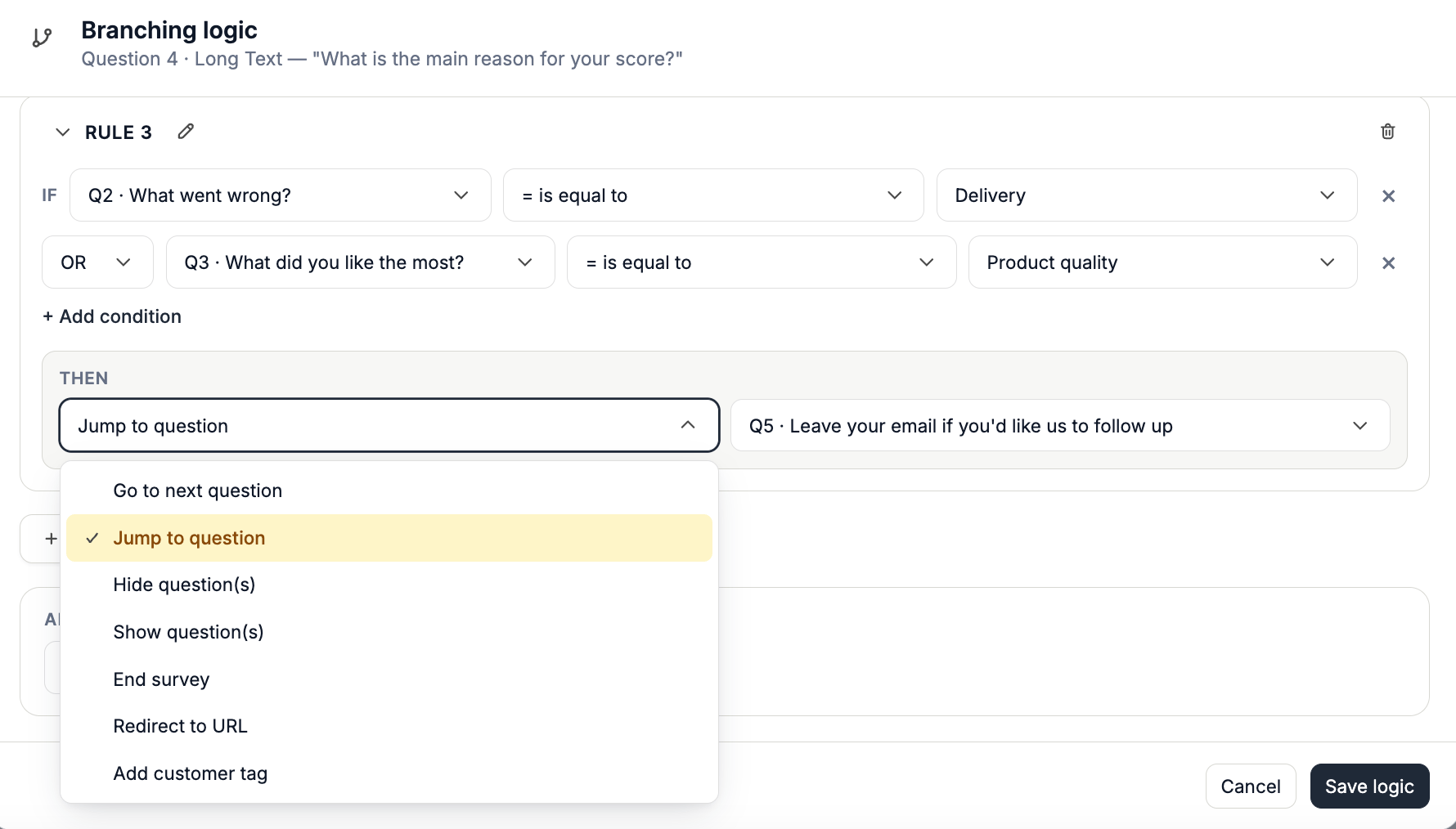
Once you've defined your condition, choose what Apricot should do when the condition is met.
This is the **THEN** part of your branching rule.
Available actions include:
* **Jump to Question**
* **Show Questions**
* **Hide Questions**
* **End Survey**
* **Redirect to URL**
* **Add Customer Tags**
Each action has its own setup and use cases. See the dedicated guides in Branching Logic to learn more about each action.
## Choose a Branching Action
Once you've defined your condition, choose what Apricot should do when the condition is met.
This is the **THEN** part of your branching rule.
Available actions include:
* **Jump to Question**
* **Show Questions**
* **Hide Questions**
* **End Survey**
* **Redirect to URL**
* **Add Customer Tags**
Each action has its own setup and use cases. See the dedicated guides in Branching Logic to learn more about each action.
 After configuring your conditions and action, **save** your branching rule.
Your rule will be reflected in the visual flow, with arrows showing how respondents will move through your survey.
After configuring your conditions and action, **save** your branching rule.
Your rule will be reflected in the visual flow, with arrows showing how respondents will move through your survey.