> ## Documentation Index
> Fetch the complete documentation index at: https://docs.apricotsurvey.com/llms.txt
> Use this file to discover all available pages before exploring further.
# Jump to Question (Logic Jump)
Use **Jump to Question** to send respondents to a specific question based on their answers.
Logic Jump is useful when different answers should lead customers through different paths in your survey.
For example:
> **IF** Question 1 is equal to "Yes"
**THEN** Jump to Question 5
Instead of continuing to the next question, Apricot will take the respondent directly to Question 5.
## Set Up a Logic Jump
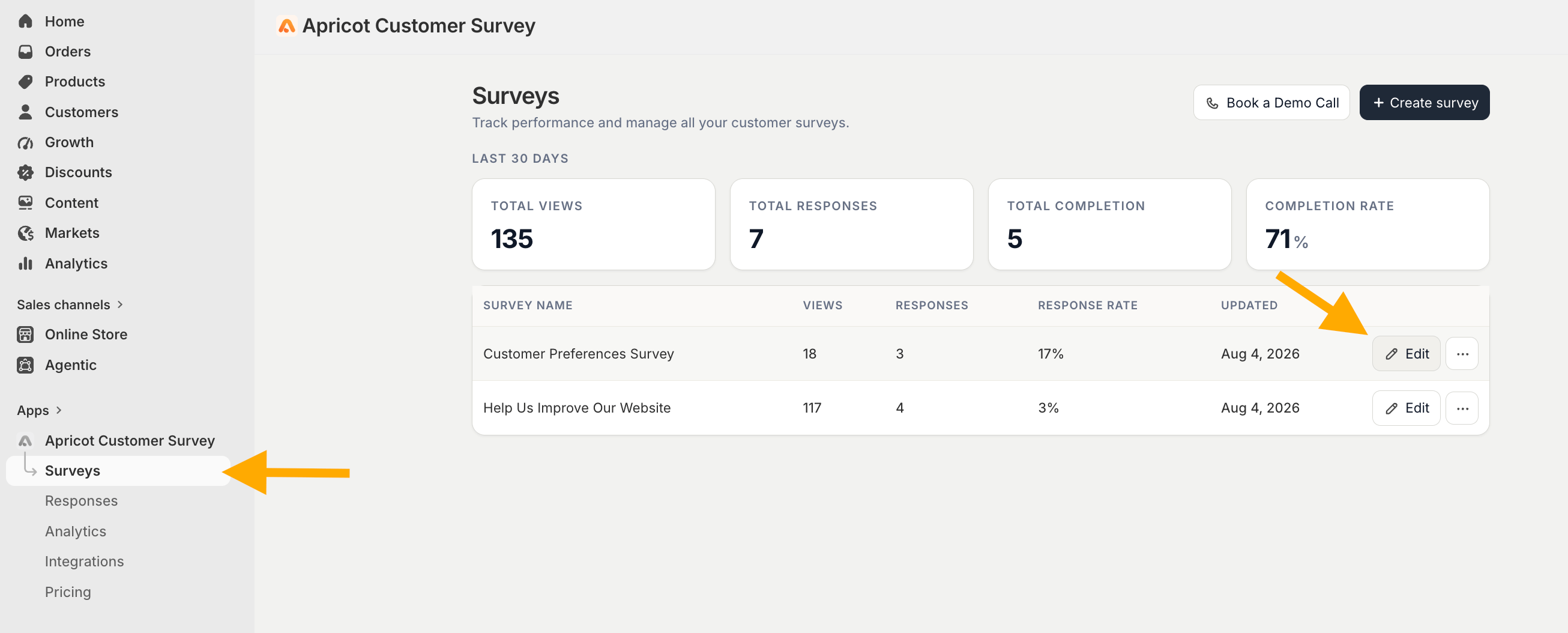
Open the survey you want to add a Logic Jump to.
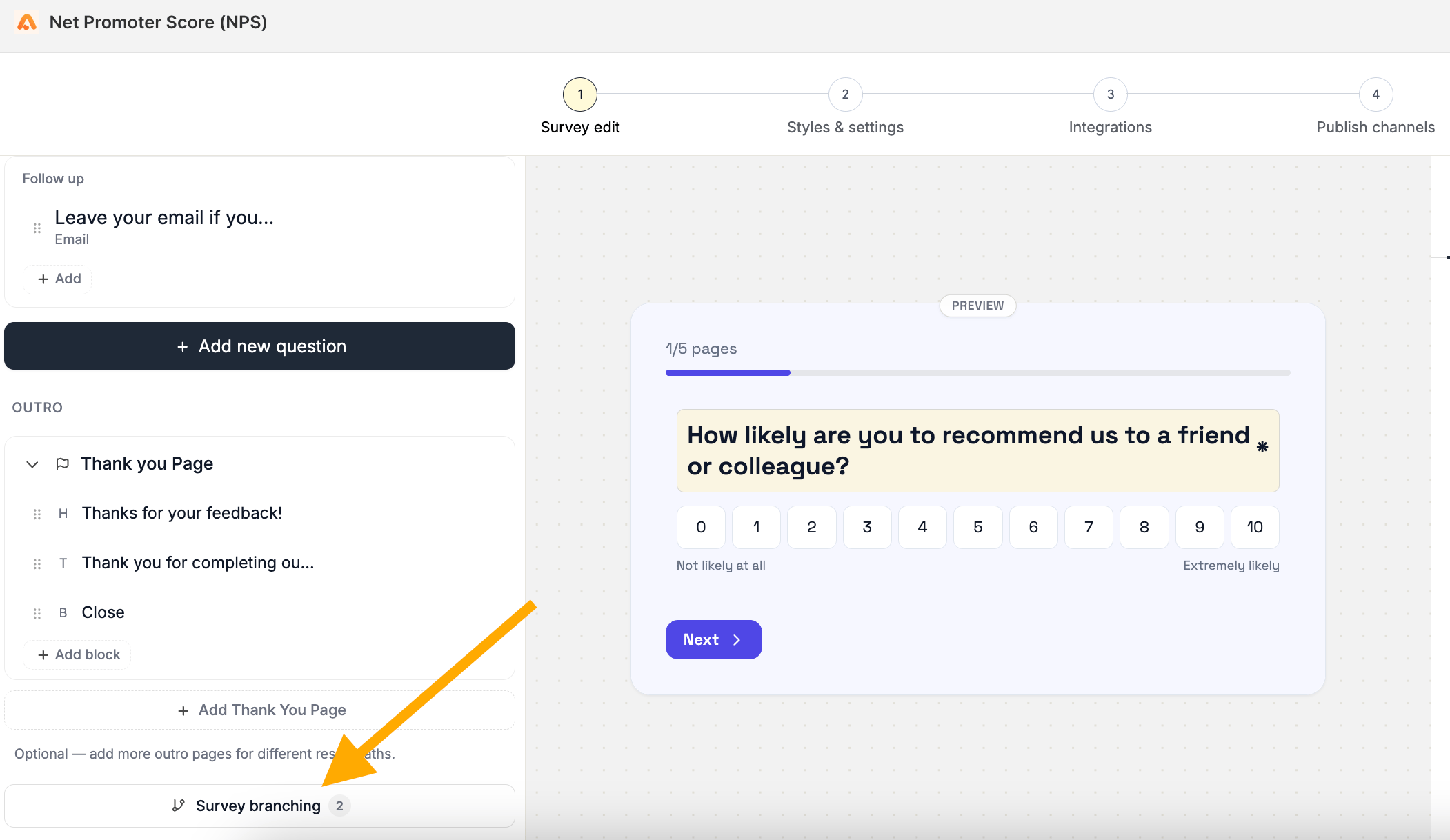
 From the survey editor, click **Survey Branching**.
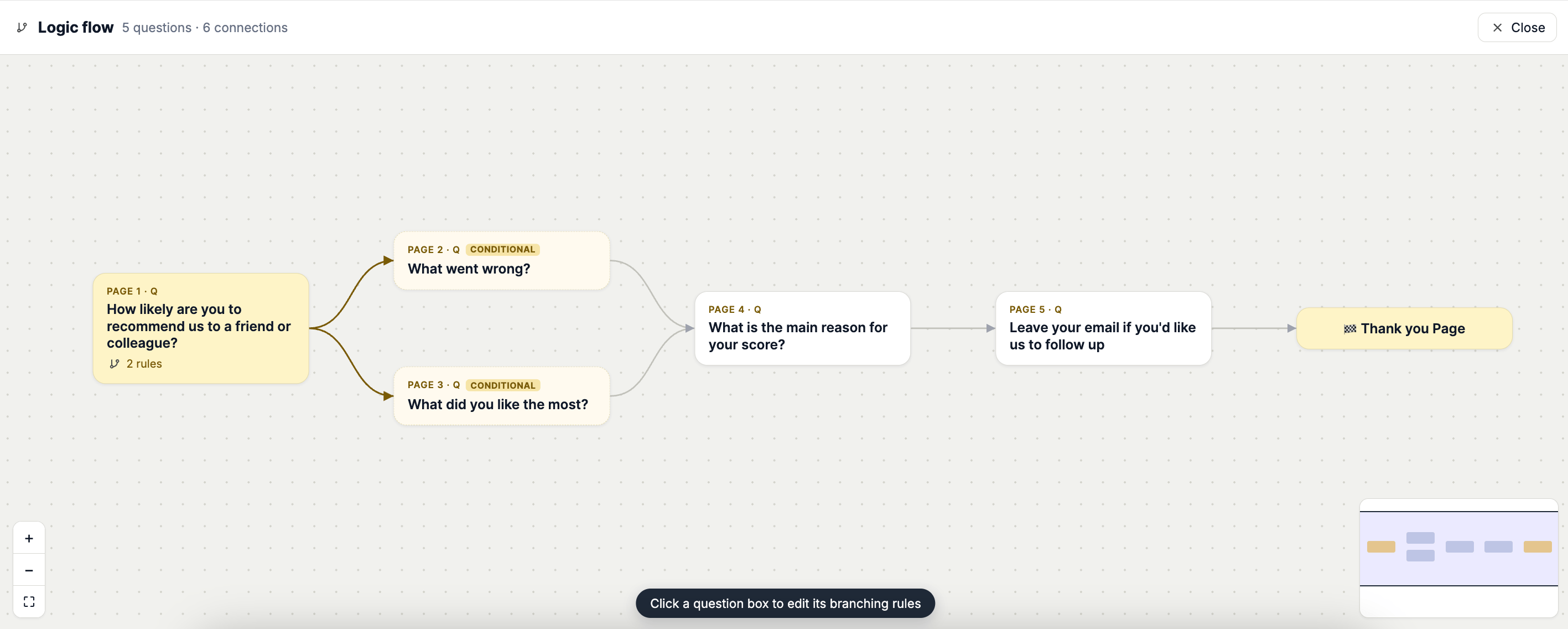
 Click the question block that contains the answer you want to use as the condition.
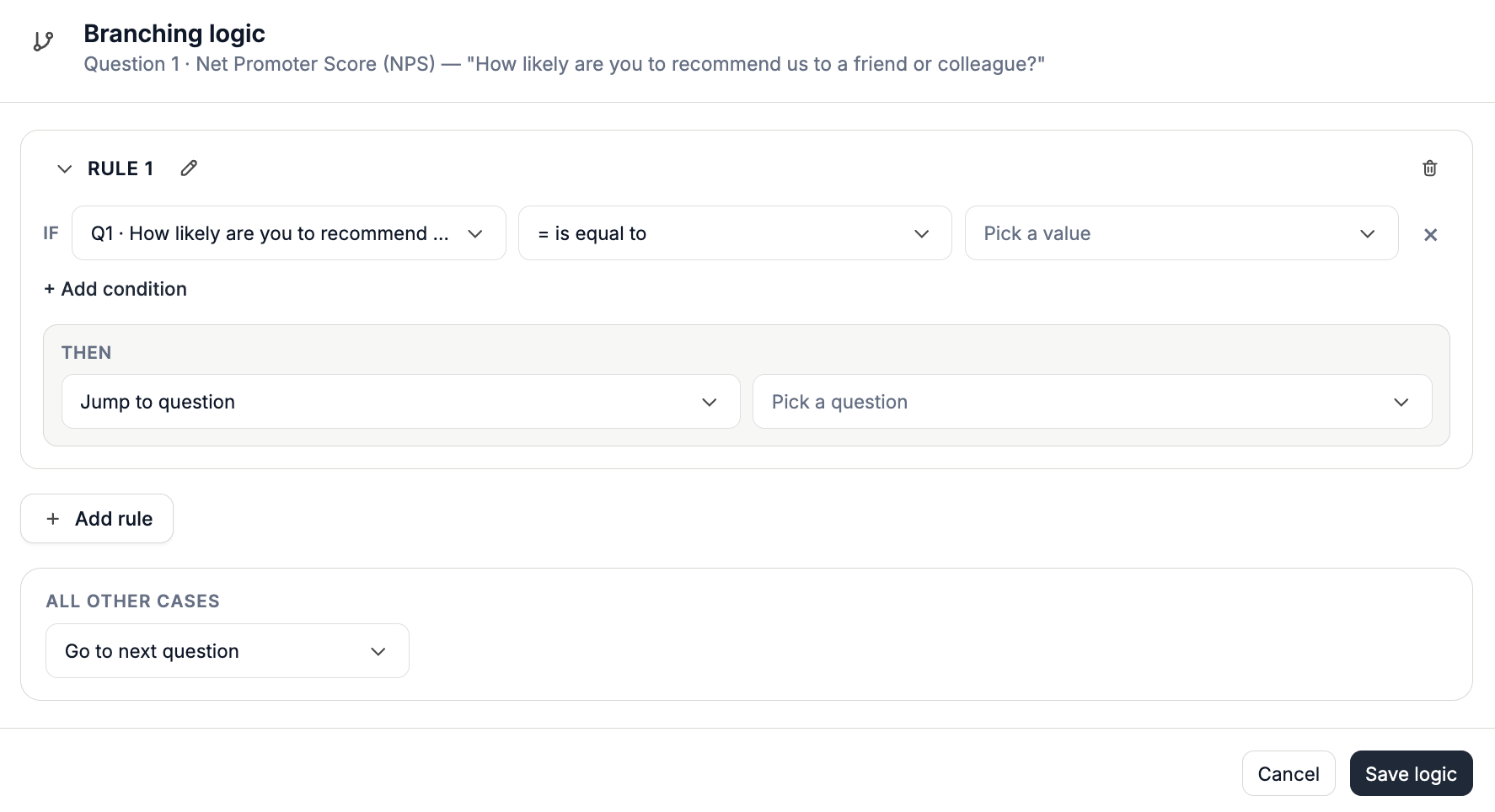
 Click **Add Rule** and configure the **IF** condition.
Select:
1. The question you want to evaluate
2. The appropriate operator
3. The answer or value that should trigger the jump
For example:
> **IF** Question 1 → Is equal to → "Yes"
Click **Add Rule** and configure the **IF** condition.
Select:
1. The question you want to evaluate
2. The appropriate operator
3. The answer or value that should trigger the jump
For example:
> **IF** Question 1 → Is equal to → "Yes"
 For more information about available operators and conditions, see **Create Branching Rules & Conditions.**
Under **THEN**, select **Jump to Question.**
Choose the question you want respondents to be redirected to when the condition is met.
For example:
**THEN → Jump to Question 5**
For more information about available operators and conditions, see **Create Branching Rules & Conditions.**
Under **THEN**, select **Jump to Question.**
Choose the question you want respondents to be redirected to when the condition is met.
For example:
**THEN → Jump to Question 5**
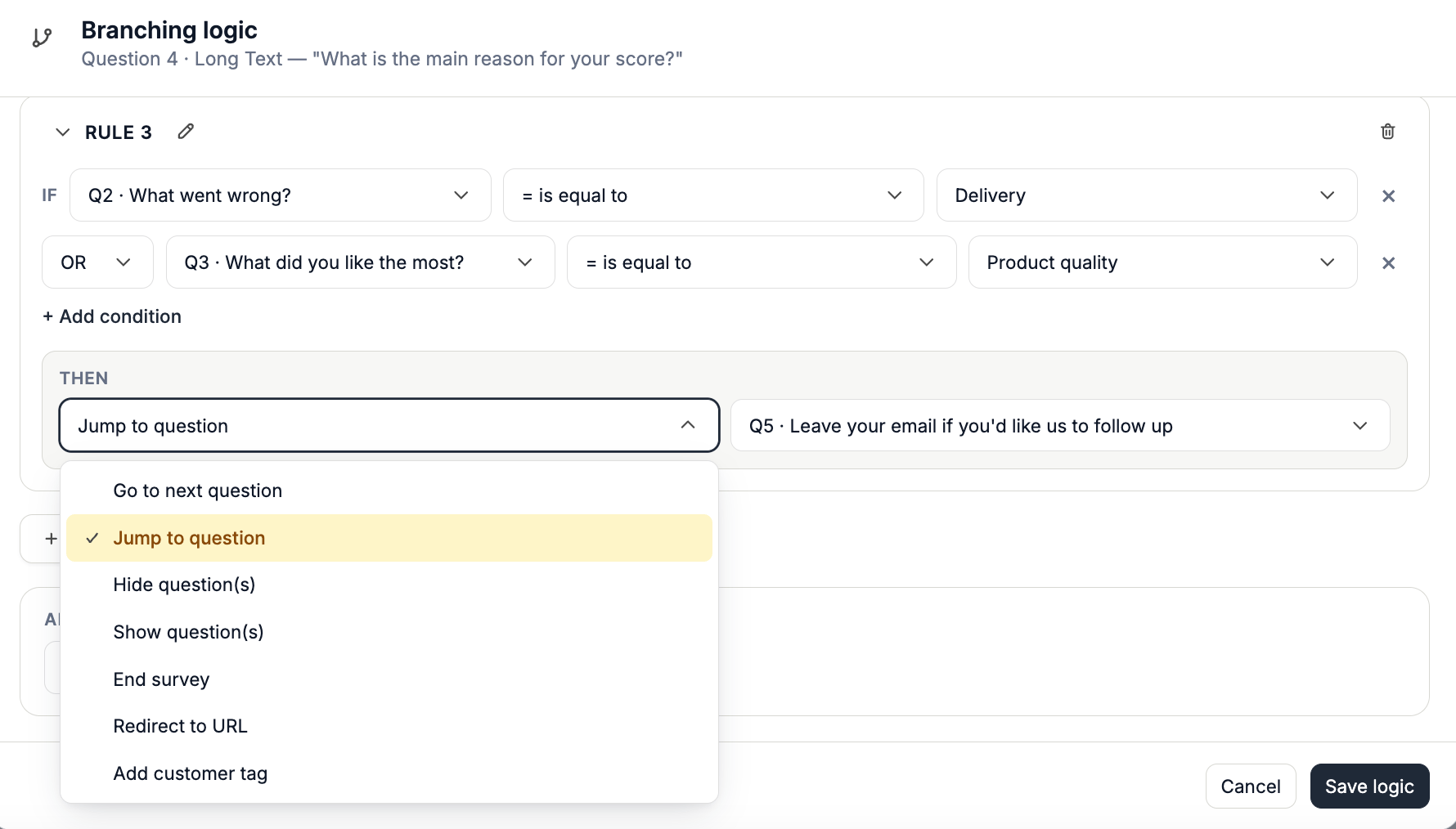 **Save** the rule to apply the Logic Jump.
The branching flow will be updated automatically to show the connections between the questions.
**Save** the rule to apply the Logic Jump.
The branching flow will be updated automatically to show the connections between the questions.