> ## Documentation Index
> Fetch the complete documentation index at: https://docs.apricotsurvey.com/llms.txt
> Use this file to discover all available pages before exploring further.
# Branching Logic Overview
Create personalized survey journeys with **Branching Logic** by showing different questions or taking different actions based on how a customer answers.
Instead of sending every customer through the same sequence of questions, you can create rules that dynamically change the survey flow based on their responses.
For example:
> If a customer answers "**Yes**" to Question 1 → **Jump to Question 5**
This allows you to create more relevant and personalized survey experiences while keeping your surveys short and focused.
 ## How Branching Logic Works
Apricot's Branching Logic uses a simple **IF → THEN** structure.
**IF** defines the condition that should trigger the rule.
## How Branching Logic Works
Apricot's Branching Logic uses a simple **IF → THEN** structure.
**IF** defines the condition that should trigger the rule.
**THEN** defines what Apricot should do when the condition is met.
For example:
> **IF** Question 1 is equal to "Yes" **THEN** Jump to Question 5
You can add multiple conditions to a rule and choose from different actions depending on the survey flow you want to create.
## What You Can Do with Branching Logic
Apricot supports several actions that let you control how your survey behaves:
* **Jump to Question** — Send respondents to a specific question based on their answer.
* **Show Questions** — Display specific questions when a condition is met.
* **Hide Questions** — Hide questions based on a respondent's answer.
* **End Survey** — End the survey when a specific condition is met.
* **Redirect to URL** — Send respondents to a specific URL.
* **Add Customer Tags** — Add tags to Shopify customers based on their responses.
**By default,** respondents **move to the next question** after submitting an answer unless a branching rule changes the survey flow.
## Create Your First Branching Rule
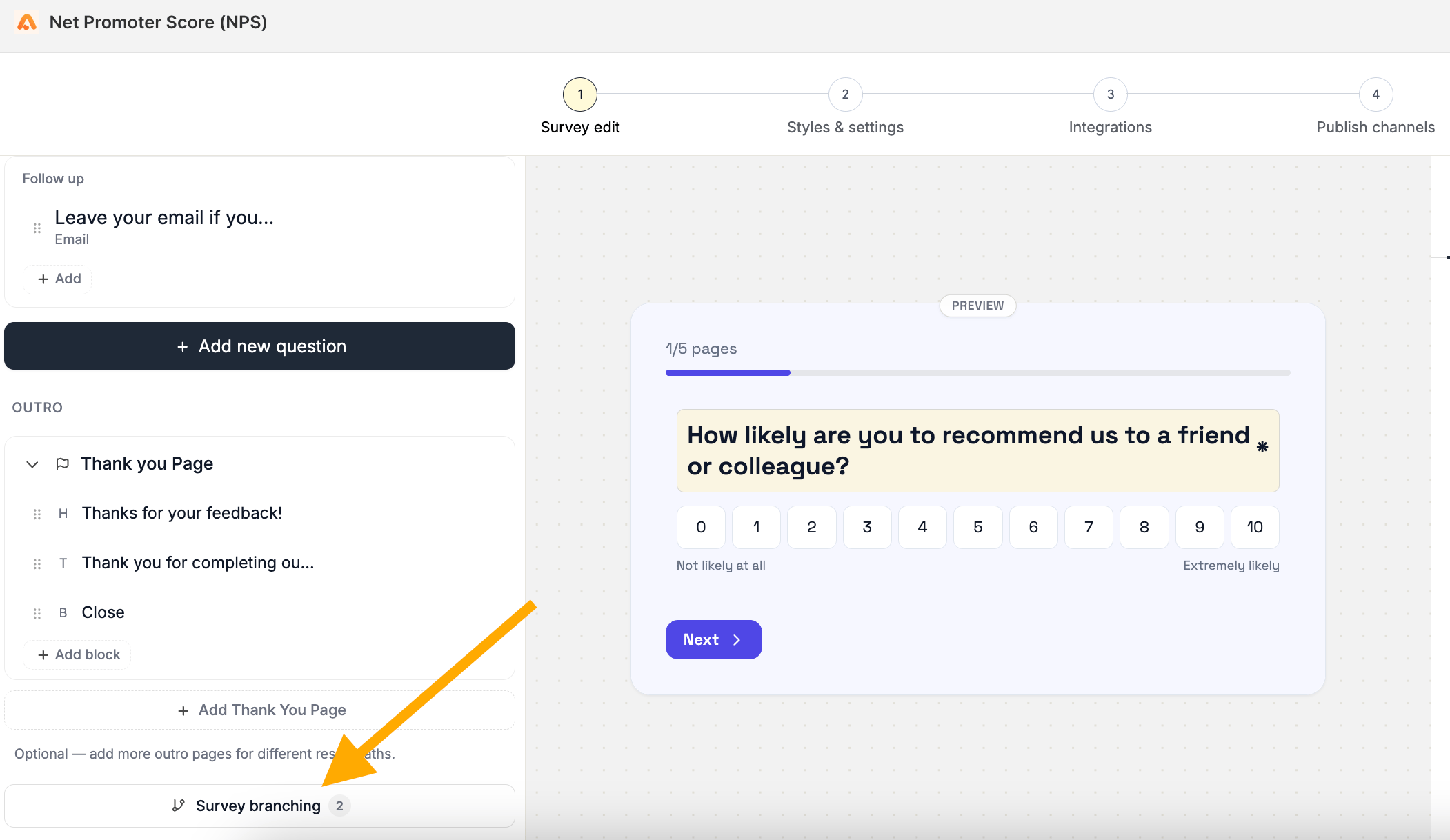
To start using branching logic, open your survey and click **Survey Branching** from the survey editor.
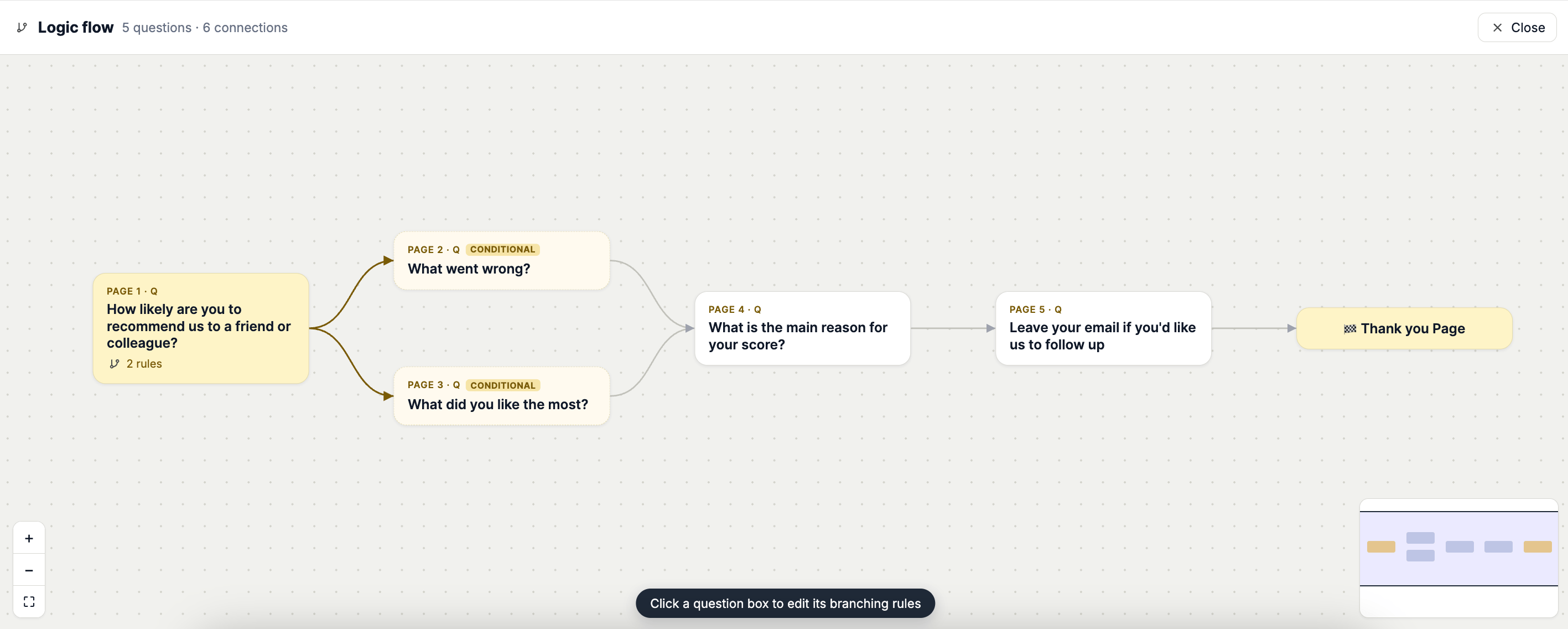
 You'll be taken to the **Branching Logic page**, where you can see your survey flow visually.
Each question is represented as a block on the canvas, with arrows showing how the questions are connected.
Click any question block to open its branching rules and start creating conditions and actions.
For a detailed walkthrough, see **Create Branching Rules & Conditions.**
## Explore Branching Actions
Each branching action has its own guide with examples and setup instructions:
* **Jump to Question (Logic Jump)**
* **Show Questions**
* **Hide Questions**
* **End Survey**
* **Redirect to URL**
* **Add Customer Tags**
You'll be taken to the **Branching Logic page**, where you can see your survey flow visually.
Each question is represented as a block on the canvas, with arrows showing how the questions are connected.
Click any question block to open its branching rules and start creating conditions and actions.
For a detailed walkthrough, see **Create Branching Rules & Conditions.**
## Explore Branching Actions
Each branching action has its own guide with examples and setup instructions:
* **Jump to Question (Logic Jump)**
* **Show Questions**
* **Hide Questions**
* **End Survey**
* **Redirect to URL**
* **Add Customer Tags**