> ## Documentation Index
> Fetch the complete documentation index at: https://docs.apricotsurvey.com/llms.txt
> Use this file to discover all available pages before exploring further.
# Public Link / Standalone Page
Create a dedicated page for your survey and share it anywhere with a unique URL.
The **Public Link / Standalone Page** publishing option allows you to generate a separate page on your Shopify store where your survey is displayed automatically.
This option is ideal when you want to:
* Share your survey through email campaigns or newsletters
* Add the survey link behind a custom button
* Create a dedicated feedback page for customers
Apricot only creates a standalone page when you choose this publishing option. Creating a survey does not automatically add new pages to your Shopify store.
## Generate a Standalone Page
Follow these steps to publish your survey as a standalone page:
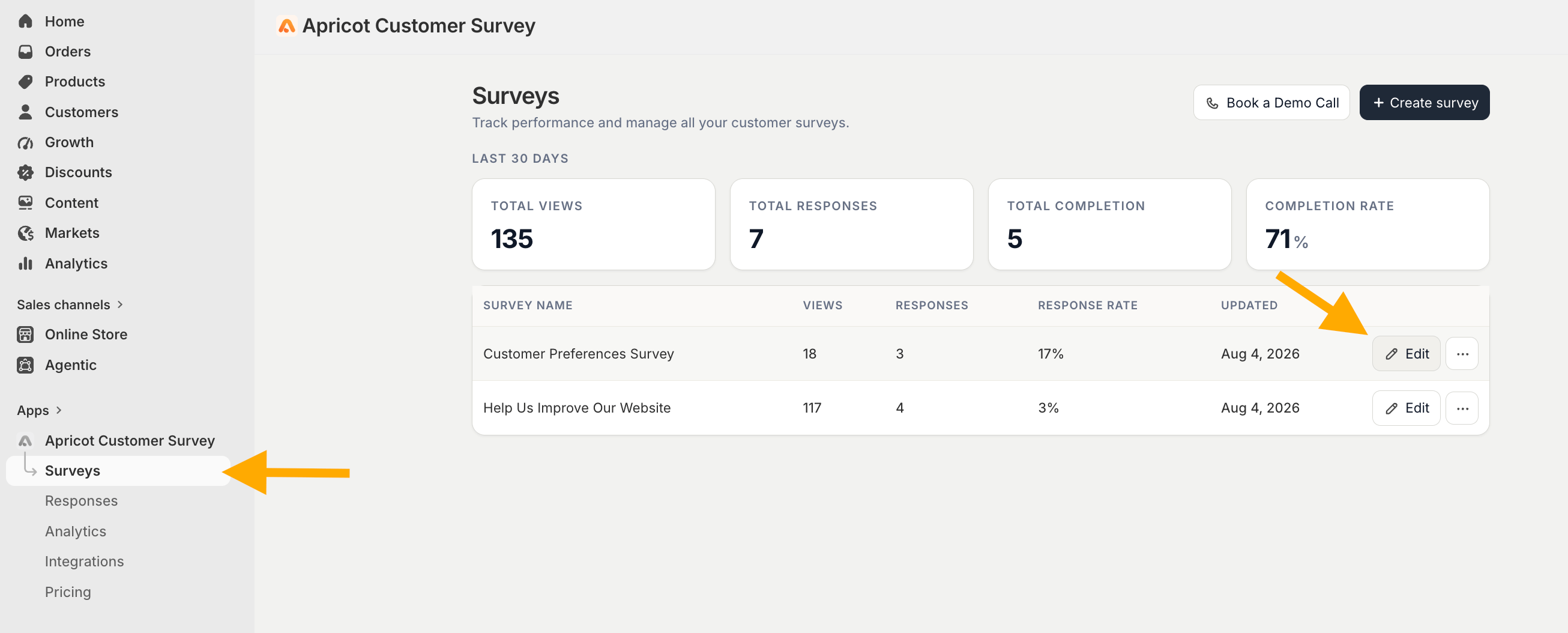
Go to: **Apricot Dashboard → Surveys → Select the survey you want to publish → Edit**
 From the survey editor, navigate to the **Publish Channels** tab and select\*\* Public Link / Standalone Page\*\*
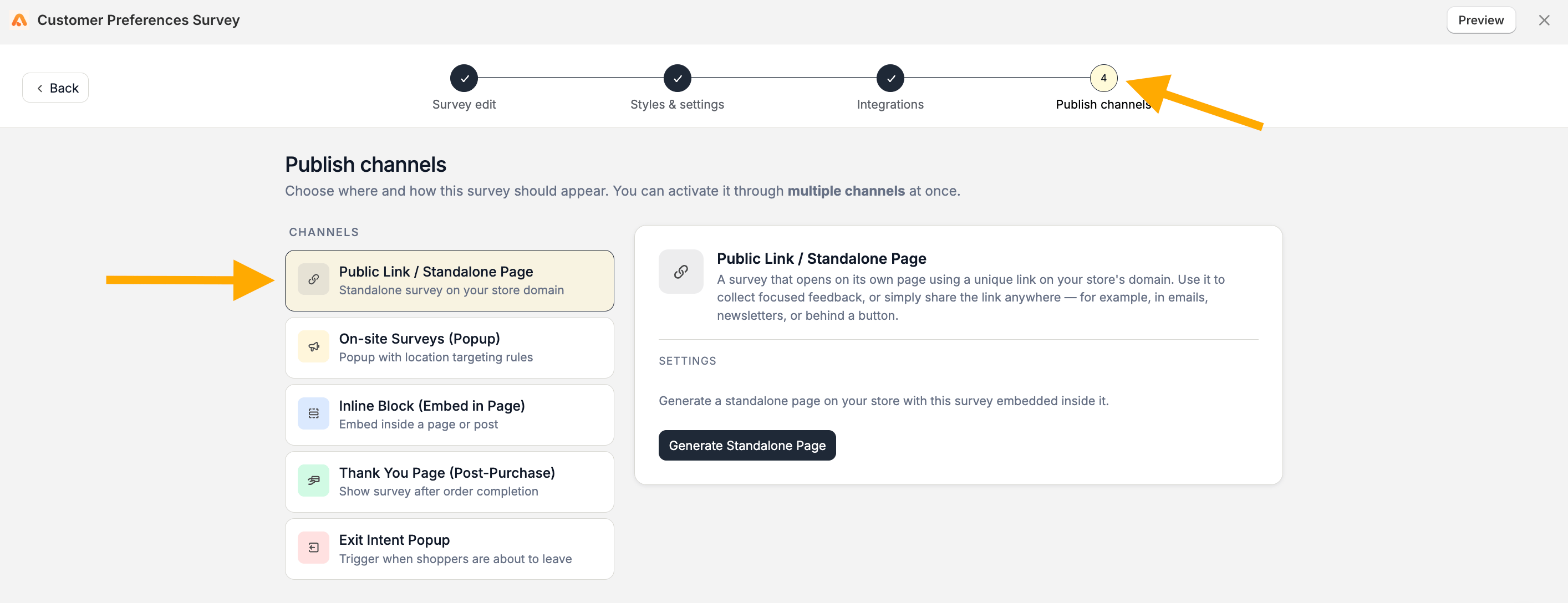 Apricot will automatically create a new page in your Shopify theme and embed your survey inside it.
## Your Public URL
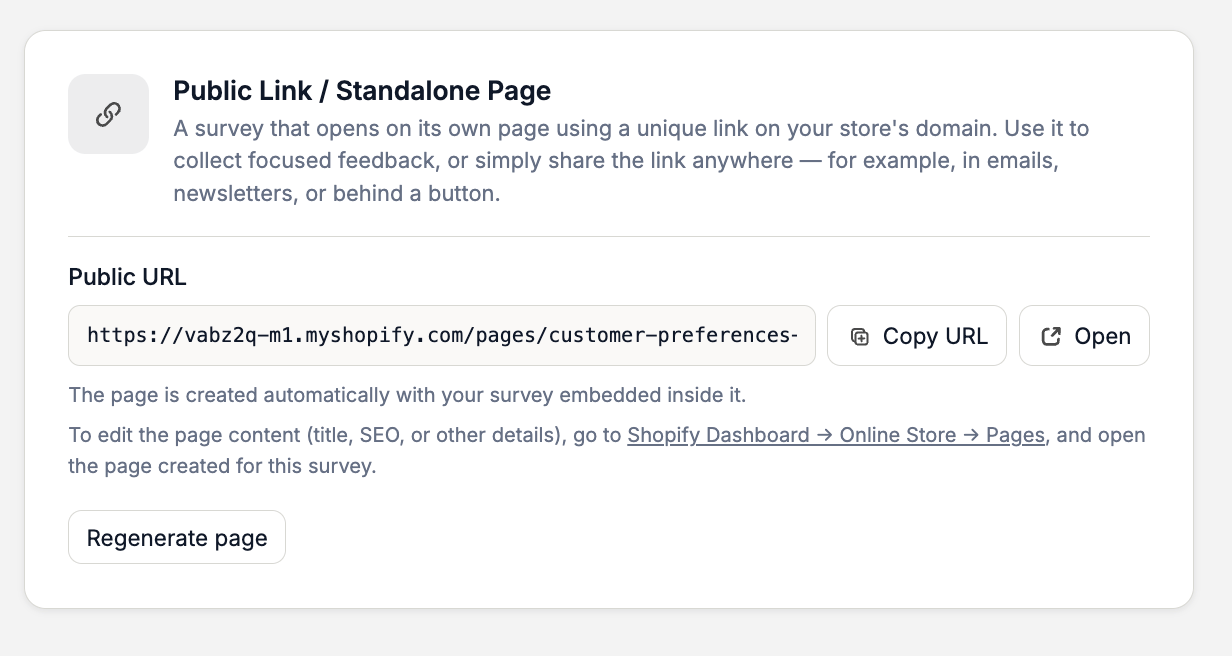
After the page is generated, Apricot will create a unique URL for your survey.
Example:
[https://test.myshopify.com/pages/nps-survey](https://test.myshopify.com/pages/nps-survey)
The URL is generated based on your survey title. Spaces are automatically converted into a URL-friendly format.
You can use the available actions to manage your link:
* **Copy URL** — Copy the standalone page link
* **Open** — Open the published survey page in a new tab
Apricot will automatically create a new page in your Shopify theme and embed your survey inside it.
## Your Public URL
After the page is generated, Apricot will create a unique URL for your survey.
Example:
[https://test.myshopify.com/pages/nps-survey](https://test.myshopify.com/pages/nps-survey)
The URL is generated based on your survey title. Spaces are automatically converted into a URL-friendly format.
You can use the available actions to manage your link:
* **Copy URL** — Copy the standalone page link
* **Open** — Open the published survey page in a new tab
 The generated page already contains your survey. You don't need to manually add any Shopify blocks or embed codes.
## Edit Your Standalone Page
The page itself is created and managed through Shopify.
To edit the page content, such as:
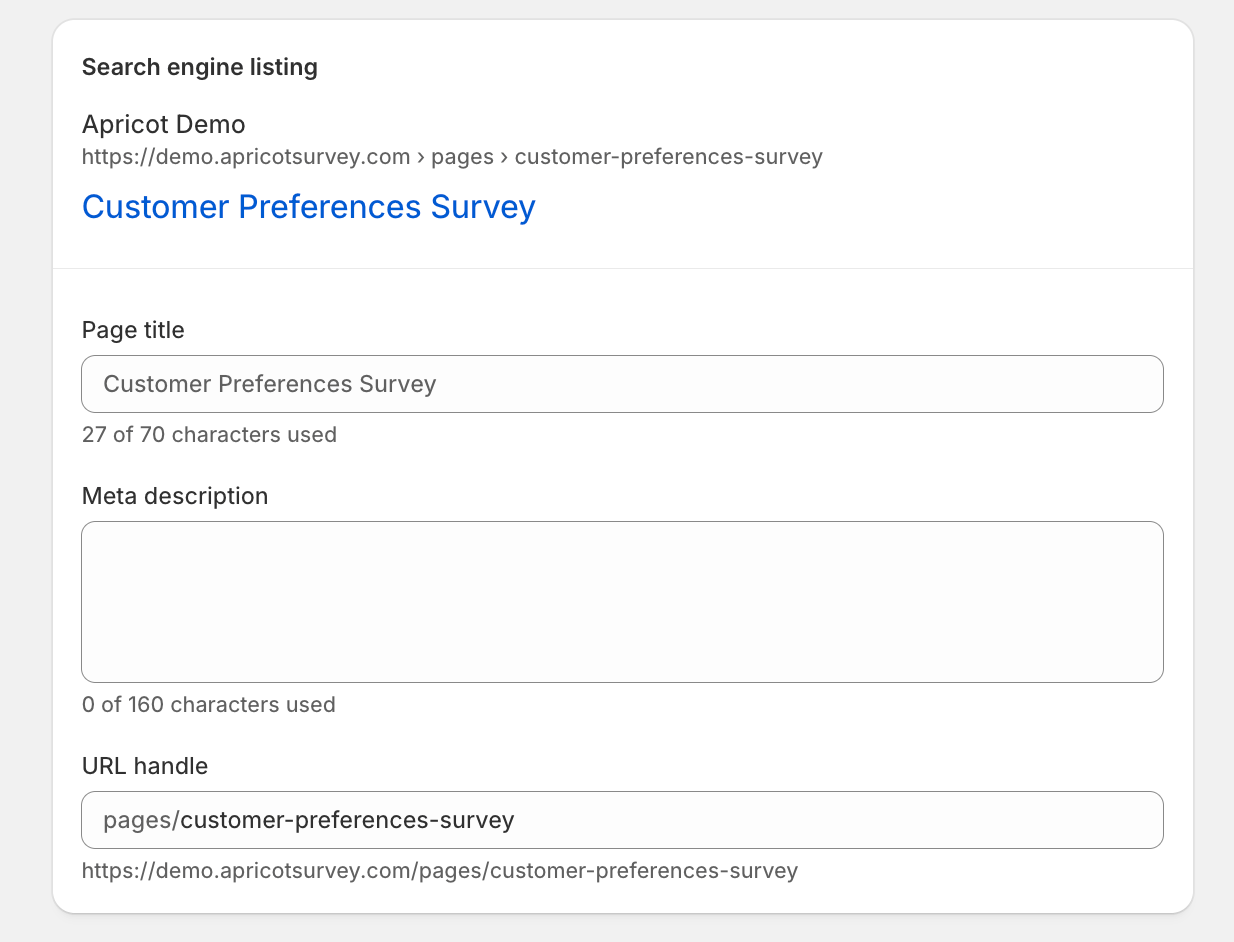
* Page title
* SEO settings
* Other Shopify page details
Go to:
**Shopify Dashboard → Online Store → Pages**
The generated page already contains your survey. You don't need to manually add any Shopify blocks or embed codes.
## Edit Your Standalone Page
The page itself is created and managed through Shopify.
To edit the page content, such as:
* Page title
* SEO settings
* Other Shopify page details
Go to:
**Shopify Dashboard → Online Store → Pages**
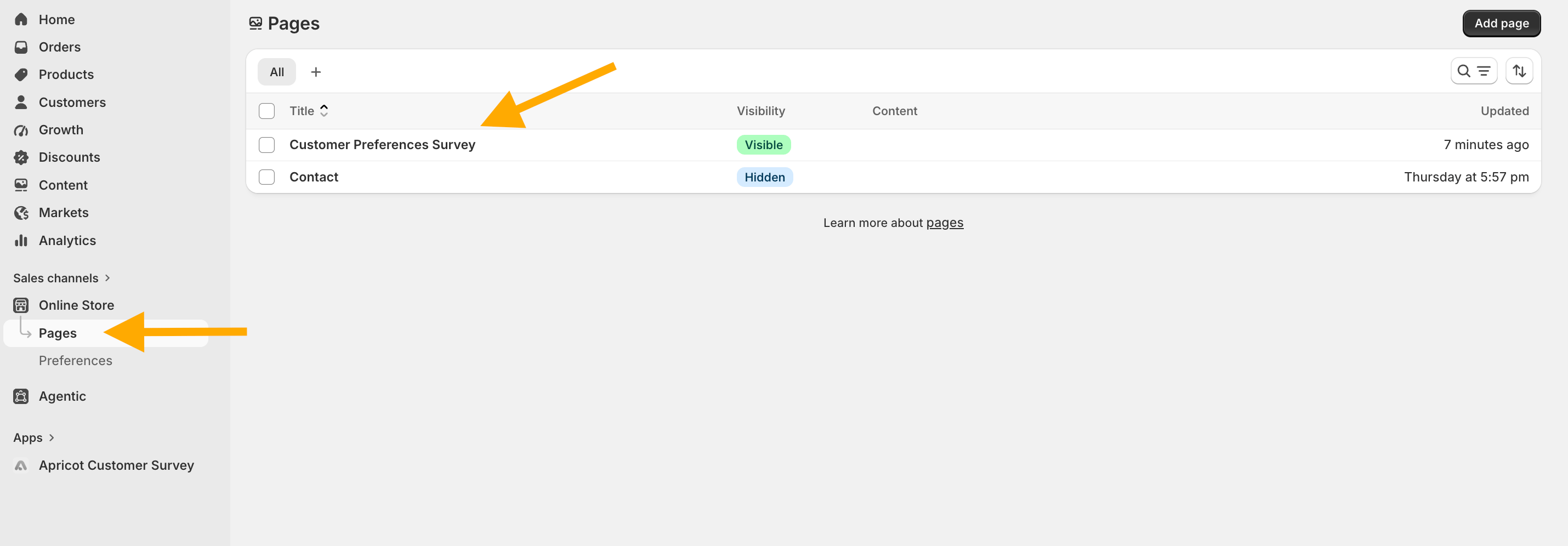 Open the page created for your survey and make your changes, such as the URL handle.
 ## Regenerate Standalone Page
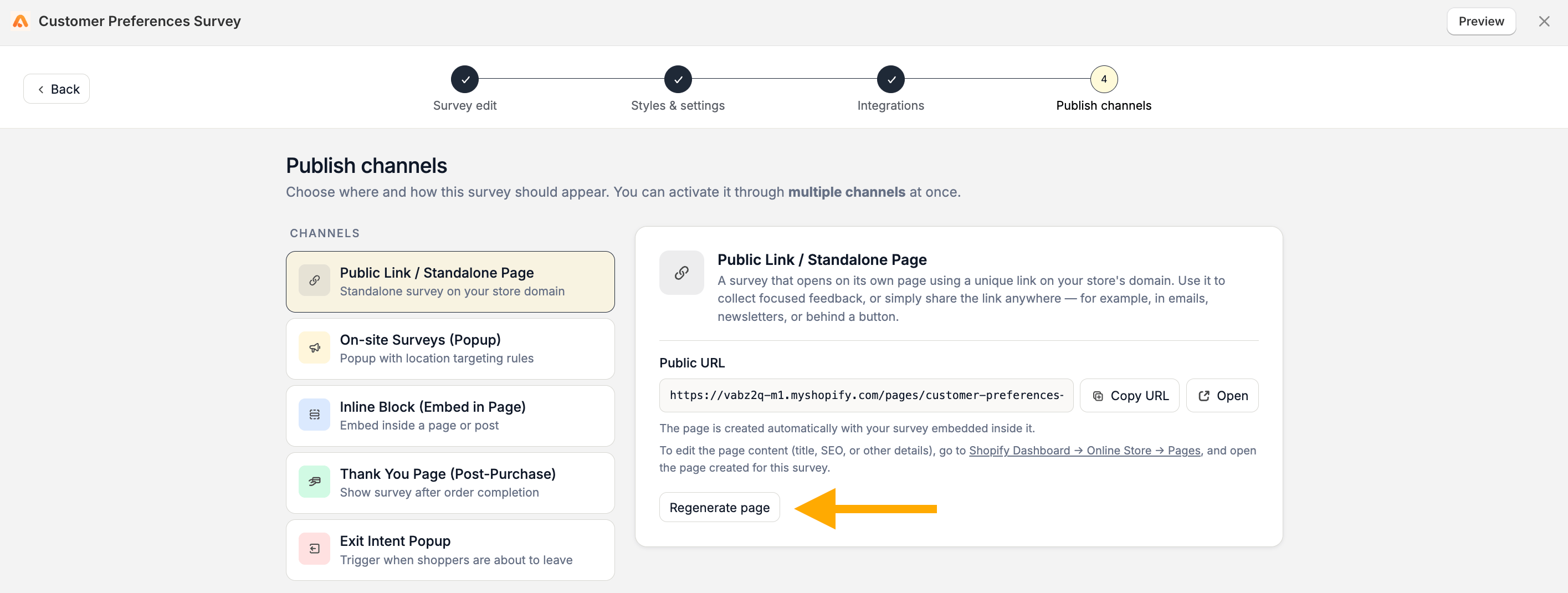
If you **change your Shopify theme** after generating the standalone page, use the **Regenerate Page** button in Apricot.
Theme changes can affect how embedded content is loaded. After switching themes, regenerate the standalone page to ensure your survey works correctly with your new theme.
Click **Regenerate Page** and Apricot will create an updated standalone page version compatible with your current theme.
## Regenerate Standalone Page
If you **change your Shopify theme** after generating the standalone page, use the **Regenerate Page** button in Apricot.
Theme changes can affect how embedded content is loaded. After switching themes, regenerate the standalone page to ensure your survey works correctly with your new theme.
Click **Regenerate Page** and Apricot will create an updated standalone page version compatible with your current theme.