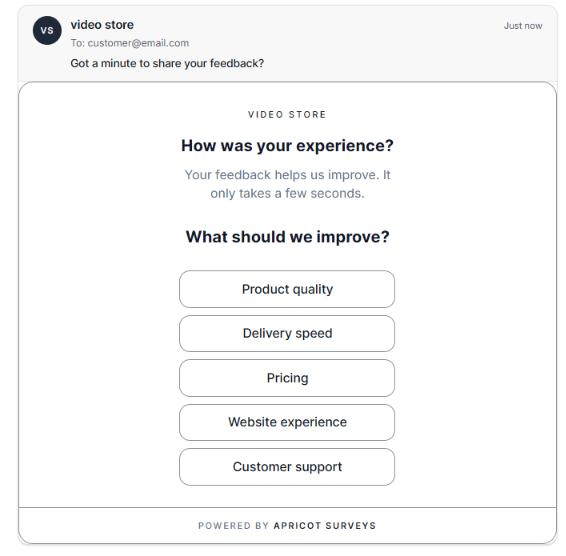
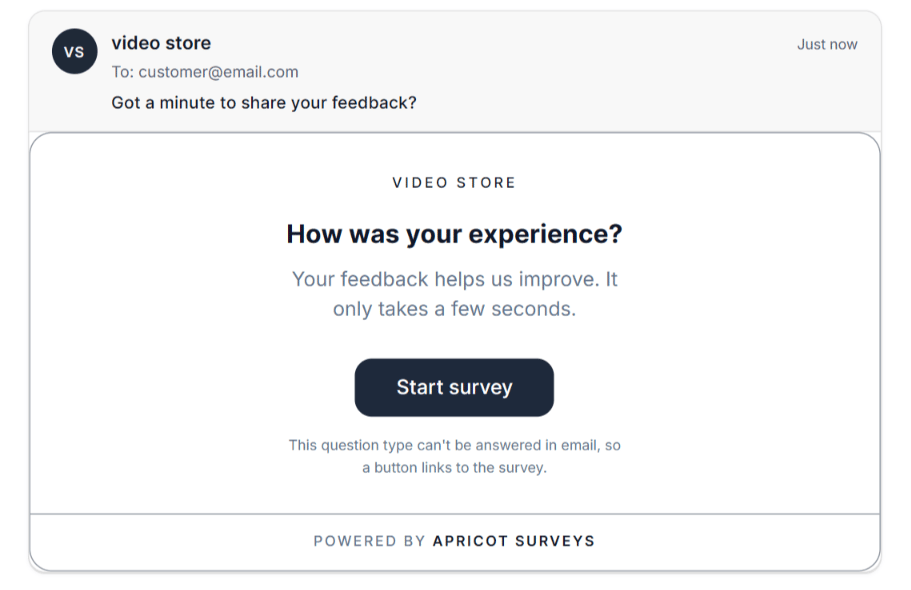
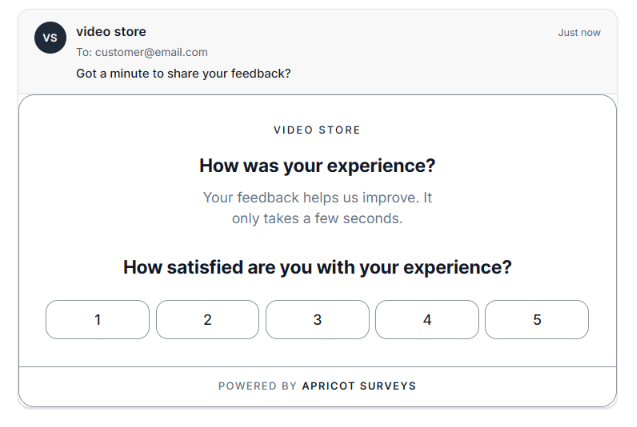
- Collect feedback from existing customers through email campaigns
- Send post-purchase surveys to customers after an order
- Include surveys in newsletters or follow-up emails
- Reach specific customer segments with targeted surveys
1
Step 1: Open your survey settings
Go to: Apricot Dashboard → Surveys → Select the survey you want to publish → Edit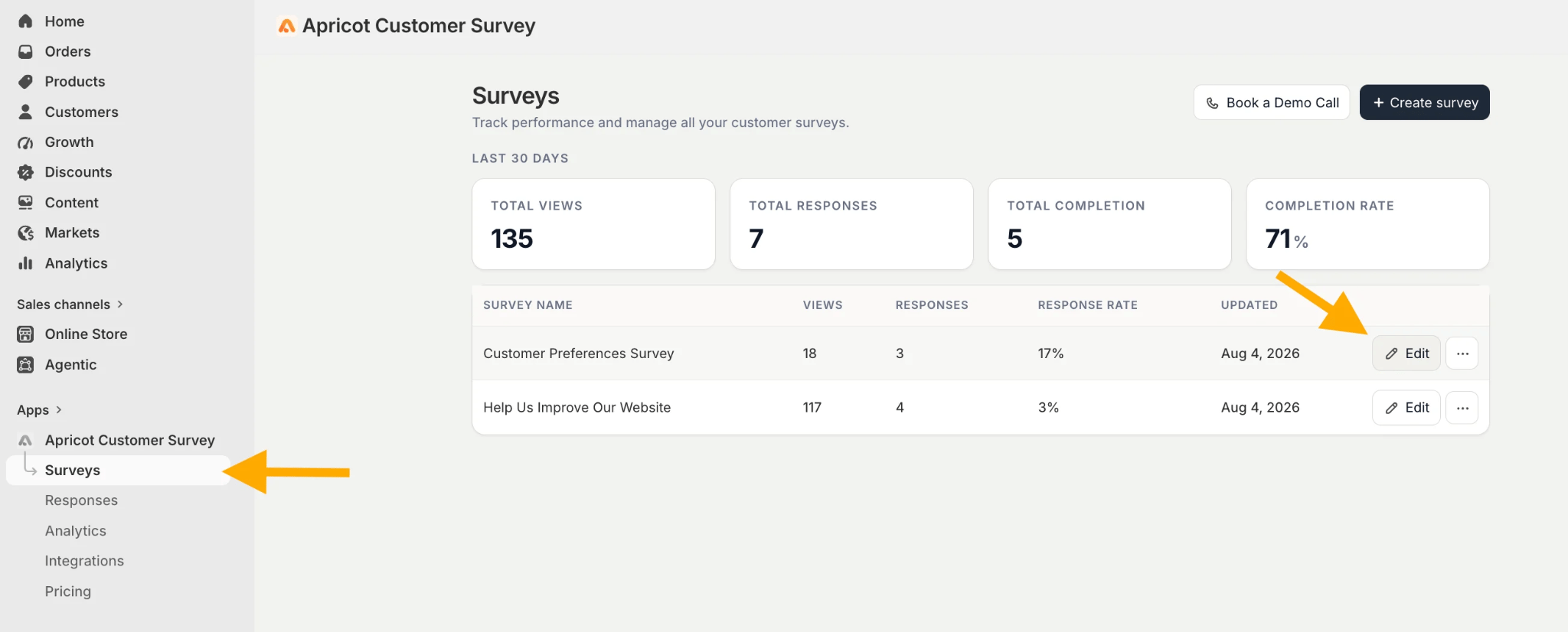
2
Step 2: Select the Public Link / Email channel
From the survey editor, navigate to the Publish Channels tab and select Email.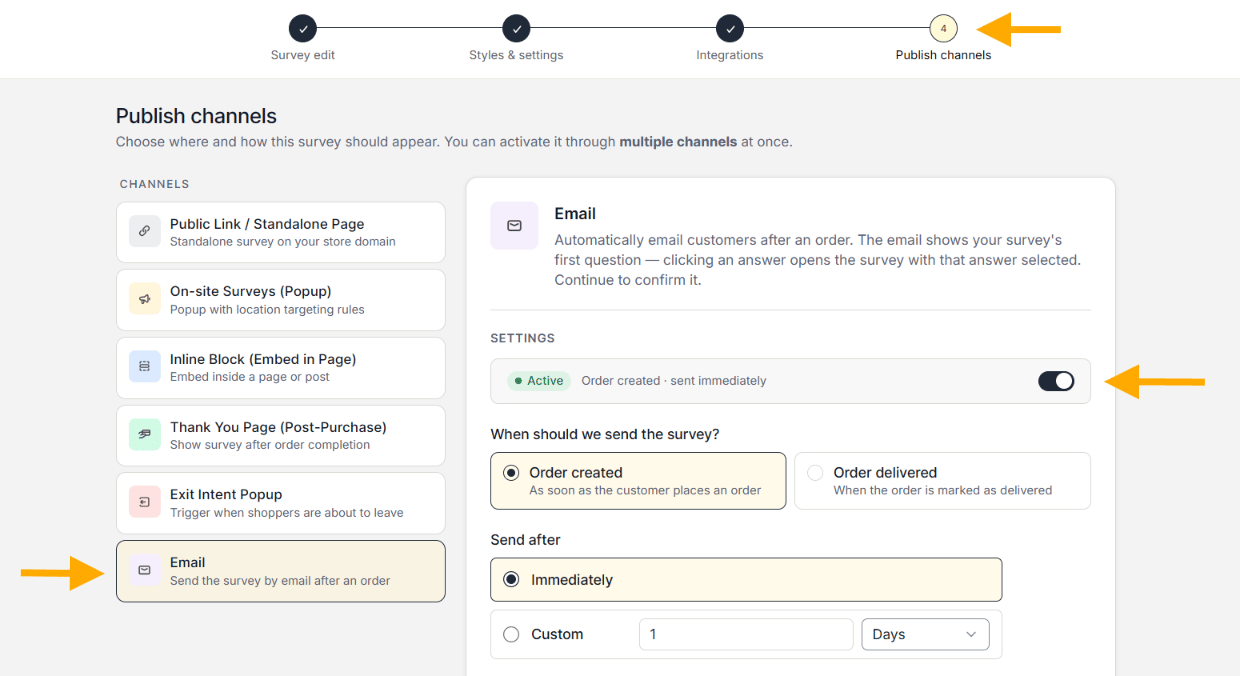
3
Step 3: Toggle the button to activate the survey.
Apricot will automatically send emails with the survey embedded in them. You can choose when you want the email to be sent. It can be sent after the order is placed or after the order is marked as delivered. You can also choose to send the email immediately or at a specific time based on minutes/hours/days.
4
Step 4: Edit the email.
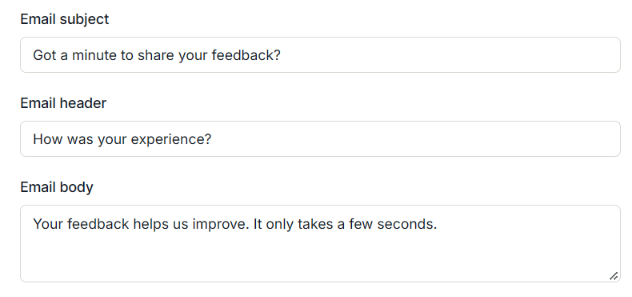
How the Survey Appears in the Email
The way a survey appears in an email depends on the type of its first question and the survey’s structure. If the first question is choice-based, such as multiple choice, the email displays the question and its answer options. When a customer clicks an option, the survey opens with that answer already selected. They can confirm their choice and continue answering the remaining questions.