(3).png?fit=max&auto=format&n=1jDnanukh7KJkGxS&q=85&s=0547dd6dbea96edd3d4001bf5e5a5d8a)
IF Question 1 is equal to “Yes”
THEN Redirect to URL → https://yourstore.com/products/example
Set Up a URL Redirect
1
Step 1: Open Survey Branching
Open the survey you want to configure.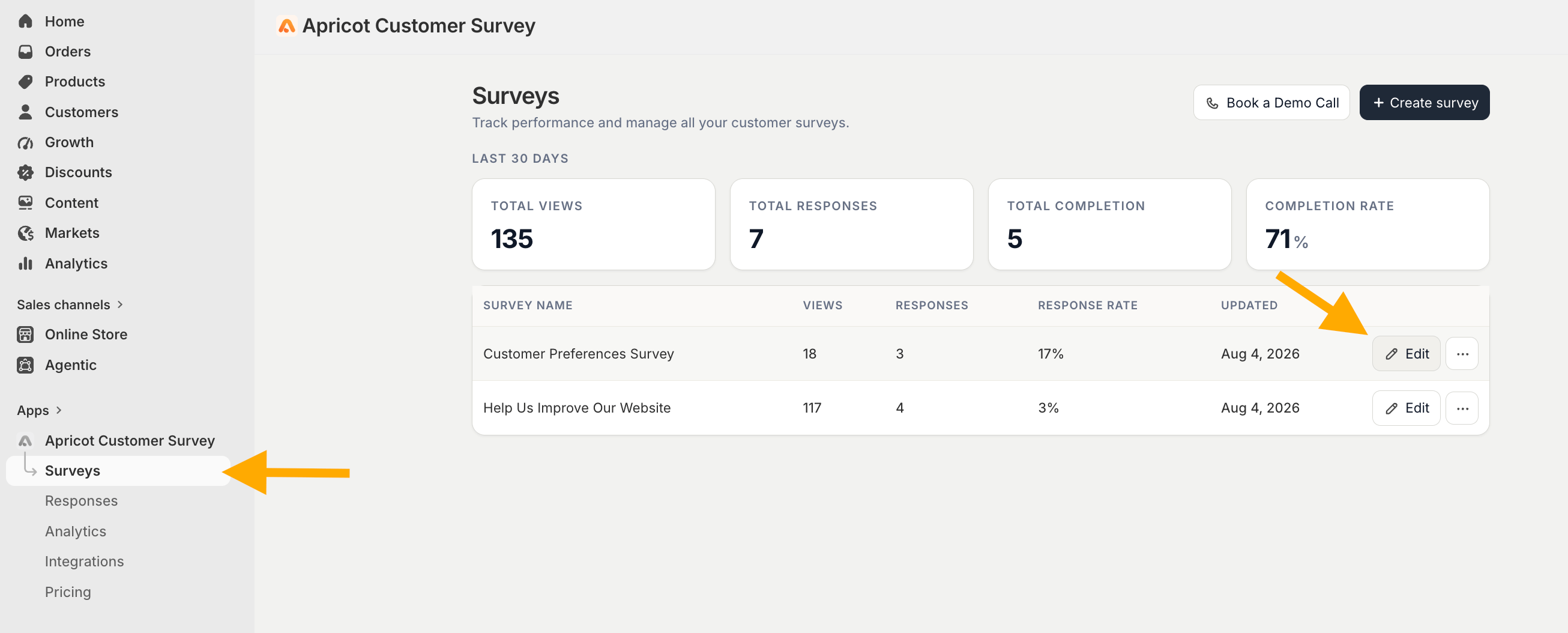
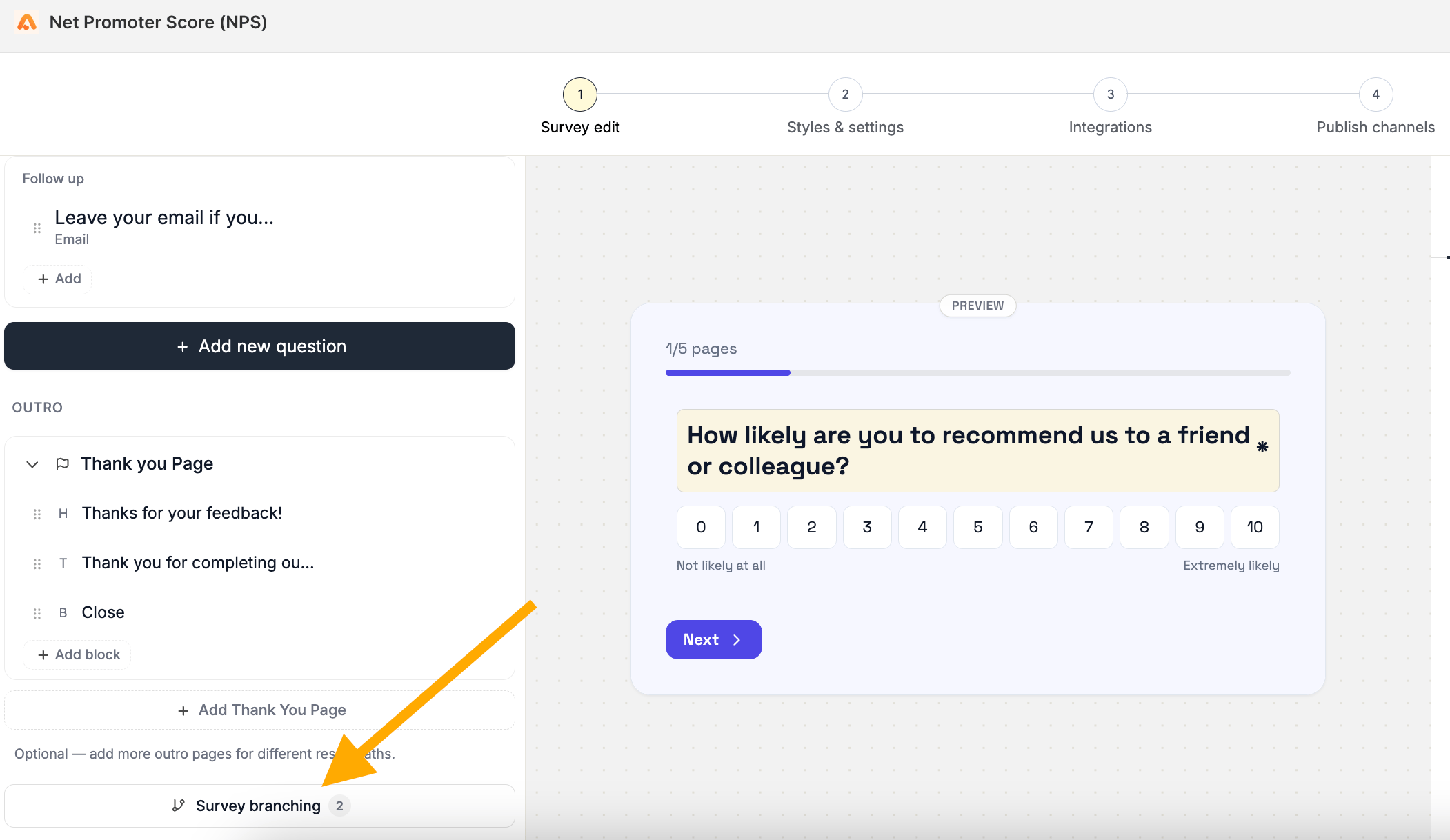
2
Step 2: Select the question
Click the question block that contains the answer you want to use as the condition.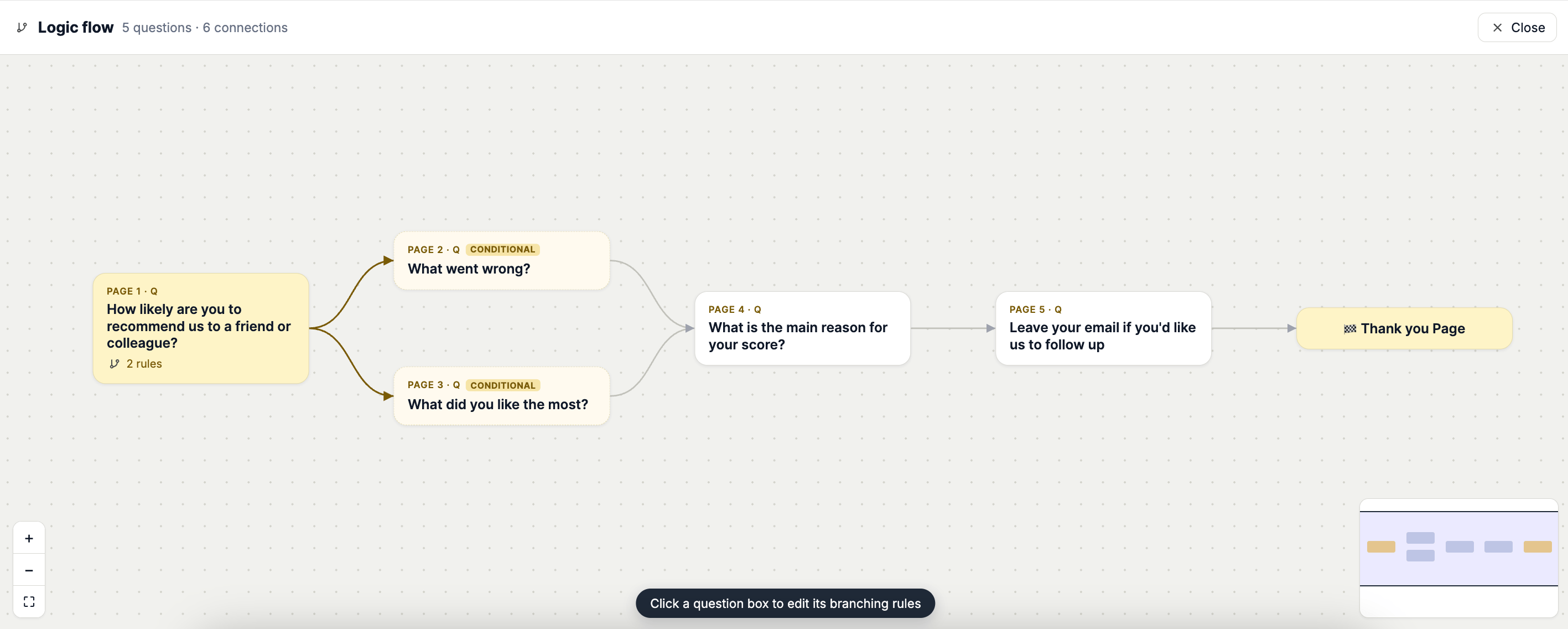
3
Step 3: Create your condition
Click Add Rule and configure the IF condition.Select the question, operator, and value that should trigger the redirect.For example:IF Question 1 → Is equal to → “Yes”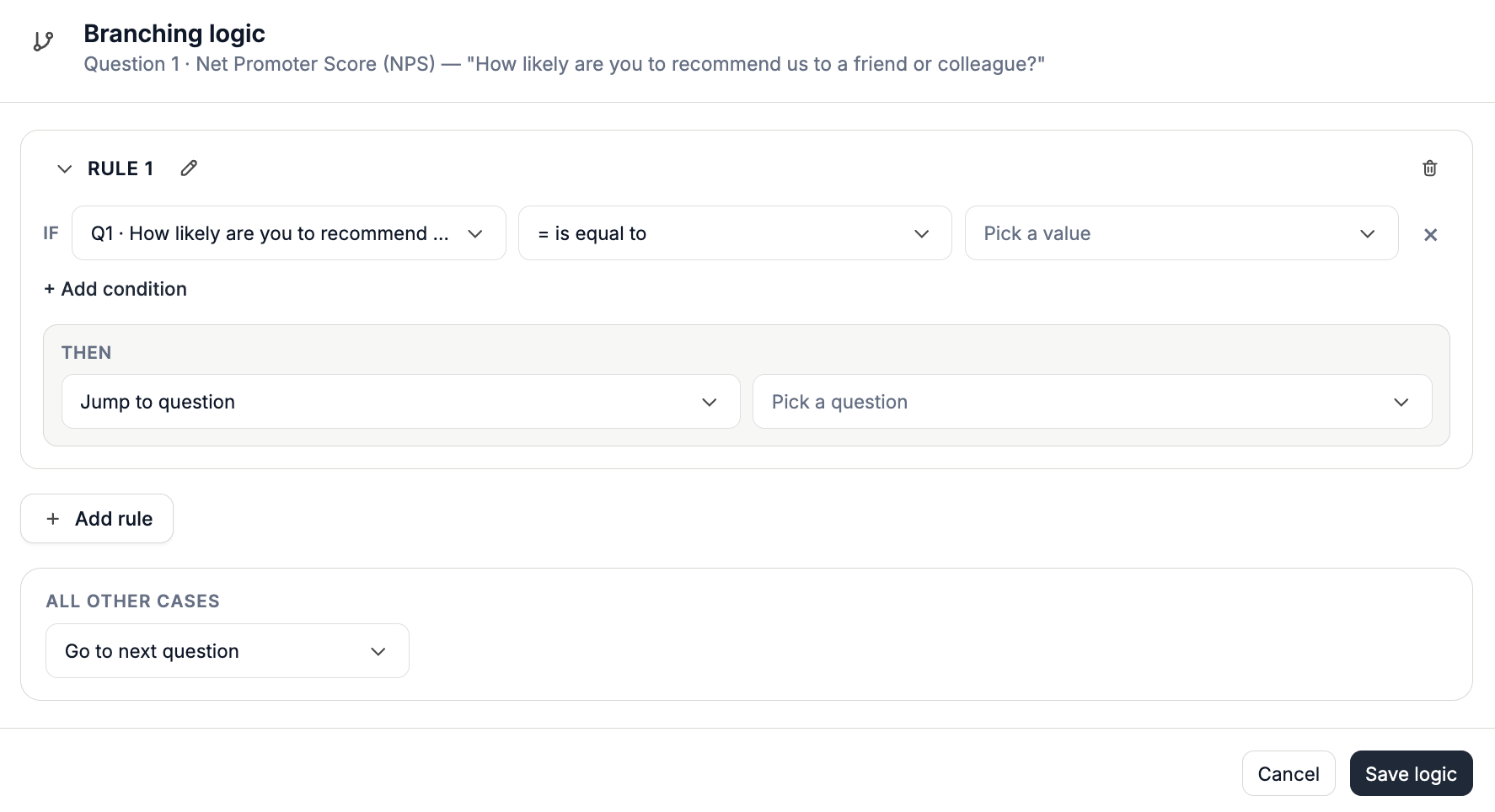
4
Step 4: Choose Redirect to URL
Under THEN, select Redirect to URL.Enter the URL where you want respondents to be redirected.For example:THEN → Redirect to URL → https://yourstore.com/products/example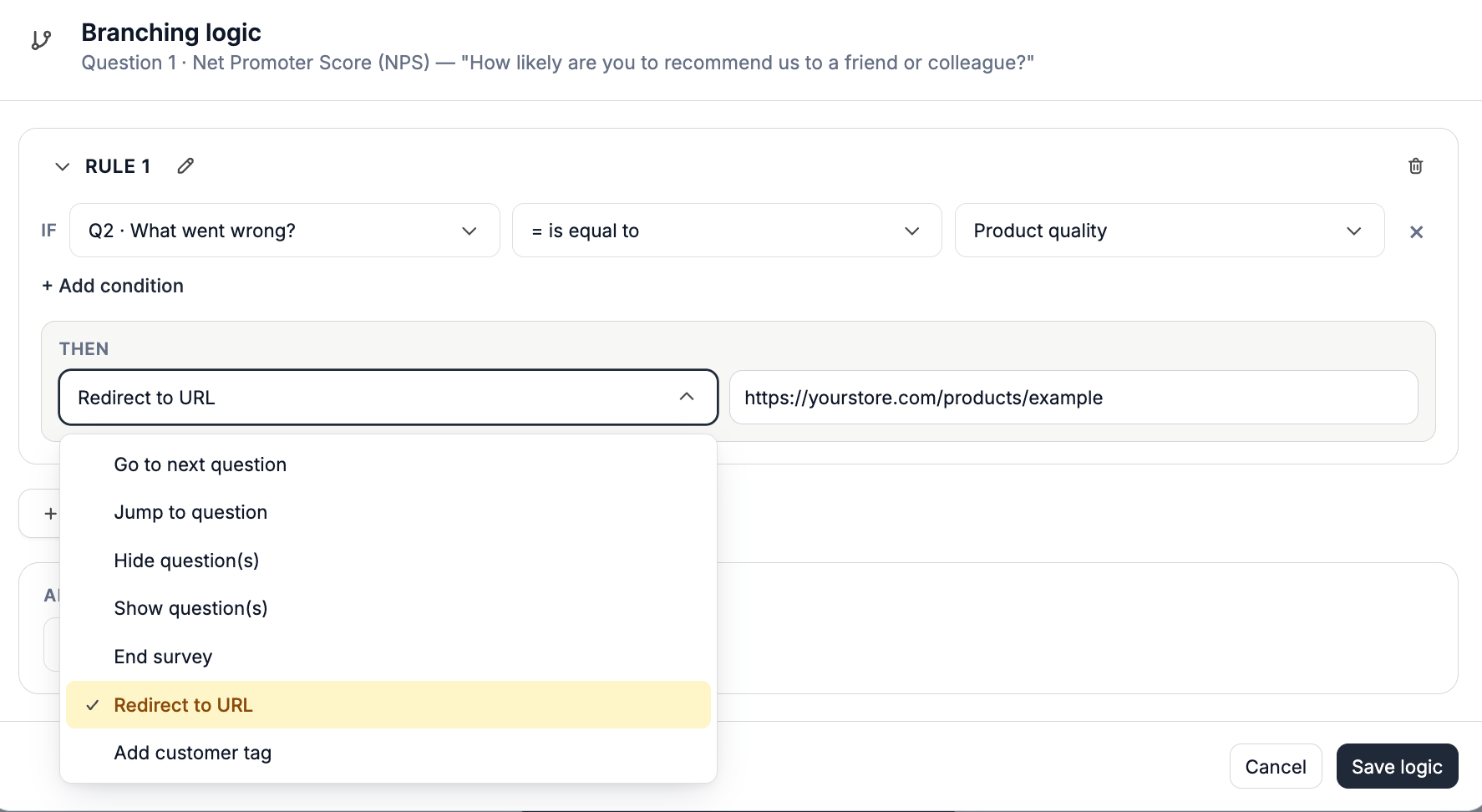
Example
Imagine you’re asking customers whether they want to learn more about a product. Question: Would you like to learn more about this product?- Yes
- No You could create a rule such as:
IF Answer is equal to “Yes”This lets you turn a survey response into a direct next step for the customer.
THEN Redirect to URL → Your product page