Connect Apricot with Shopify Customers to automatically add survey respondents to your Shopify customer list when they complete a survey. Once connected, you can enable the integration for individual surveys and use customer information for workflows such as automatically adding customer tags based on survey responses.

Connect Shopify Customers

1

Step 1: Connect Shopify Customers

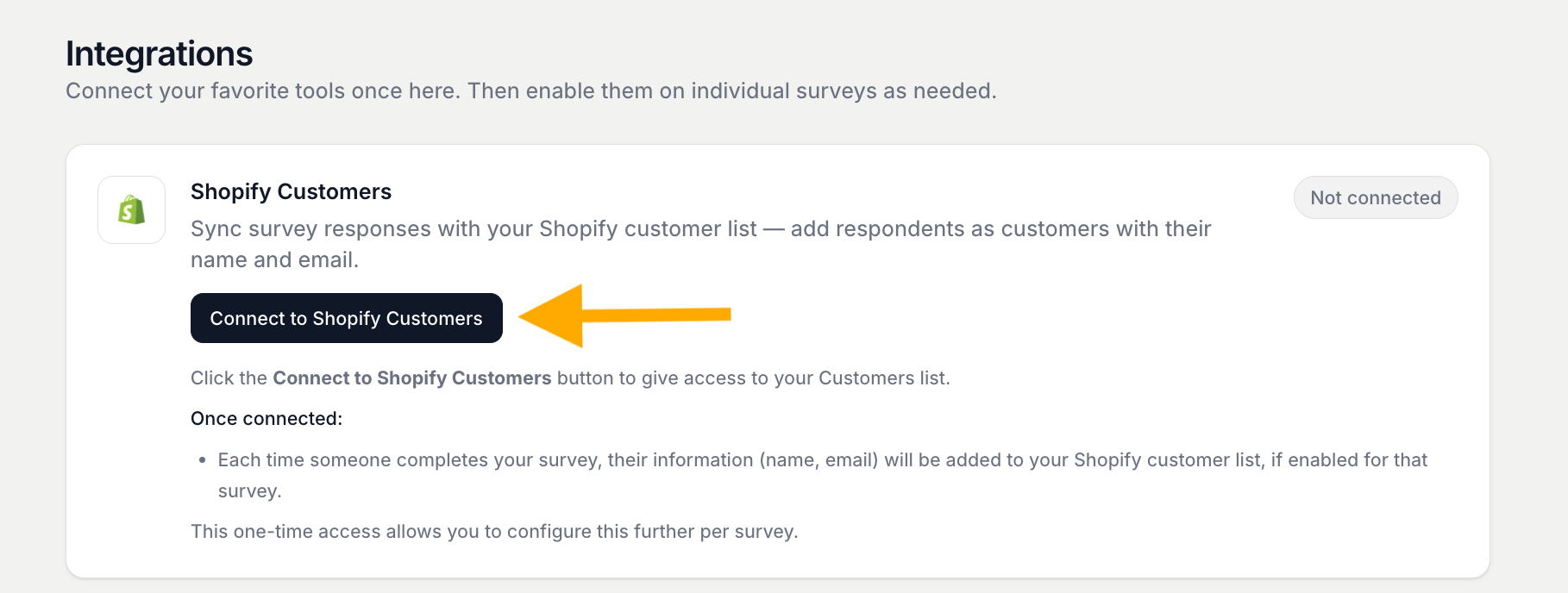
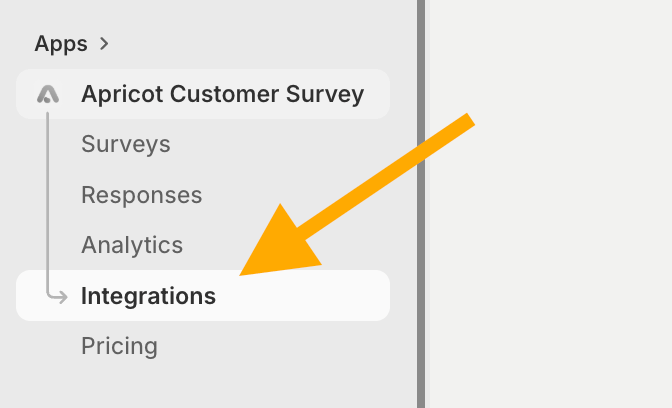
From the Apricot Customer Survey submenu, go to Integrations.Apricot Integration SubmenuFind Shopify Customers and click the Connect to Shopify Customers button to give Apricot access to your Shopify Customers list.Shopify Customers IntegrationOnce the connection is successful, the integration will show as Connected.This is a one-time connection. You can configure the integration separately for each survey.Once connected, each time someone completes your survey, their information (name and email) will be added to your Shopify customer list if the integration is enabled for the given survey.
2

Step 2: Activate Shopify Customers for a survey

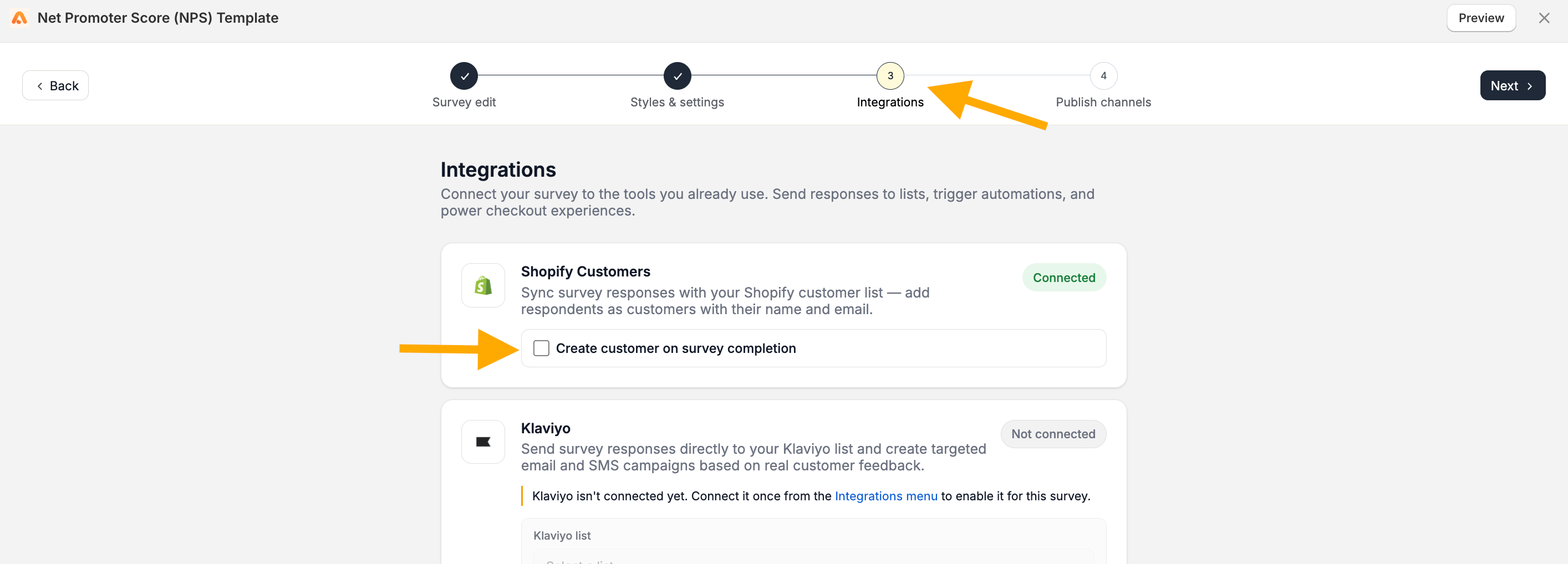
After connecting Shopify Customers, you need to enable the integration for each survey where you want to create customers.Go to: Apricot Dashboard → Surveys → Edit your survey → Integrations tabFind Shopify Customers. A green Connected badge indicates that the integration is successfully connected.Enable Create customer on survey completion to activate the integration for this survey.Integration Tab Shopify CustomersClick Save to apply the changes.
Add Customer Tags

Once Shopify Customers is connected and enabled for your survey, you can automatically add tags to Shopify customers based on their survey responses. See Add Customer Tags to learn how to set up customer tags using Branching Logic.