(3).png?fit=max&auto=format&n=1jDnanukh7KJkGxS&q=85&s=0547dd6dbea96edd3d4001bf5e5a5d8a)
Connect Apricot to Mailchimp
First, connect your Mailchimp account to Apricot by following the steps below using your Mailchimp username and API key.1
Step 1: Open Mailchimp Integration
From the Apricot Customer Survey submenu, go to Integrations.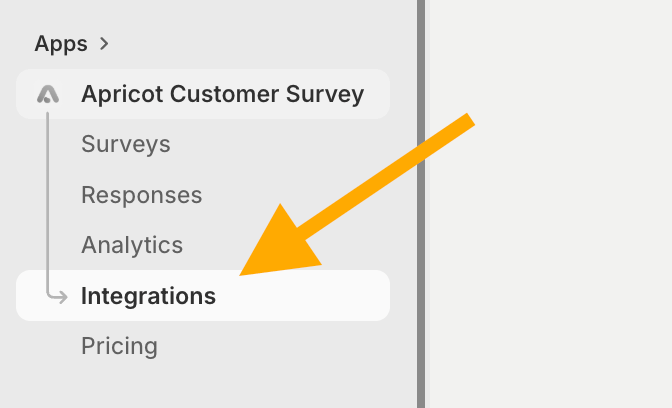
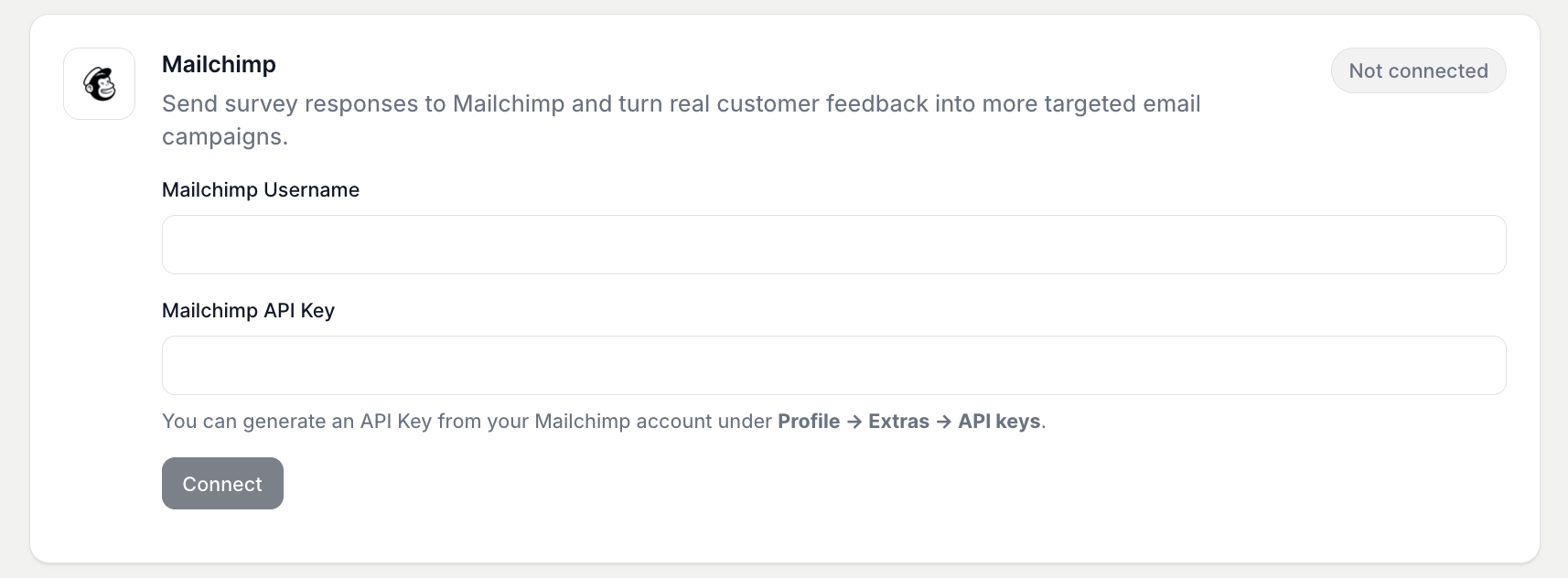
2
Step 2: Enter your Mailchimp Username
Log in to your Mailchimp account, or create a new account if you don’t have one yet.Click your profile icon, then go to Account & billing.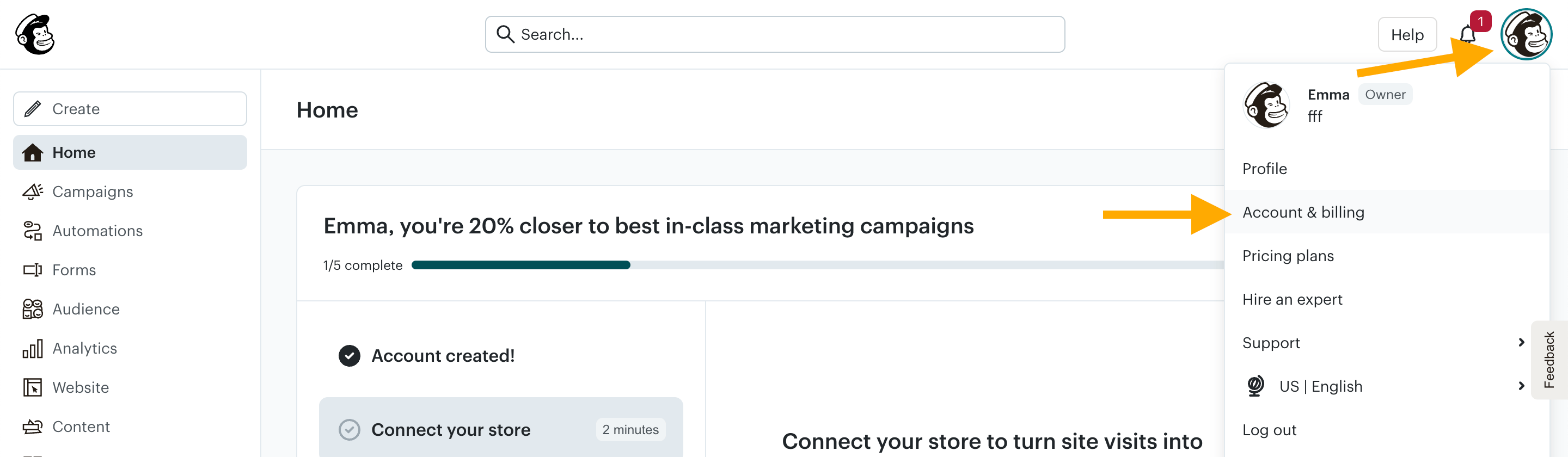
3
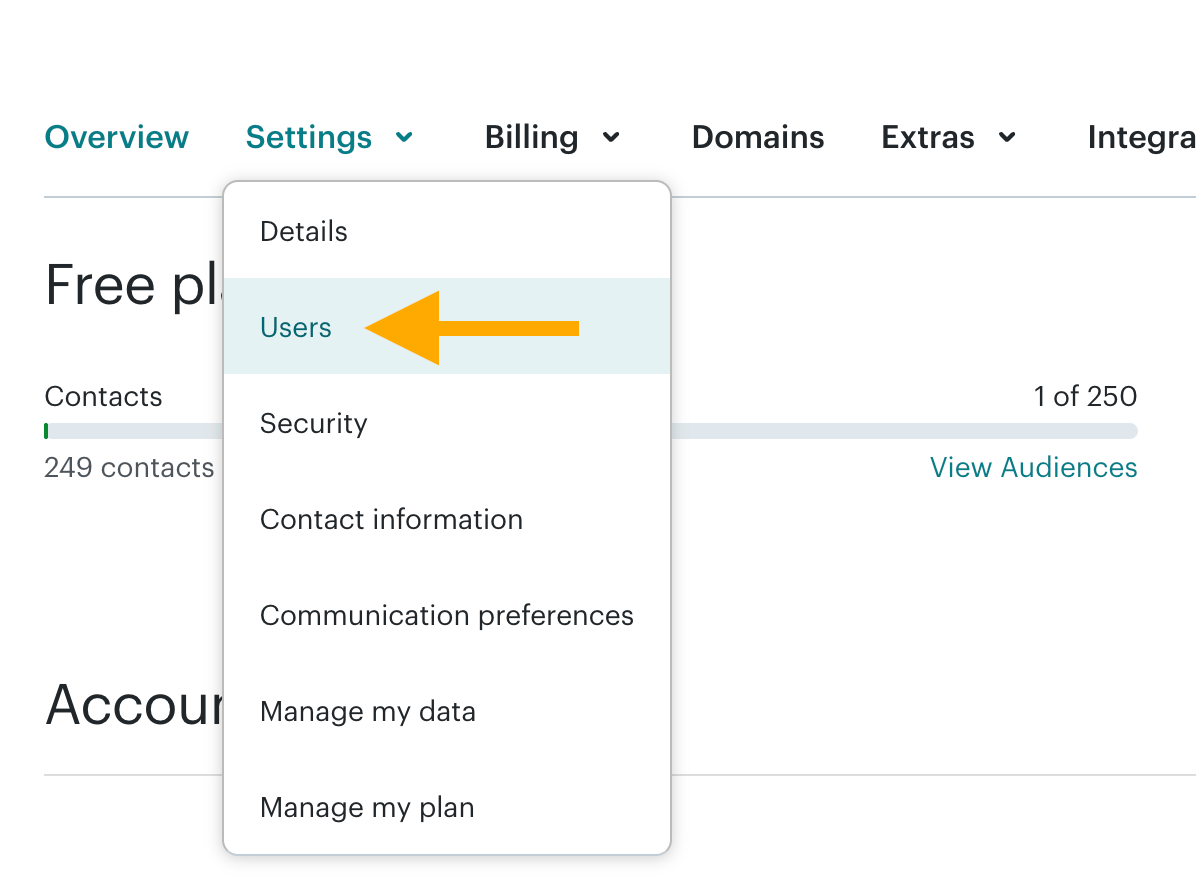
Step 3: Enter your Mailchimp API Key
To find your Mailchimp API Key, open the Extras menu from the same screen as in the previous step(Account & Billing), then click API keys.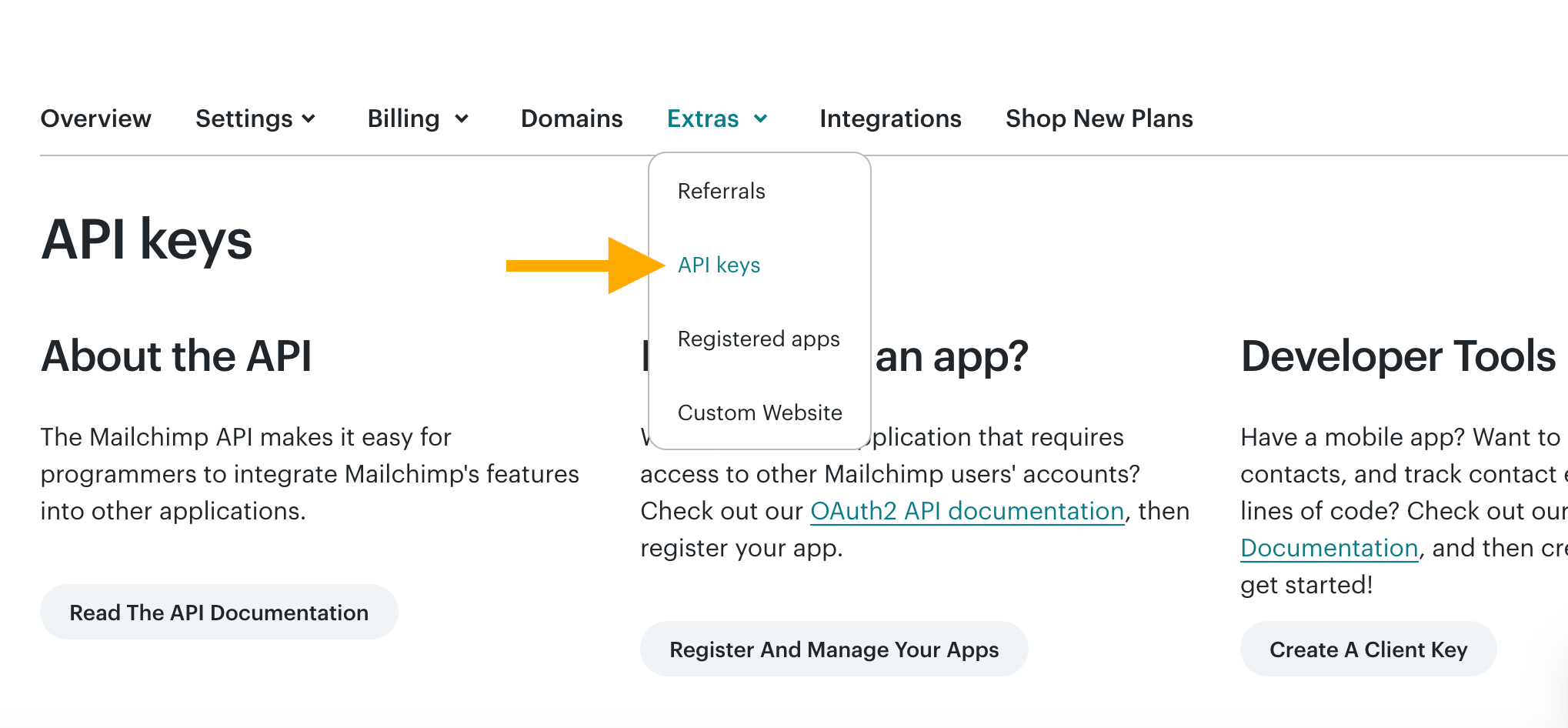
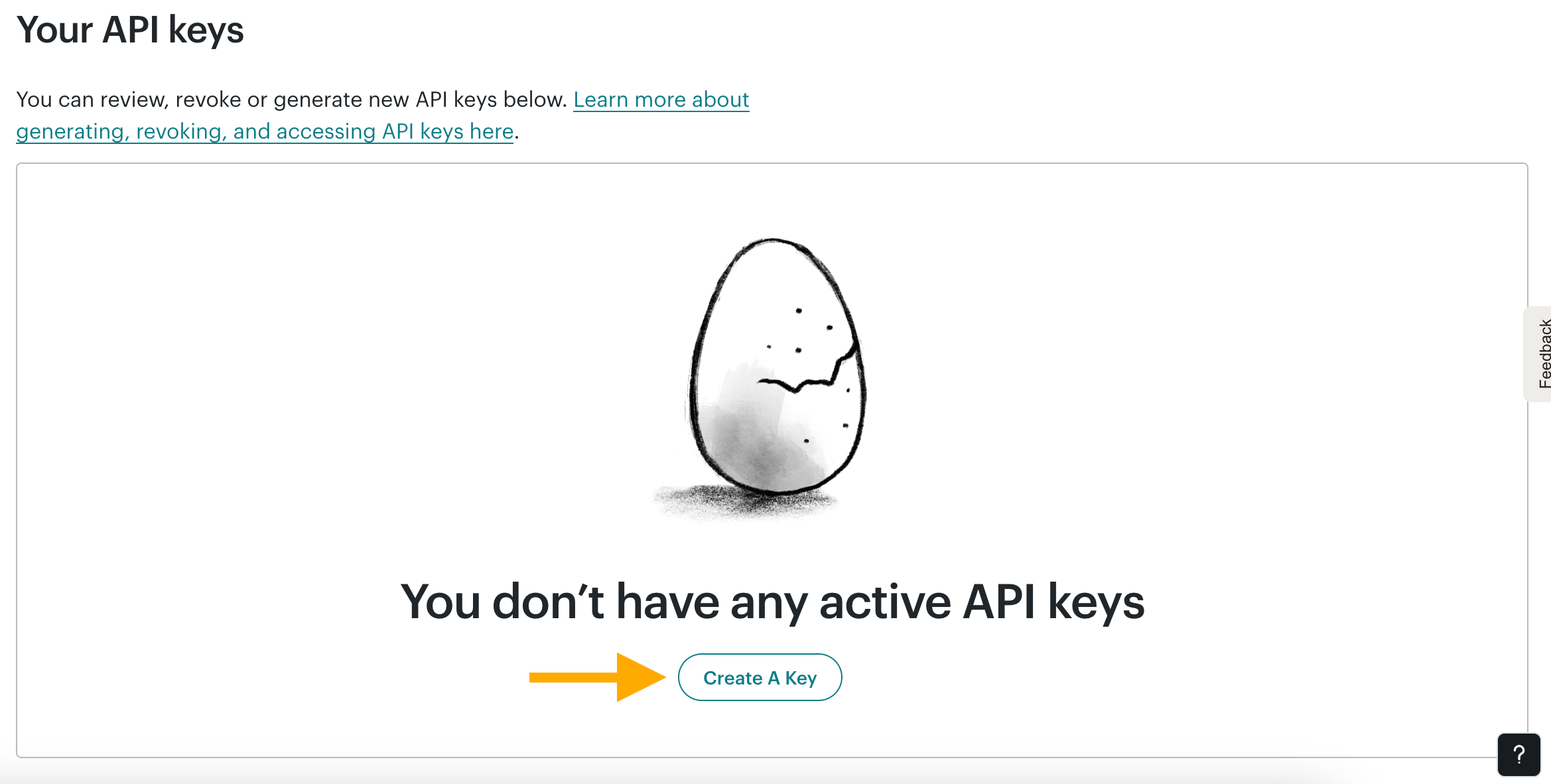
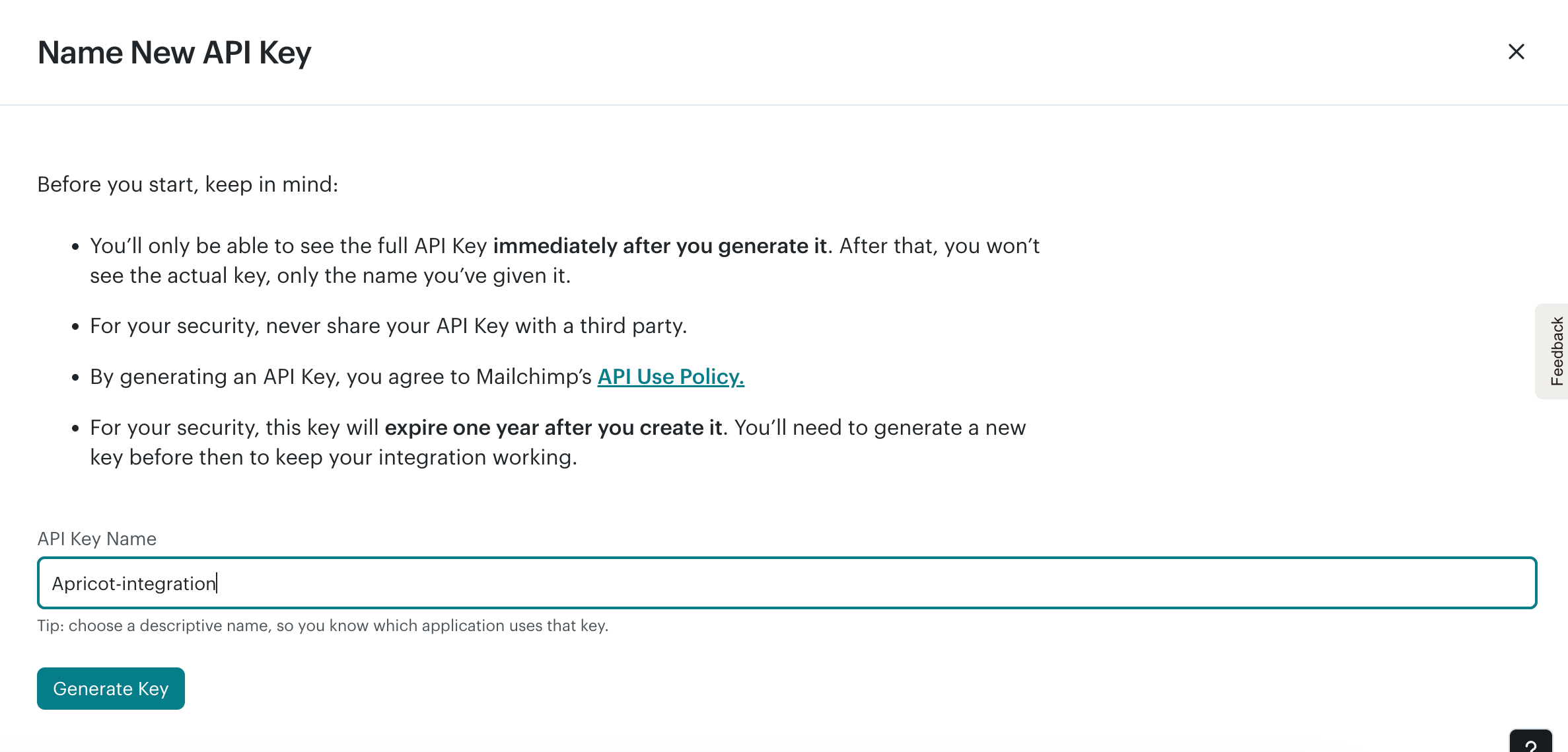
4
Step 4: Connect your Mailchimp account
After entering your Mailchimp username and API key, click Connect.Once the connection is successful, a green Connected badge will appear, confirming that your Mailchimp account is connected to Apricot.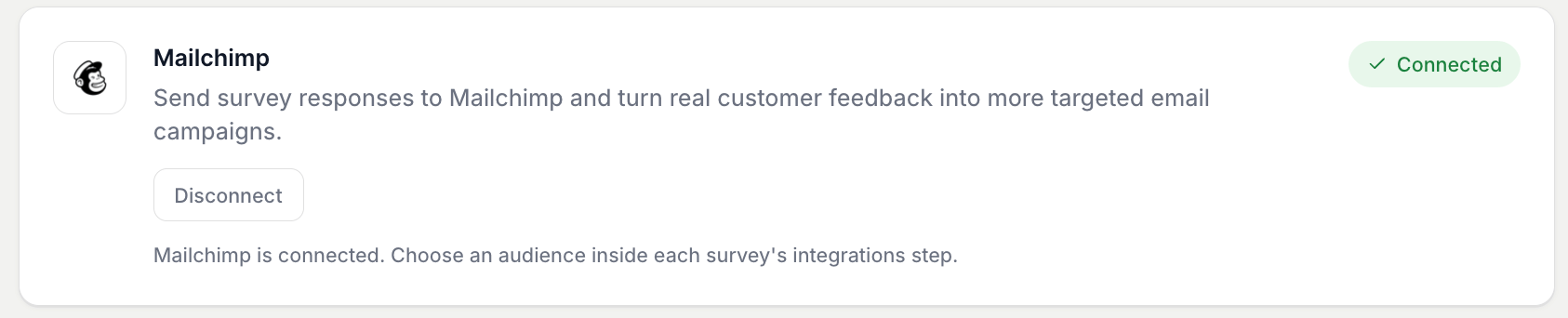
Activate Mailchimp for a Survey
After connecting Mailchimp to Apricot, select the audience you want to use for each survey.1
Step 1: Open your survey integrations
Go to:Apricot Dashboard → Surveys → Select your survey → Edit → Integrations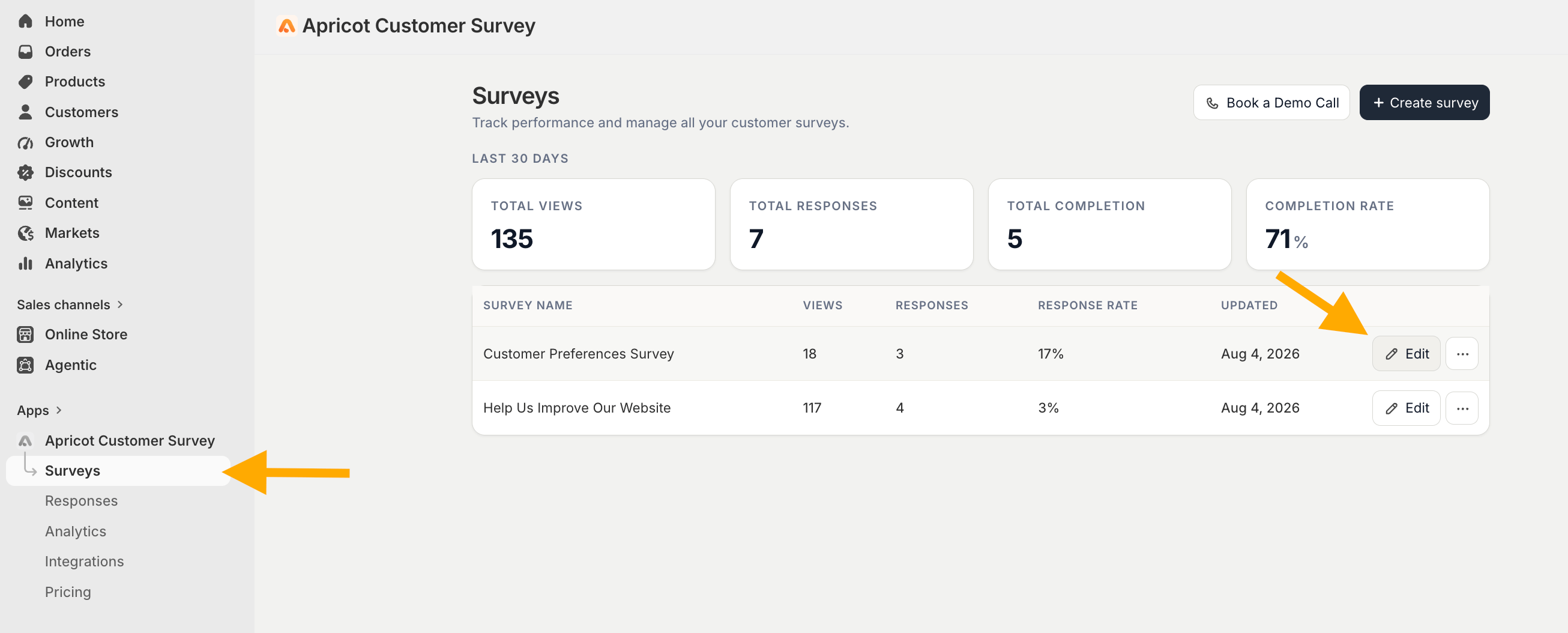
2
Step 2: Select a Mailchimp audience
Find Mailchimp in the integrations list.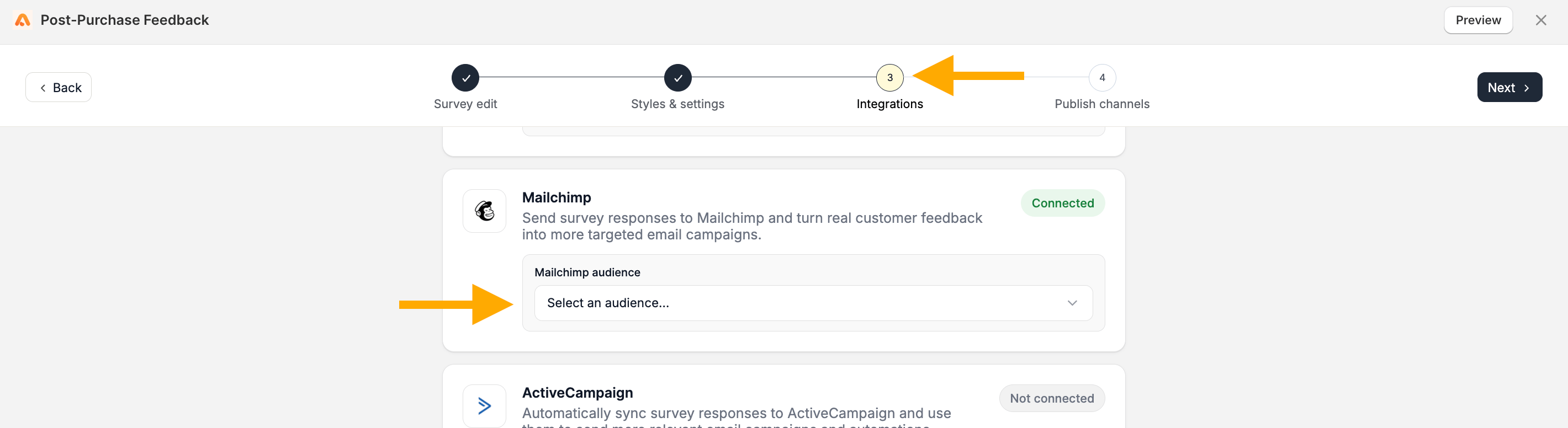
Connecting Mailchimp to Apricot does not automatically enable it for every survey. You need to select a Mailchimp audience separately for each survey you want to connect.