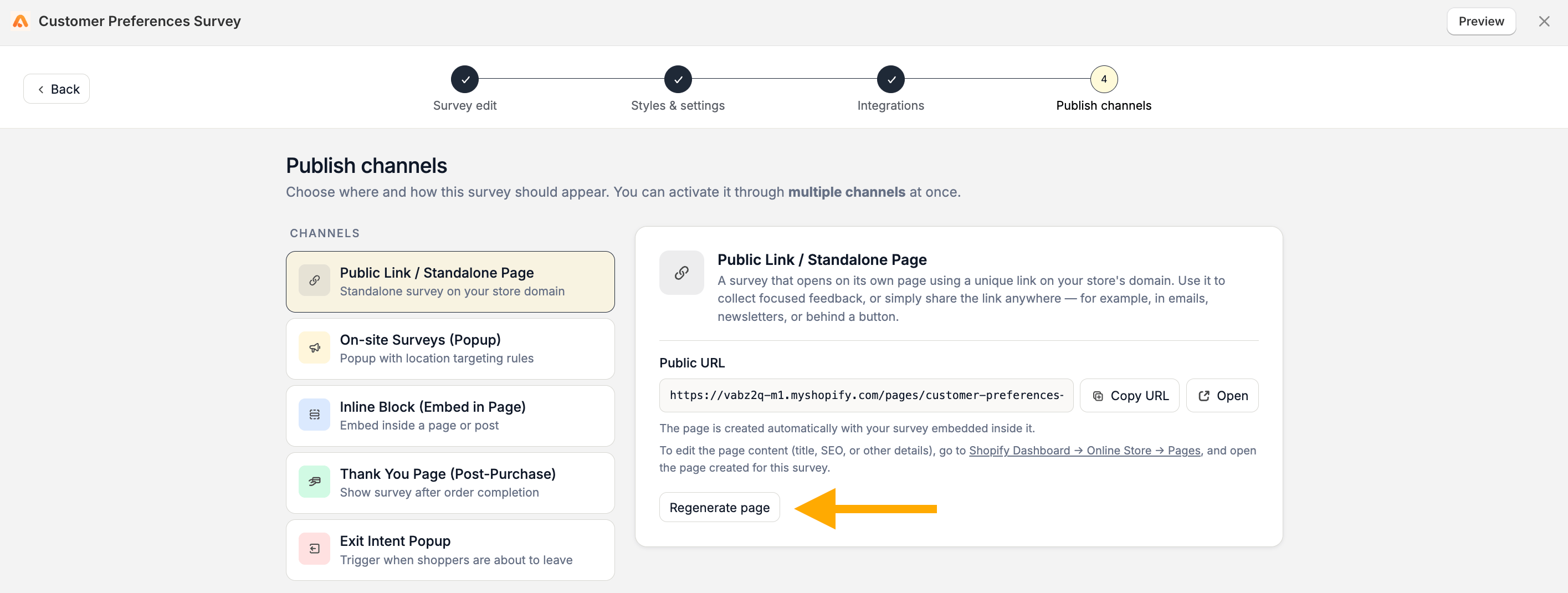
- Share your survey through email campaigns or newsletters
- Add the survey link behind a custom button
- Create a dedicated feedback page for customers
Apricot only creates a standalone page when you choose this publishing option. Creating a survey does not automatically add new pages to your Shopify store.
Generate a Standalone Page
Follow these steps to publish your survey as a standalone page:1
Step 1: Open your survey settings
Go to: Apricot Dashboard → Surveys → Select the survey you want to publish → Edit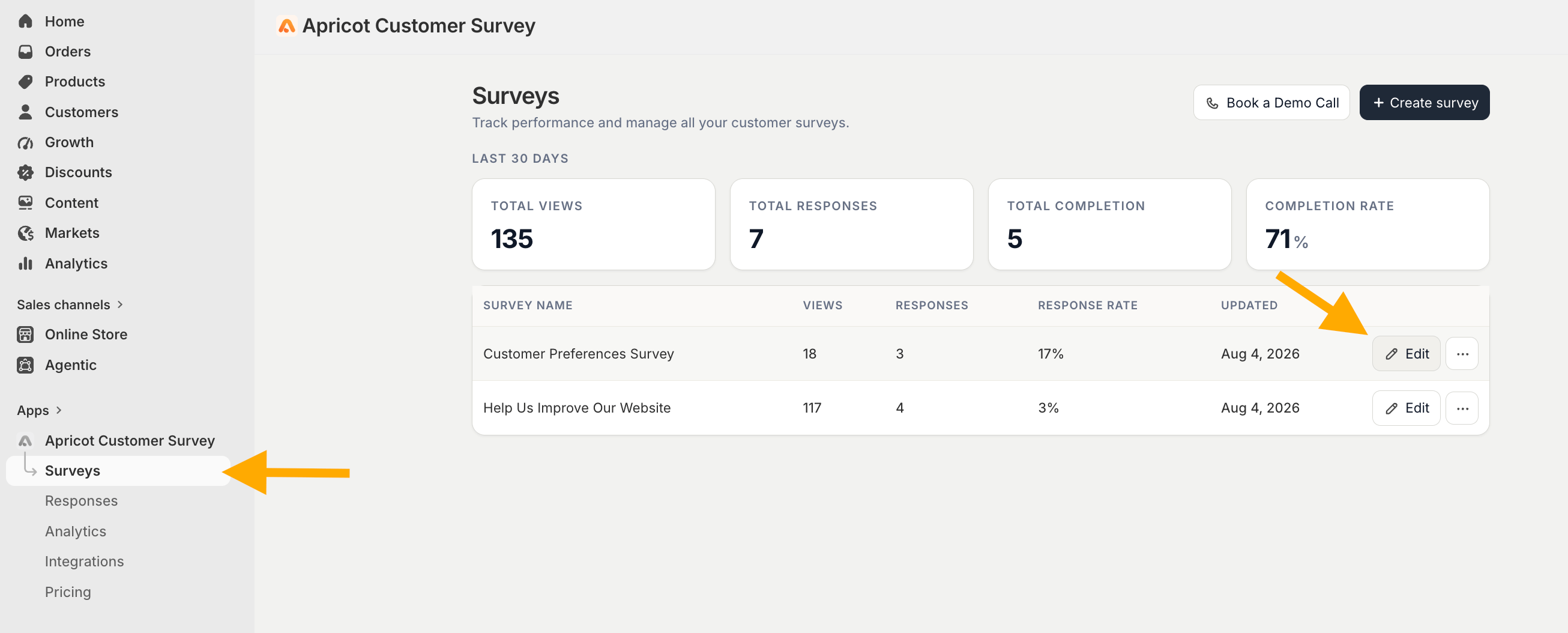
2
Step 2: Select the Public Link / Standalone Page channel
From the survey editor, navigate to the Publish Channels tab and select** Public Link / Standalone Page**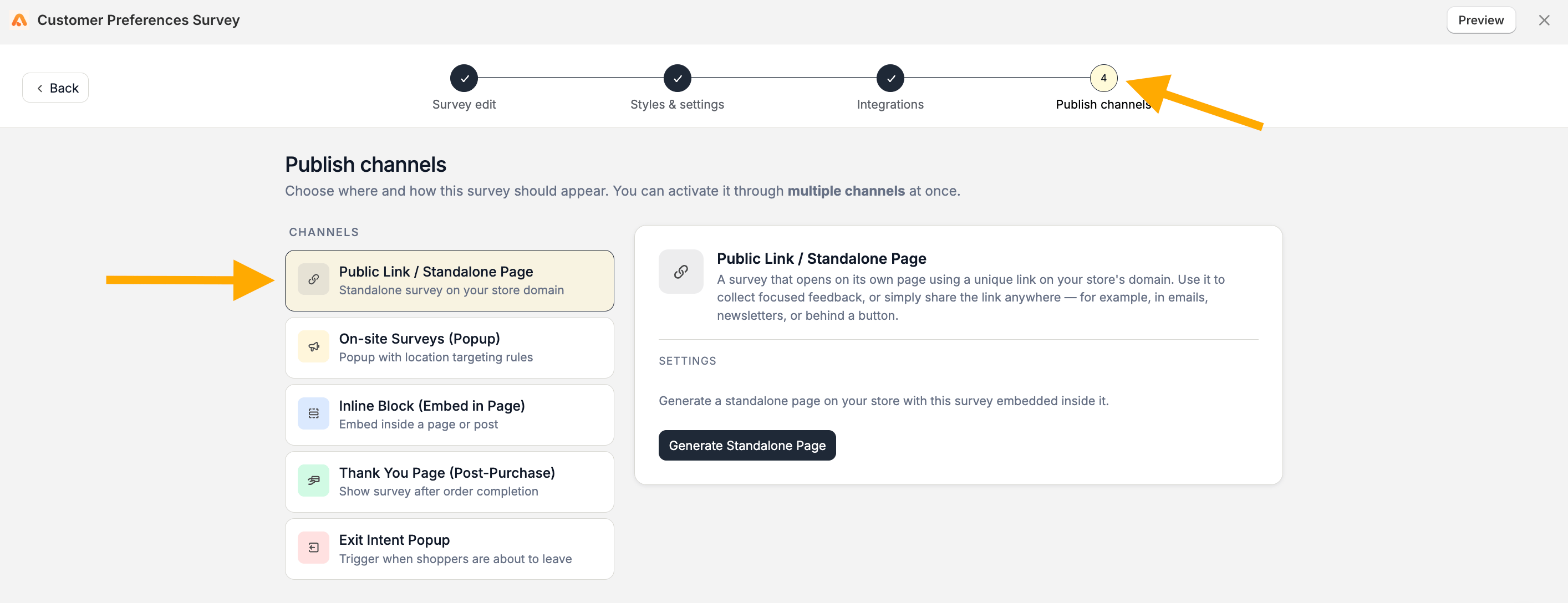
3
Step 3: Click Generate Standalone Page.
Apricot will automatically create a new page in your Shopify theme and embed your survey inside it.
Your Public URL
After the page is generated, Apricot will create a unique URL for your survey. Example: https://test.myshopify.com/pages/nps-survey The URL is generated based on your survey title. Spaces are automatically converted into a URL-friendly format. You can use the available actions to manage your link:- Copy URL — Copy the standalone page link
- Open — Open the published survey page in a new tab
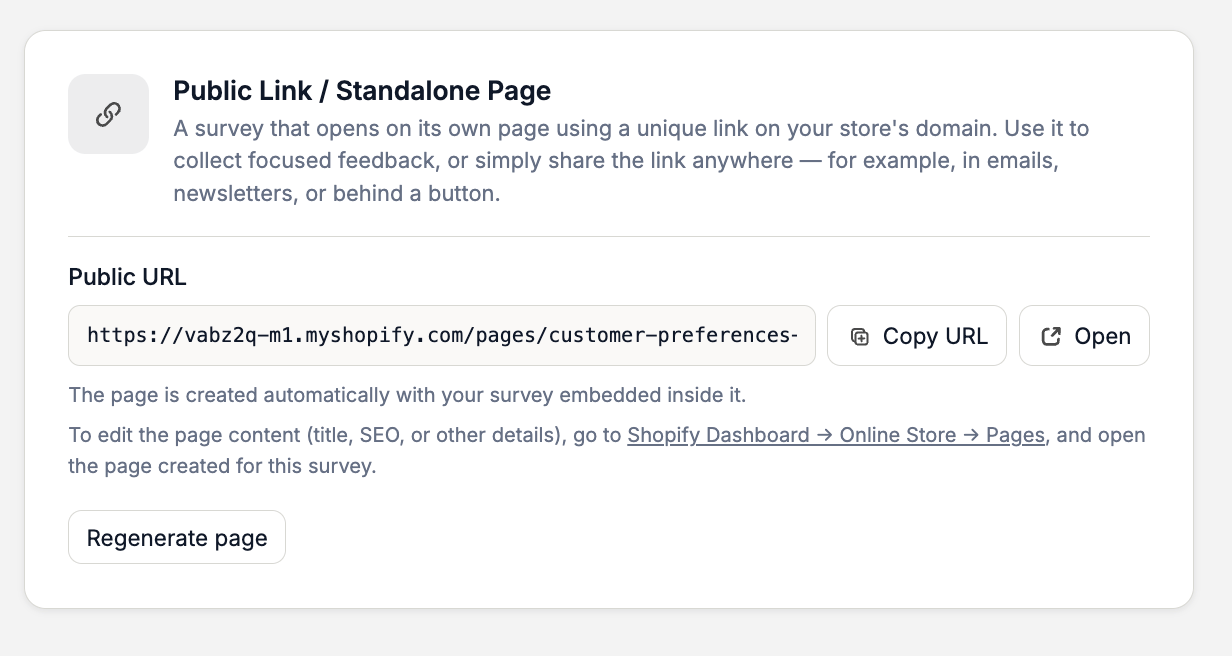
The generated page already contains your survey. You don’t need to manually add any Shopify blocks or embed codes.
Edit Your Standalone Page
The page itself is created and managed through Shopify. To edit the page content, such as:- Page title
- SEO settings
- Other Shopify page details
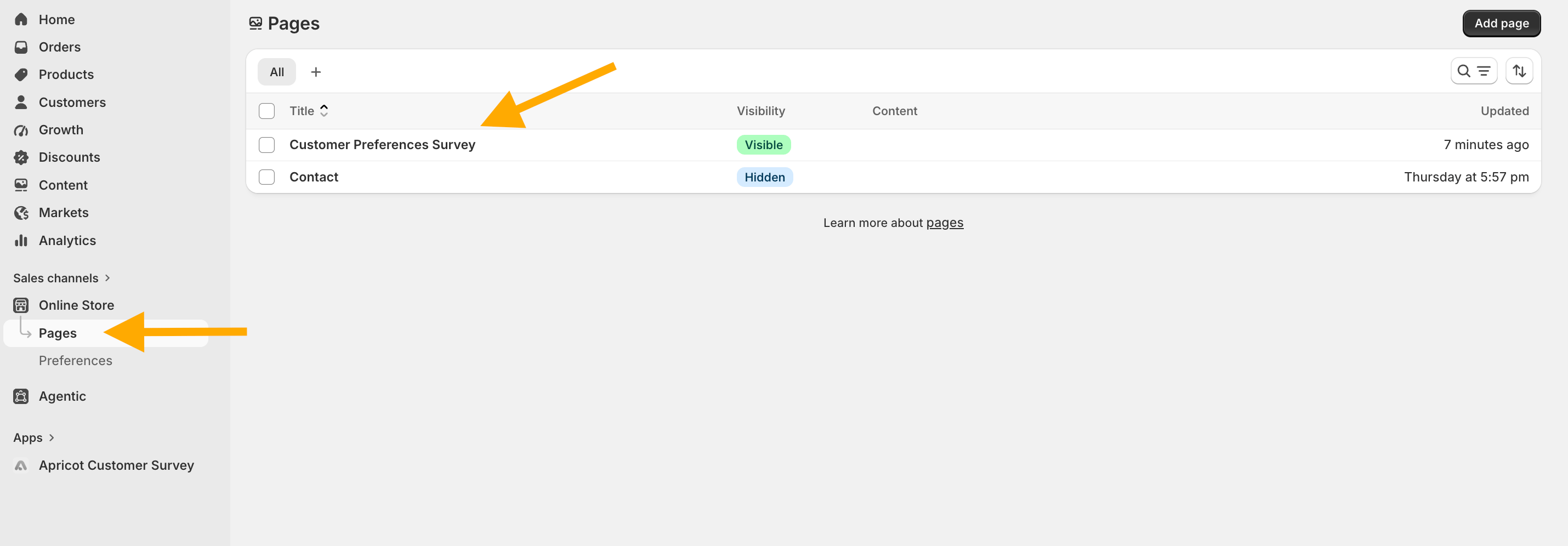
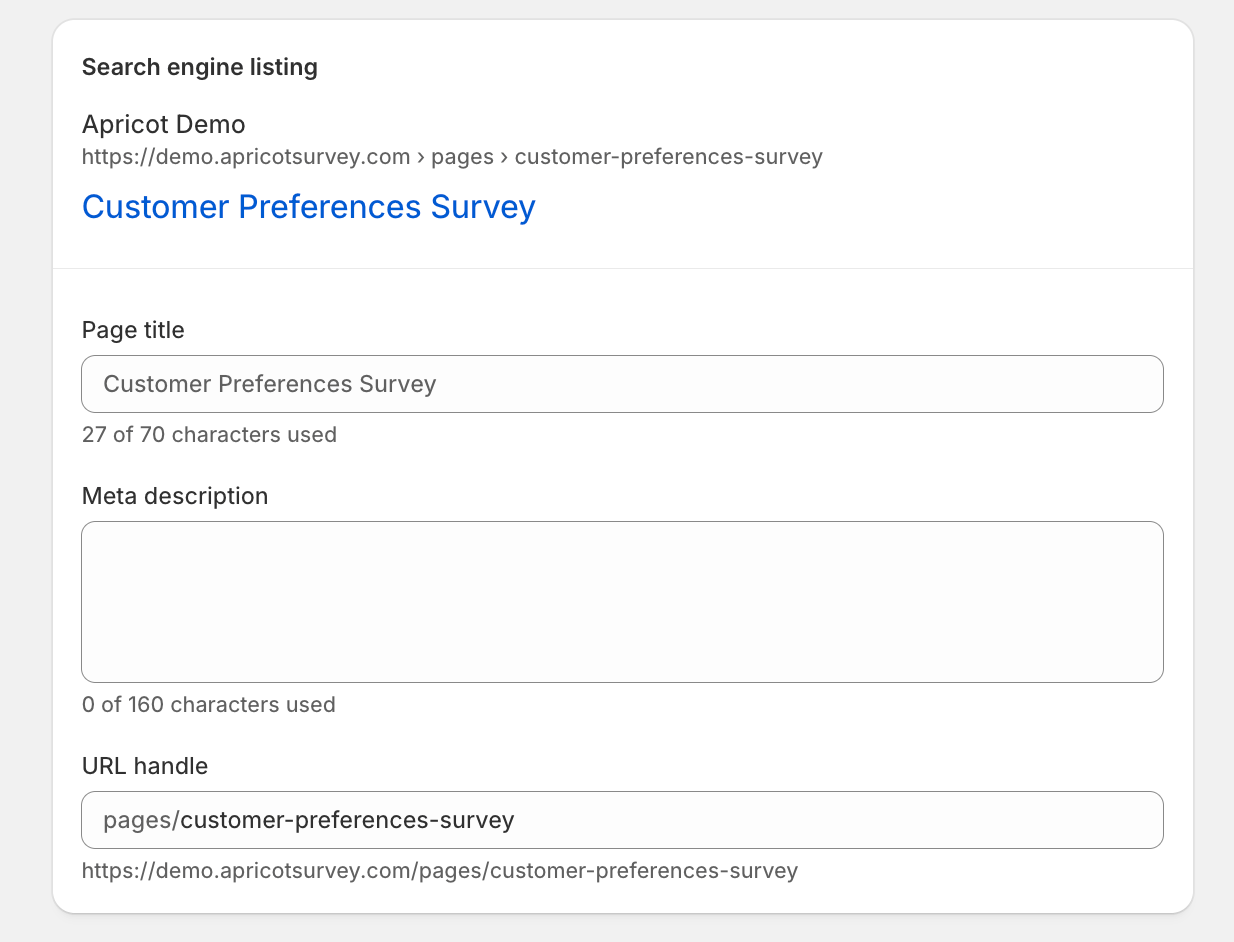
Regenerate Standalone Page
If you change your Shopify theme after generating the standalone page, use the Regenerate Page button in Apricot. Click Regenerate Page and Apricot will create an updated standalone page version compatible with your current theme.