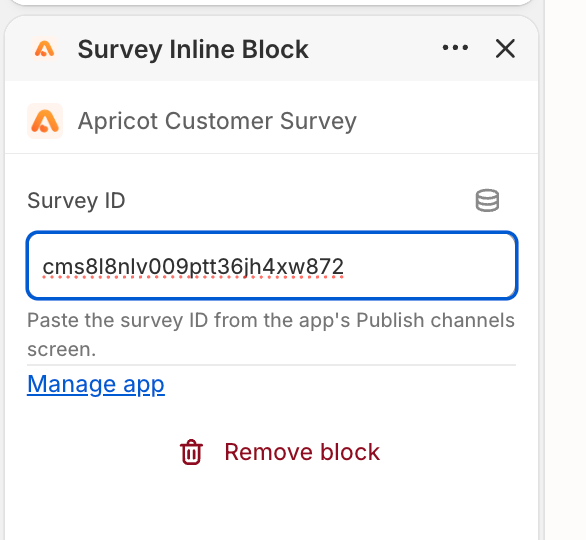
- Adding feedback surveys to landing pages
- Collecting customer feedback on dedicated pages
- Adding surveys to help pages, blog posts, or other content sections
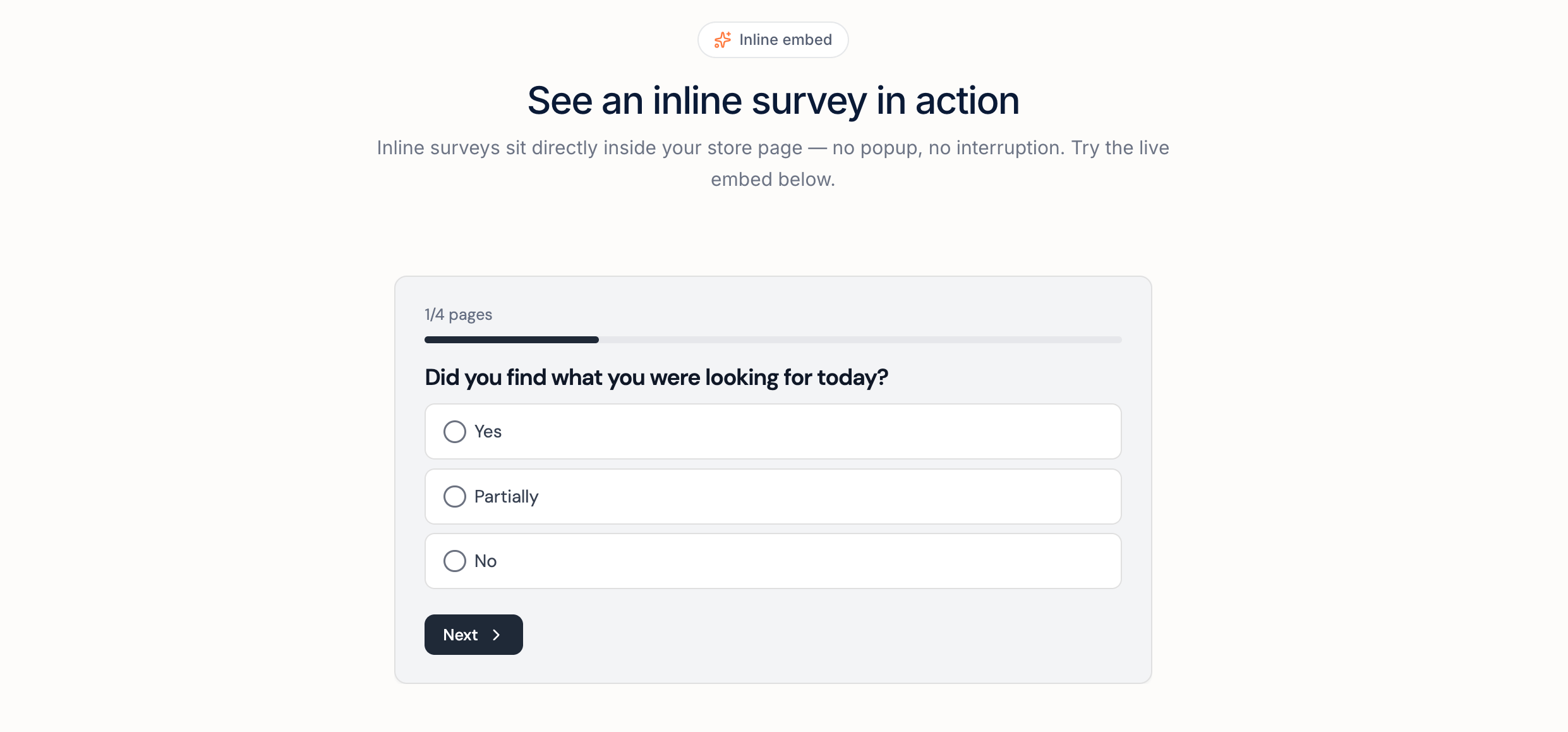
Set Up an Inline Survey
Follow these steps to embed your survey into a Shopify page:1
Step 1: Open your survey publishing settings
Go to: Apricot Dashboard → Surveys → Select your survey → Edit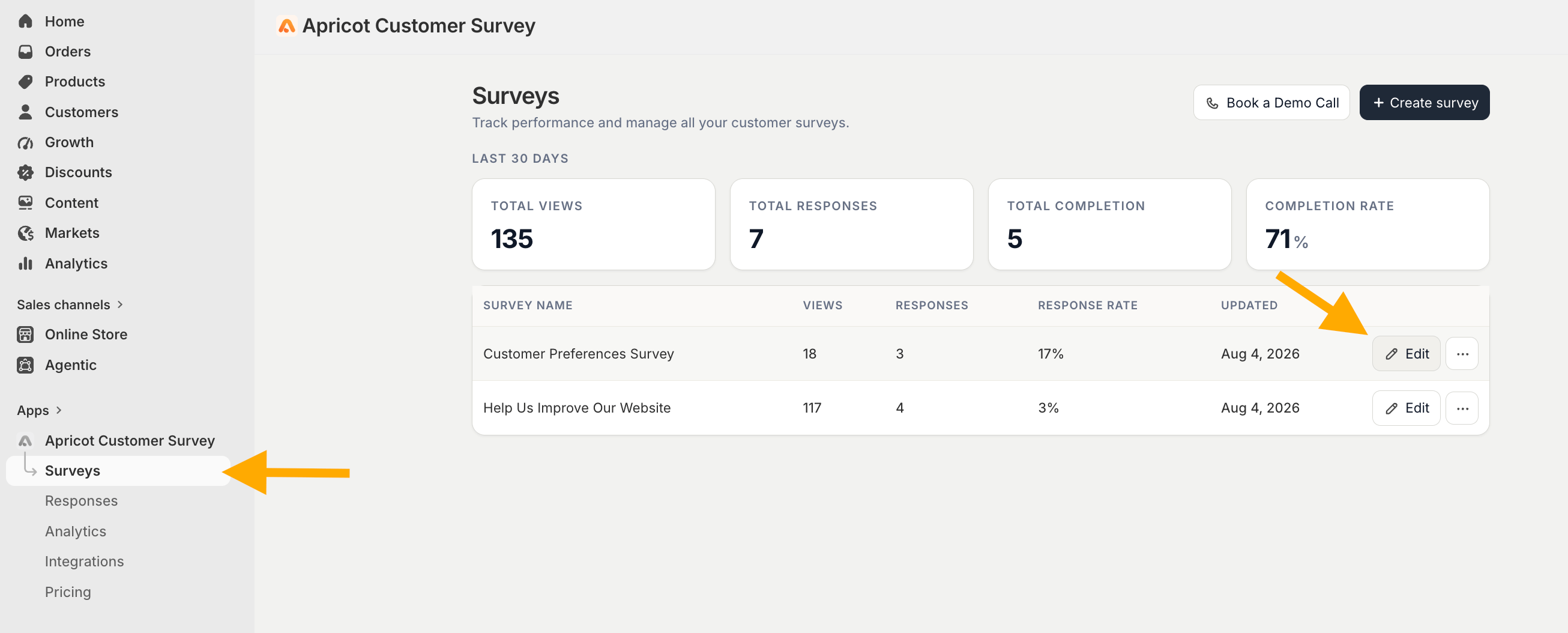
2
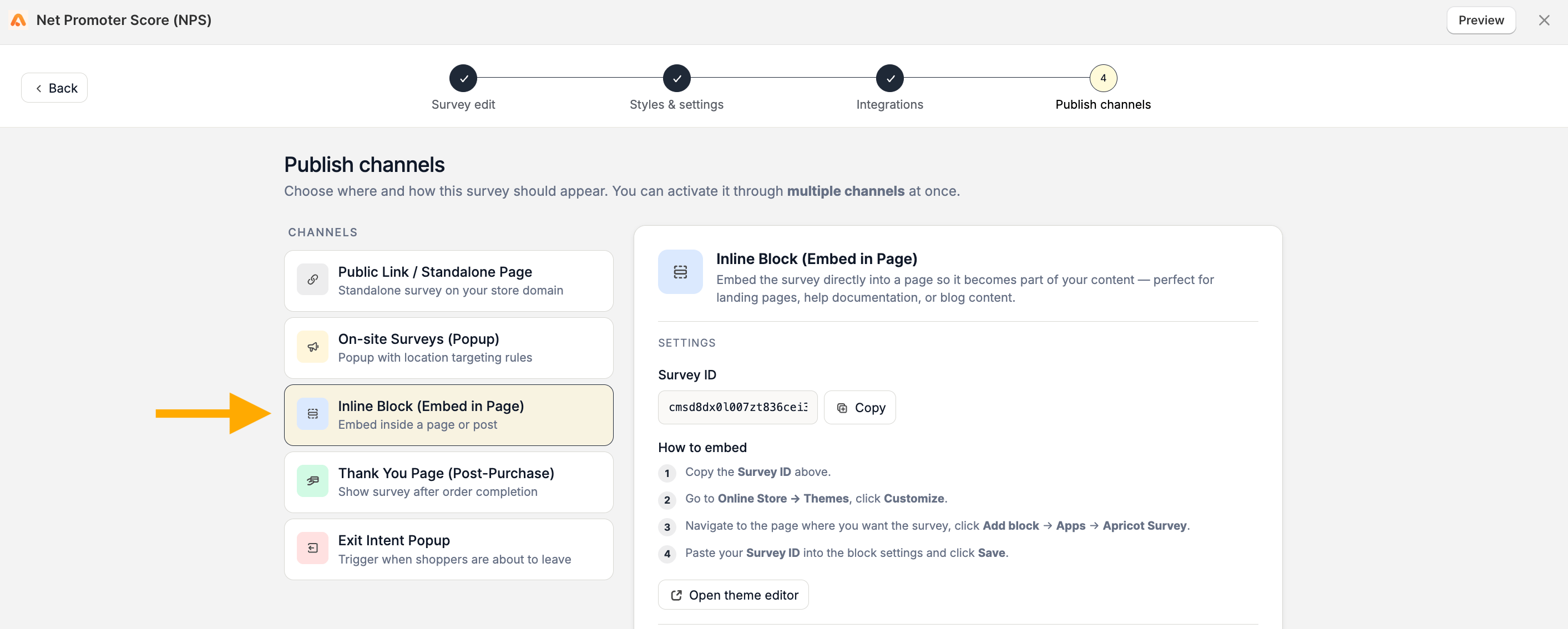
Step 2: Copy your Survey ID
Each Apricot survey has a unique Survey ID that is required to add the survey to your Shopify page.Copy the Survey ID displayed in the setup guide.
3
Step 3: Add the Apricot Survey block to your Shopify page
Go to Shopify Dashboard → Online Store and click Edit Theme to open the Shopify theme editor.You can also click Open Theme Editor from Apricot’s setup guide to go directly there.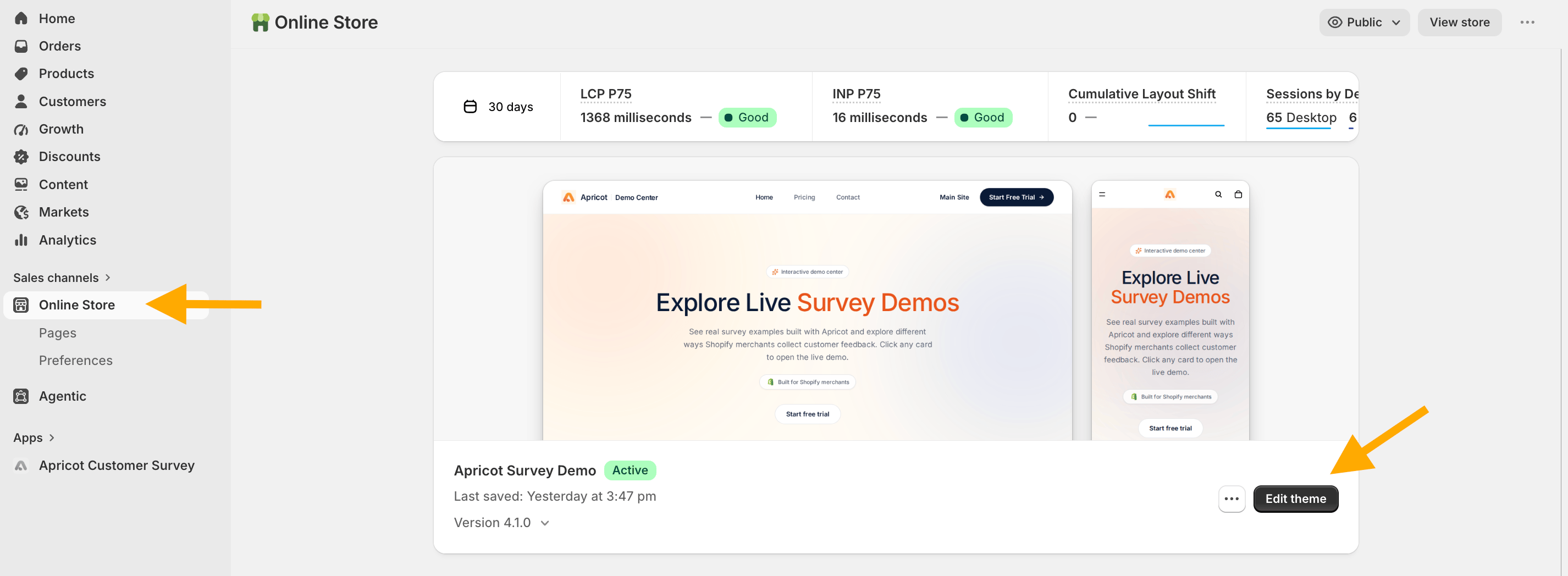
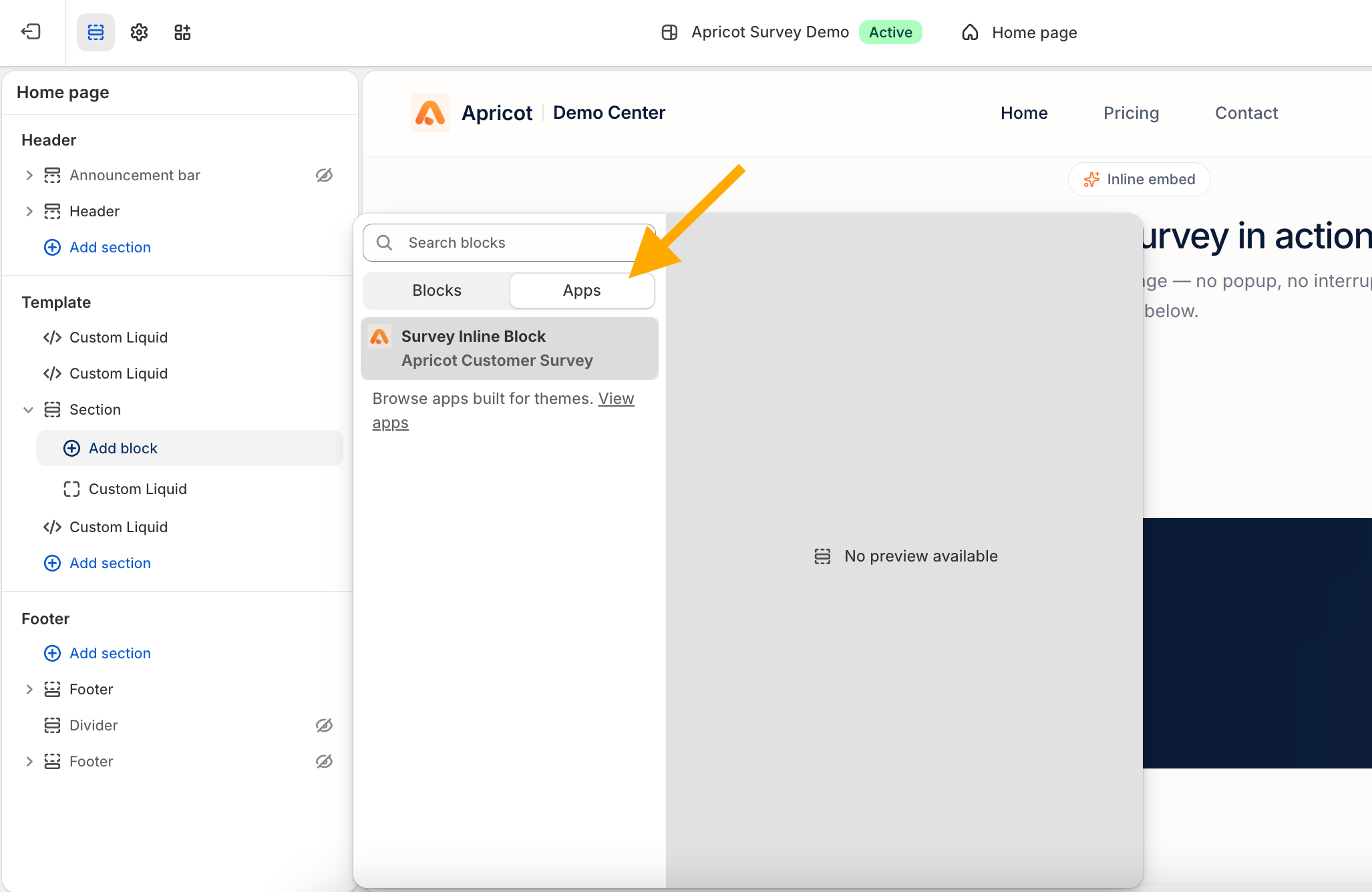
4
Step 4: Add your Survey ID
Paste your copied Survey ID into the Apricot Survey block settings.