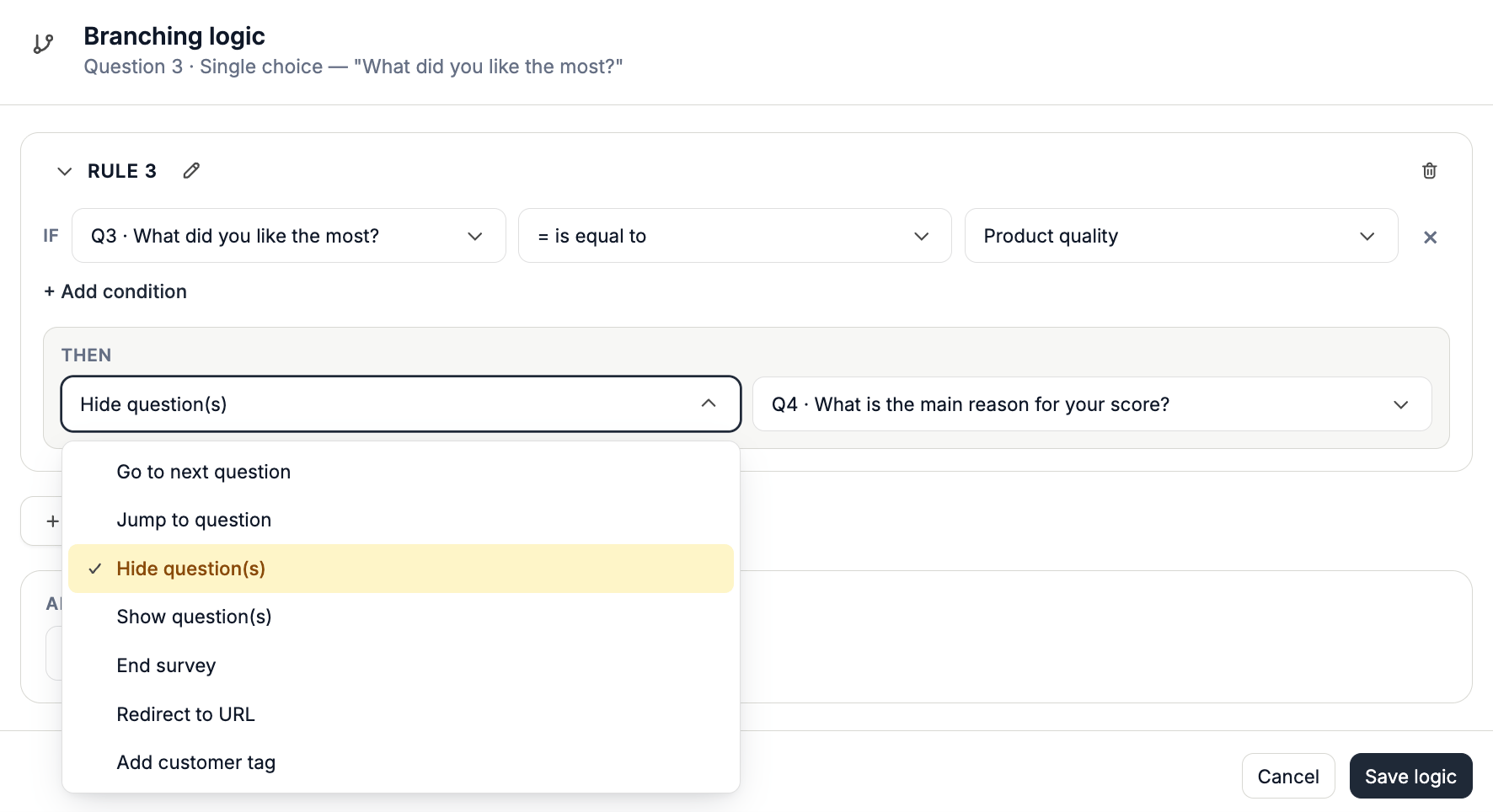
IF Question 1 is equal to “Yes”OR:
THEN Show Question 3 — this question will only be shown if the specified criteria is met; otherwise, it will remain hidden.
IF Question 1 is equal to “No”This does not mean the survey will jump directly to that question; it simply means that when the turn of that question comes, it will either be displayed or skipped depending on the previous choices.
THEN Hide Question 3 — the question will be hidden only if this condition is met; otherwise, it will remain shown.
Show a Question Based on an Answer
1
Step 1: Open Survey Branching
Open the survey you want to configure.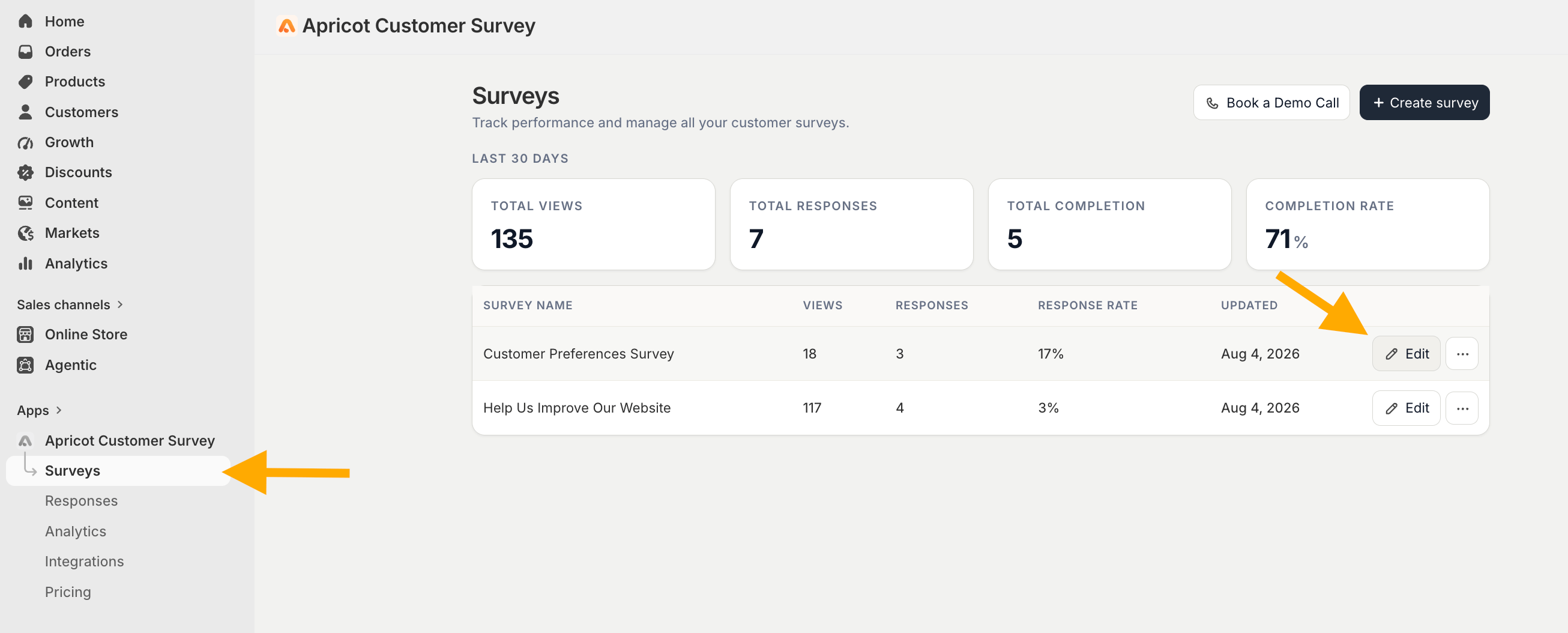
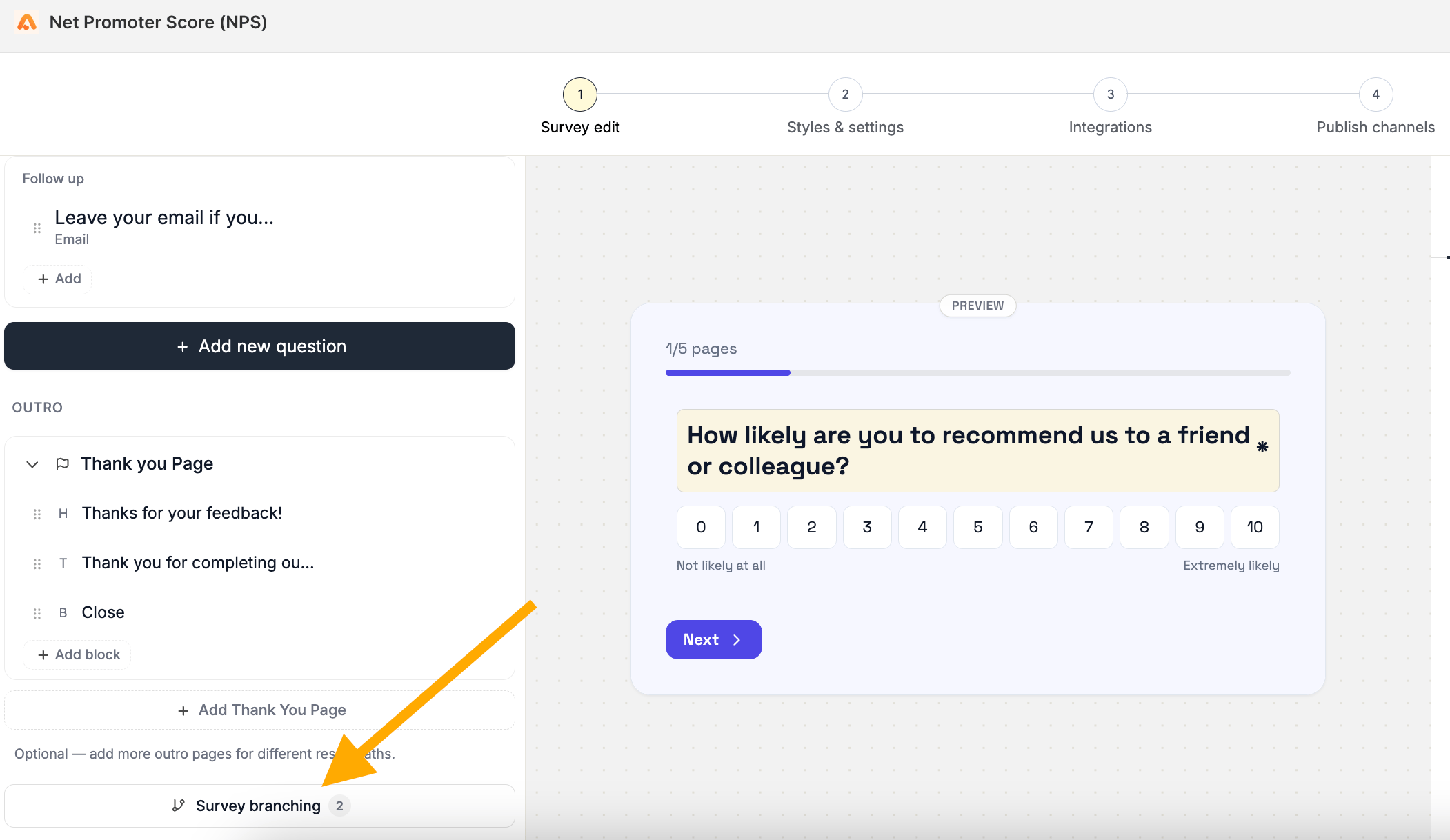
2
Step 2: Select the question
Click the question block that contains the answer you want to use as the condition.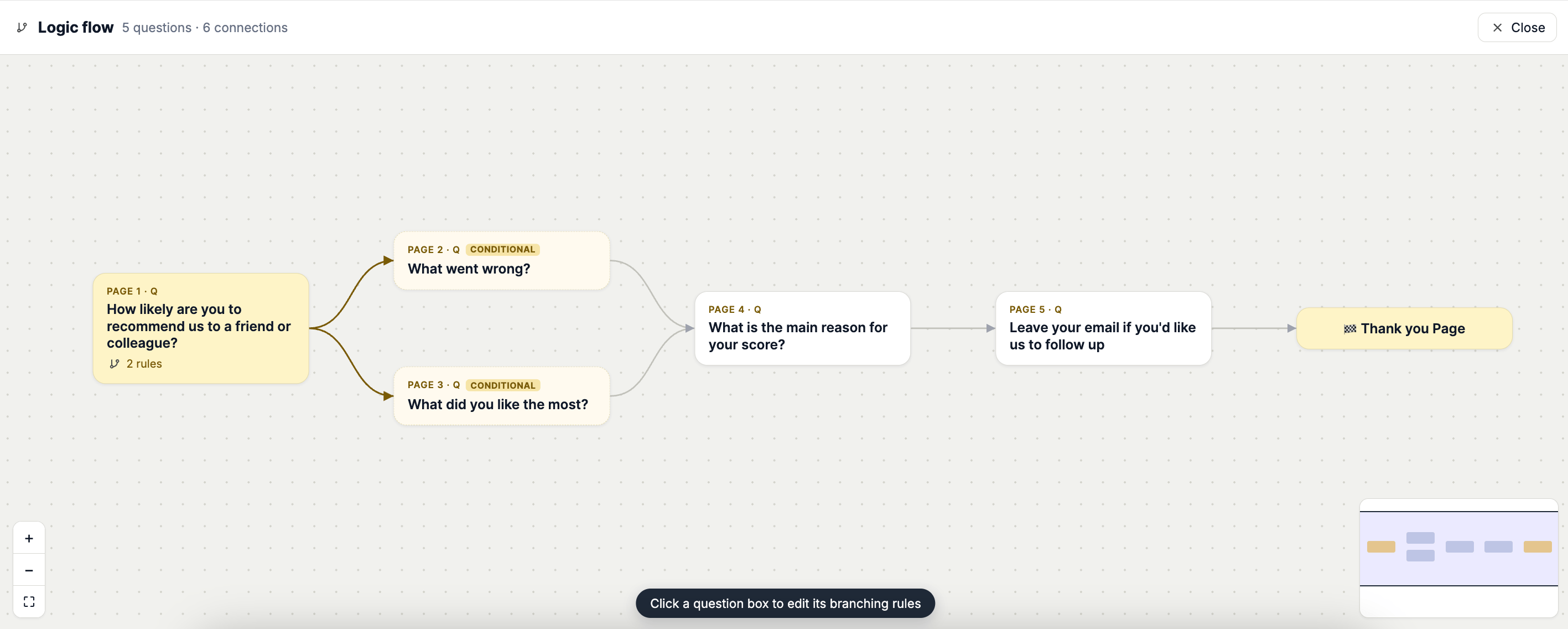
3
Step 3: Create your condition
Click Add Rule and configure the IF condition. Select the question, operator, and value that should trigger the rule.For example: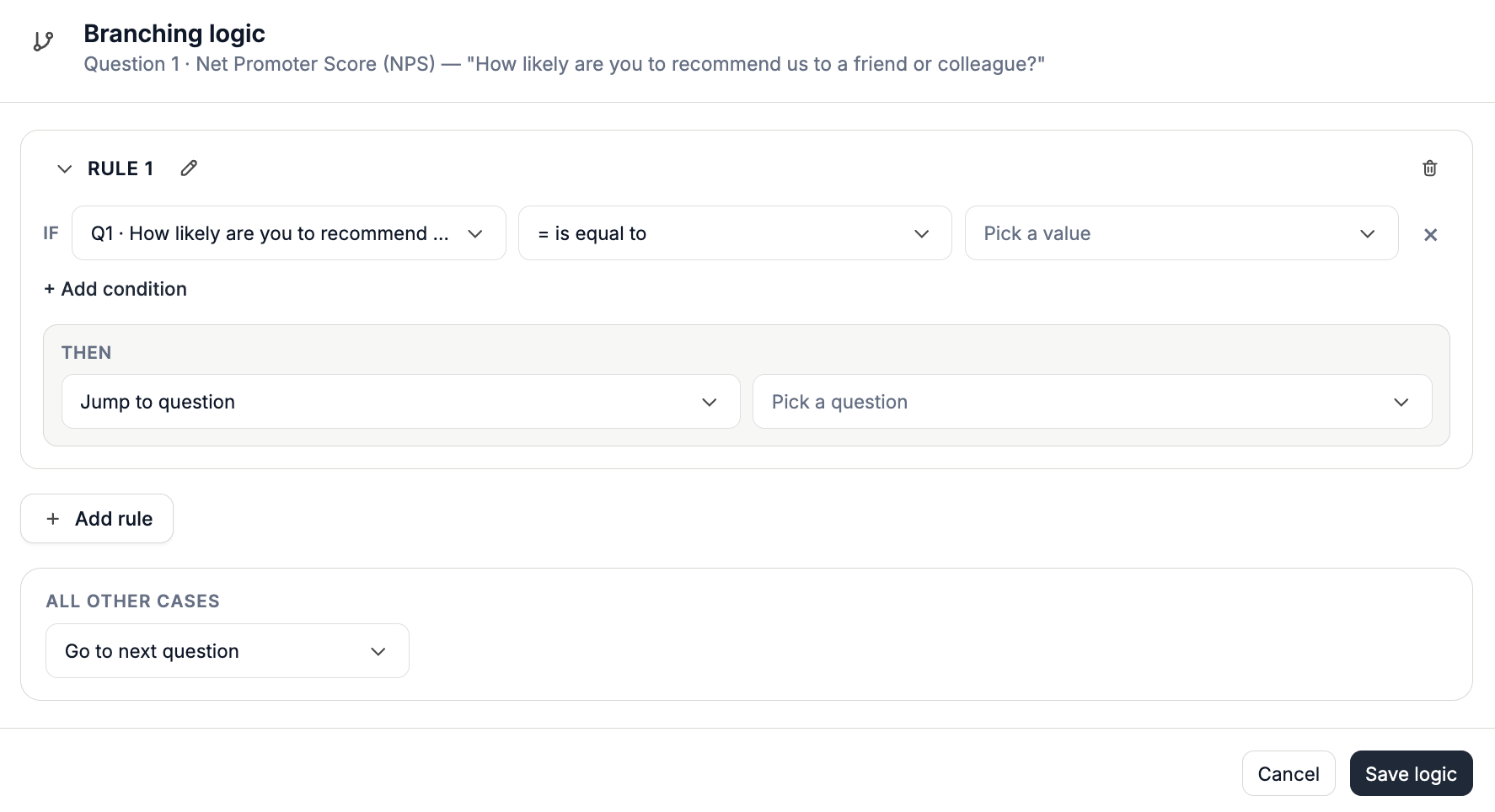
IF Question 1 → Is equal to → “Yes”
4
Step 4: Choose Show Questions
Under THEN, select Show Questions.Select the question or questions you want to display when the condition is met.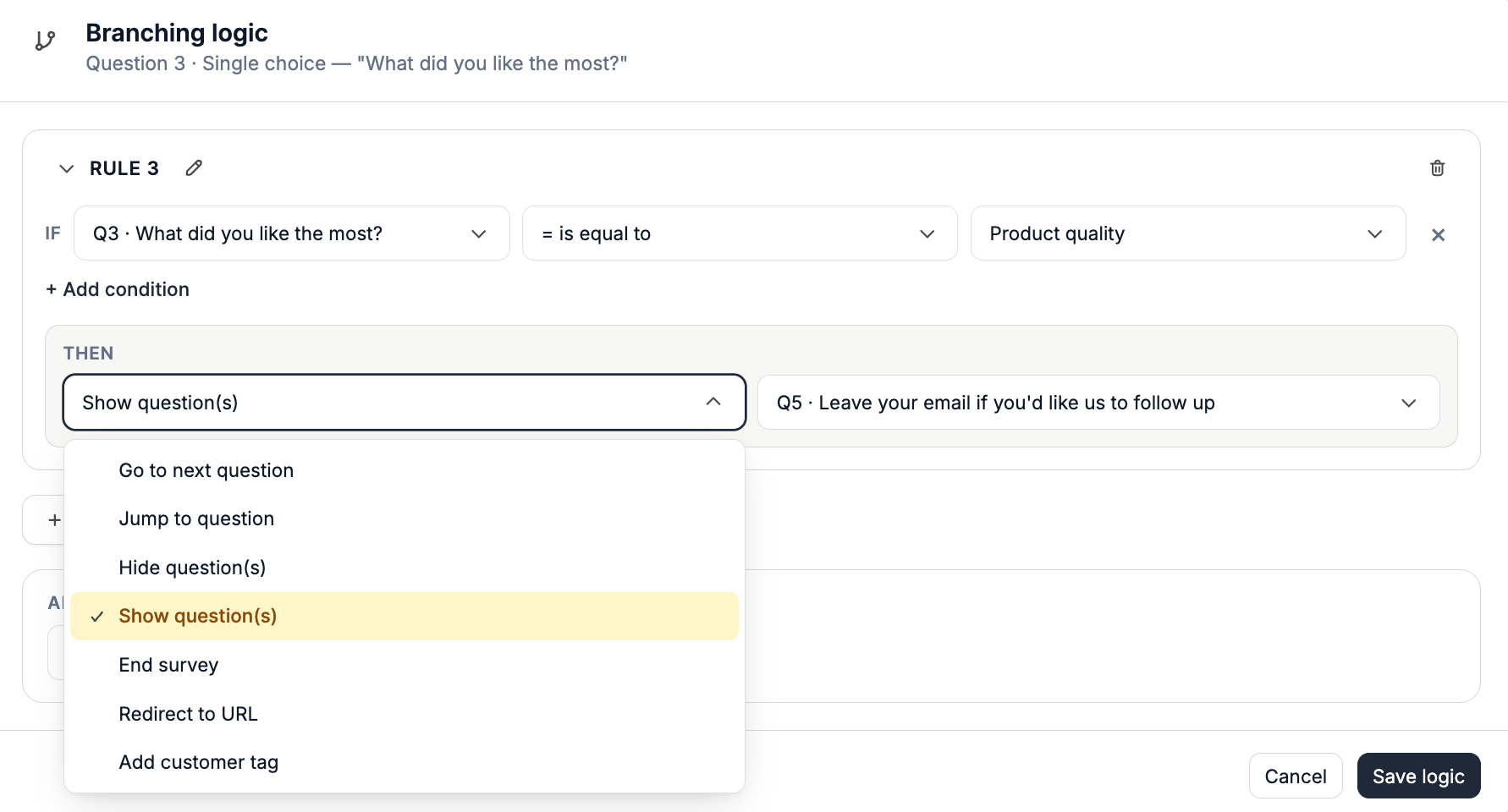
Hide a Question Based on an Answer
The setup for Hide Questions works in the same way. Repeat Steps 1–3 from above, then continue reading below. Create your IF condition, then select Hide Questions under THEN and choose the question or questions you want to hide. For example:IF Question 1 is equal to “No”
THEN Hide Question 3